
Requestor tab — requestor contact information, communication preferences, and correspondence history
Last updated: October 20, 2026 by Steve
Requestor Information
The Requestor tab contains all personal and contact information for the individual who made the request, along with a log of all communications.
Note: This tab is only visible to roles that have permission to see requestor personally identifiable information (PII). This includes SAOs, Reviewers, and Administrators. Custodians and Contributors do not see this tab.
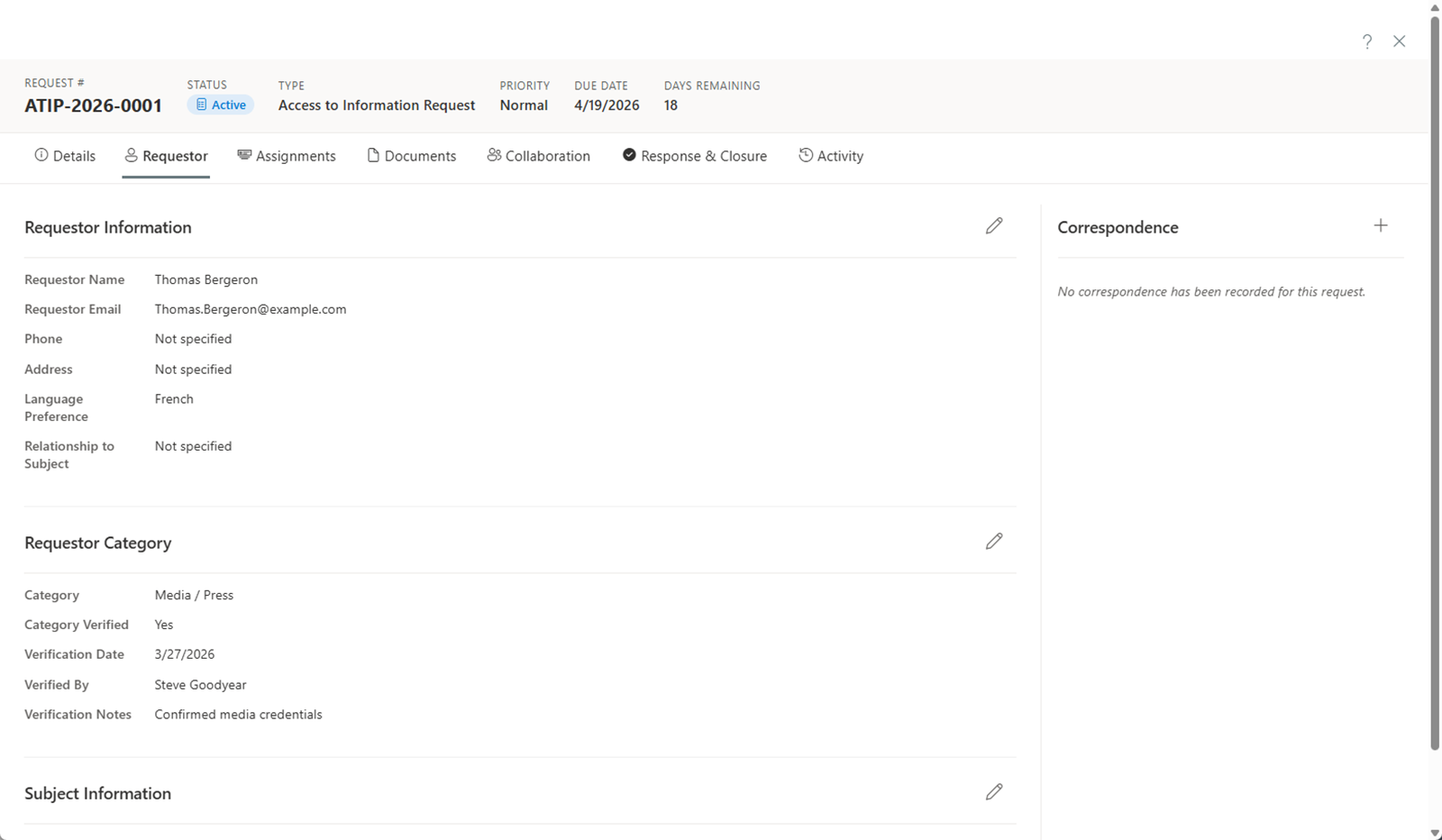
Contact Information
The Requestor tab includes the following contact fields:
- Name — The requestor's full name.
- Email — Email address for correspondence.
- Phone — Phone number for telephone follow-up.
- Address — Mailing address for formal correspondence.
- Preferred Language — The requestor's preferred language for communication.
Identity Verification
Under the requestor's details, request types that require it show Identity verification: record the method, attach the proof, add notes and any representative's details, then Mark verified. Until then the request cannot be activated, and My Day lists it as awaiting verification.
When your organization allows it (Settings → Request types), the section can also offer the requestor's recent verification on another of their requests — Verified on for () — with Use this verification. One click records a verification on this request, by you and today, that points to the earlier one: no document is copied, and the earlier request keeps the evidence. It is never applied automatically. It is offered only when the earlier verification was made within the reuse window, neither request involves a representative, and the requestor's email address has not changed since; a verification that was itself reused counts from the original check, so reuse never stretches the window. You can always verify the usual way instead. A verification recorded this way reads Reused the verification of on , and the requestor's profile shows Identity last verified on to people who may see requestor details.
Opening the Contact and Institution
Open contact opens the requestor's full profile over the request, with the same Details, Conduct (F&V) and Requests tabs as the Contacts directory, so you can review their conduct and history or correct their details without leaving the request; Close brings you back. Open institution does the same for their affiliated institution, and opening one of its contacts shows that person's profile in the same panel. Both need permission to view requestor contacts. See Requestors.
Format Preferences and Accessible Format
The Format preferences card holds the requestor's preferred response format. When a requestor asks to receive the records in an accessible format (a tagged PDF, HTML, plain text, a Word document, captions and a transcript, large print, braille or another format), switch on The requestor asked for an accessible format and tick what they asked for. Record the format, never the requestor's disability or condition; the notes field is for what helps you produce it, such as the screen reader they use, a font size or a braille grade. When the format is sent, set Provided on.
If your jurisdiction pack marks an extension reason as covering the conversion time (for example Privacy Act s.15(b) or PIPEDA s.8(4)(b)), the card names it, so you know which extension to record when a conversion needs more time. AccessPoint's fee calculator never charges for a conversion. Closing a request that asked for a format with no provided date shows a warning in the Close dialog. A public portal form can ask too, and the format lands on the request when it is registered. Whether and when the law requires a format, and what it may cost, is yours to confirm for your jurisdiction.
Requestor Category
If applicable, the requestor may belong to a specific category (e.g., media, member of Parliament, legal representative). The category can be set along with a verification status to confirm the requestor's identity or affiliation.
Subject Information
If the request is about a third party (for example, a parent requesting records on behalf of a minor, or a lawyer acting for a client), the Subject section captures the details of the person the request is about, separate from the requestor's own information.
Communication Log
The communication log records all interactions with the requestor, providing a complete correspondence history.
- View all past communications including letters, emails, and phone calls.
- Add new entries by clicking Add Communication and filling in the details.
- Attach documents such as scanned letters or email attachments to each communication entry.
- Track direction — mark each entry as Inbound (from the requestor) or Outbound (to the requestor).
Log correspondence records something that happened outside the system, while the composer generates and sends letters from your template library (see Sending Correspondence). For correction requests, a Generate correction notice action replaces the standard response flow. A request created from an email starts with that email logged as its first inbound entry.
Automatic acknowledgement. If your administrator has turned on automatic acknowledgement and the letter could not be sent, the tab shows the reason above the correspondence log with a Retry button for anyone who can modify the request. Fix the cause, then select Retry.
Share on portal. When the public portal is deployed, a letter's Portal options menu in the communications list offers Share on portal and Remove from portal; a shared letter is listed on the requestor's case page. Messages the requestor writes back through the portal arrive here as inbound entries, with a follow-up due the day they arrive.
The communication log helps ensure continuity when multiple team members work on a request, and provides an auditable record of all requestor interactions.