
Custom reports & Report Studio — dashboards of report widgets, choosing a subject, groupings, measures, and filters, then saving and exporting
Last updated: October 20, 2026 by Steve
Custom Reports & Report Studio
When a fixed report does not answer your question, the Custom group lets you build one from scratch — no SQL required. It opens on a custom-reports home listing your saved reports (and, when AI Assist is deployed, an Ask AccessPoint card — see below). Opening a saved report or starting a new one lands in Report Studio, the dashboard canvas: a dashboard is one or more report widgets arranged on a grid, each widget built with the report editor described below; a saved single-question report simply opens as a one-widget dashboard. A date bar across the top (defaulting to This Quarter, with the same quick-range presets as the fixed reports) applies one shared period to every widget at once, and you choose which widget's headline figures feed the report's pinned tile.

Building a Report
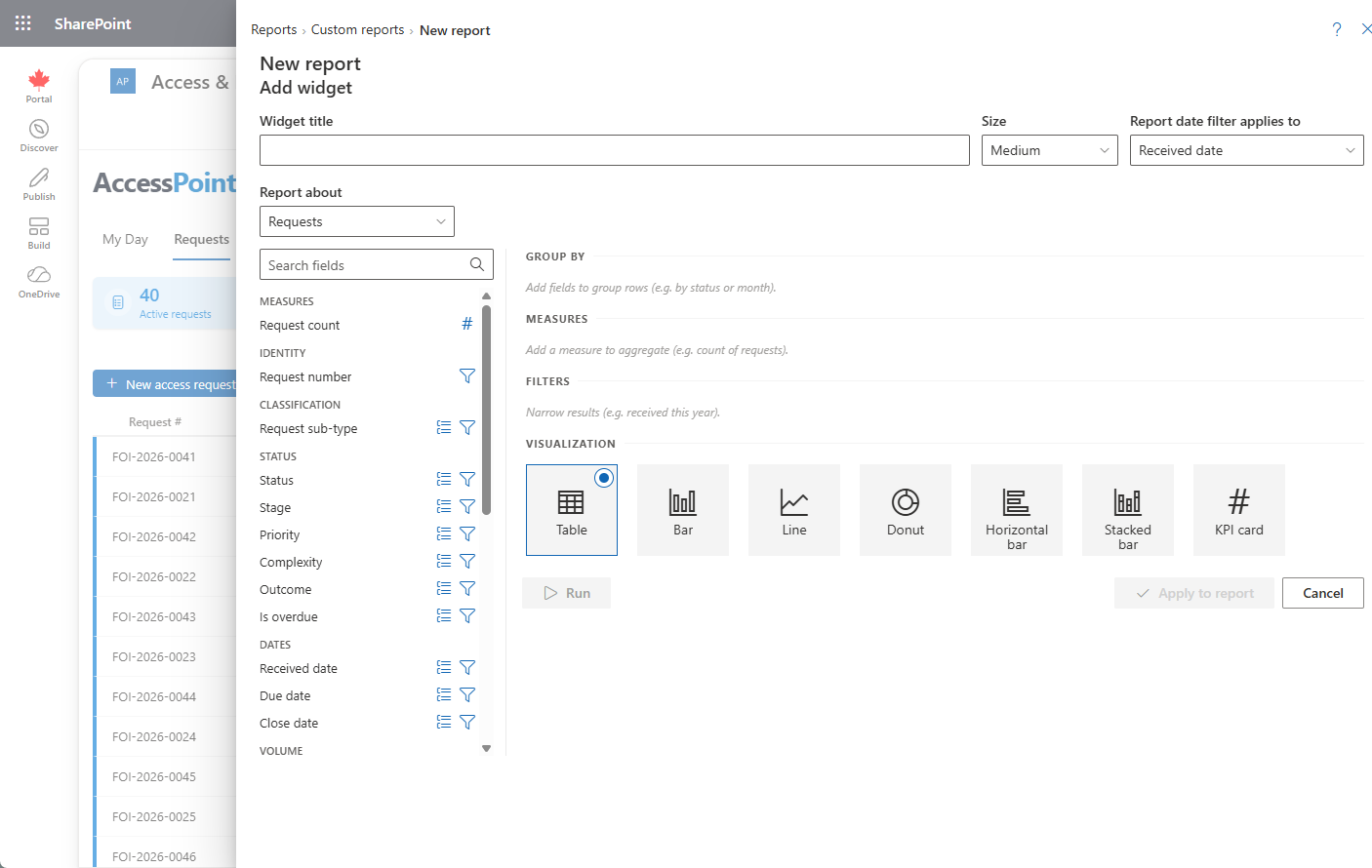
Each widget uses the same editor — a field catalogue on the left, configuration and preview on the right:
- Choose a subject in Report about (for example Requests or Consultations). The left-hand catalogue lists that subject's fields, grouped by category, with a search box. Request program areas has one row per request and program area, so use Request count with count distinct and group by Program area to see how many requests each area received (a request in two areas counts once under each).
- Group, measure, or filter each field using its inline icons:
- Group by a field to make it the rows of your report.
- Add a field as a Measure — a count, sum, average, minimum, or maximum.
- Add a field as a Filter. Fields that expose requestor personal information are flagged with a red eye icon.
- Configure each element — pick the aggregation for a measure, a date bucket (day, week, month, quarter, or year) for a date grouping, and an operator plus value for a filter. Date filters offer relative ranges such as This month or Last 90 days.
- Pick a visualization — Table, Bar, Line, or Pie.
- Click Run to preview. Large results are capped and flagged with a "showing the first N rows" notice — add filters to narrow the result.
- Click Export to Excel to download the full result.
When your report uses a single relative date filter with a named prior period (this month or this year), a Compare toggle appears and shows the previous period with per-measure deltas.
Who Sees What
Report Builder, Report Studio, pinned report tiles, Excel exports and Ask AccessPoint show you only the registers your roles let you open, with the same rules as the registers themselves. Every report runs with the rights of the person looking at it, never its author's. Before 2.5.0, anyone who could build reports saw every register.
| Report about | You need |
|---|---|
| Requests, Request program areas | View requests. The requestor's name, e-mail and subject name also need View requestor PII. |
| Consultations | Manage consultations |
| Privacy assessments, Findings, Audit findings | View assessments (an audit is an assessment) |
| Privacy incidents | View incidents |
| Complaints & appeals | View complaints & appeals |
| Privacy risks | Risks on assessments: View the risk register or View assessments. Risks on incidents: View the risk register or View incidents. Standalone risks: View the risk register, View assessments or Manage the risk register. |
| Documents | The view permission of the case the document belongs to (View documents for a request's documents). Identity documents and letters to and from the requestor also need View requestor PII; a request's working files need View working files. |
| Assignments, Tasks | Manage assignments / Manage tasks for all of them; otherwise those on the cases you can view |
| Time entries, Commitments | The view permission of the case each one belongs to (a commitment on a privacy subject: View assessments) |
A register you cannot open is not offered. The Request fields that other subjects offer (complexity, priority, status, overdue) appear only if you can view requests, and show only the requests you can view. A case you reach only because you are its advisor, reader, collaborator or senior official is not included in reports. When a colleague shares a report or dashboard on a register you cannot open, or one that uses requestor details you may not see, that part shows You don't have access to … instead of data, and you cannot see its filters.
Ask AccessPoint
When AI Assist is enabled, you don't have to assemble every report by hand. Ask AccessPoint — on the custom-reports home and on My Day — lets you pose a reporting question in plain language, for example "how many requests did we close per month, by outcome?", and the AI builds a report definition against the same field catalogue the report editor uses. It never writes SQL, personal-information fields are never offered to it, and every result opens in Report Studio for you to refine, re-visualize, save, or export like any other report. Because the AI only ever produces a report definition, a wrong answer is a wrong chart, never a data leak.
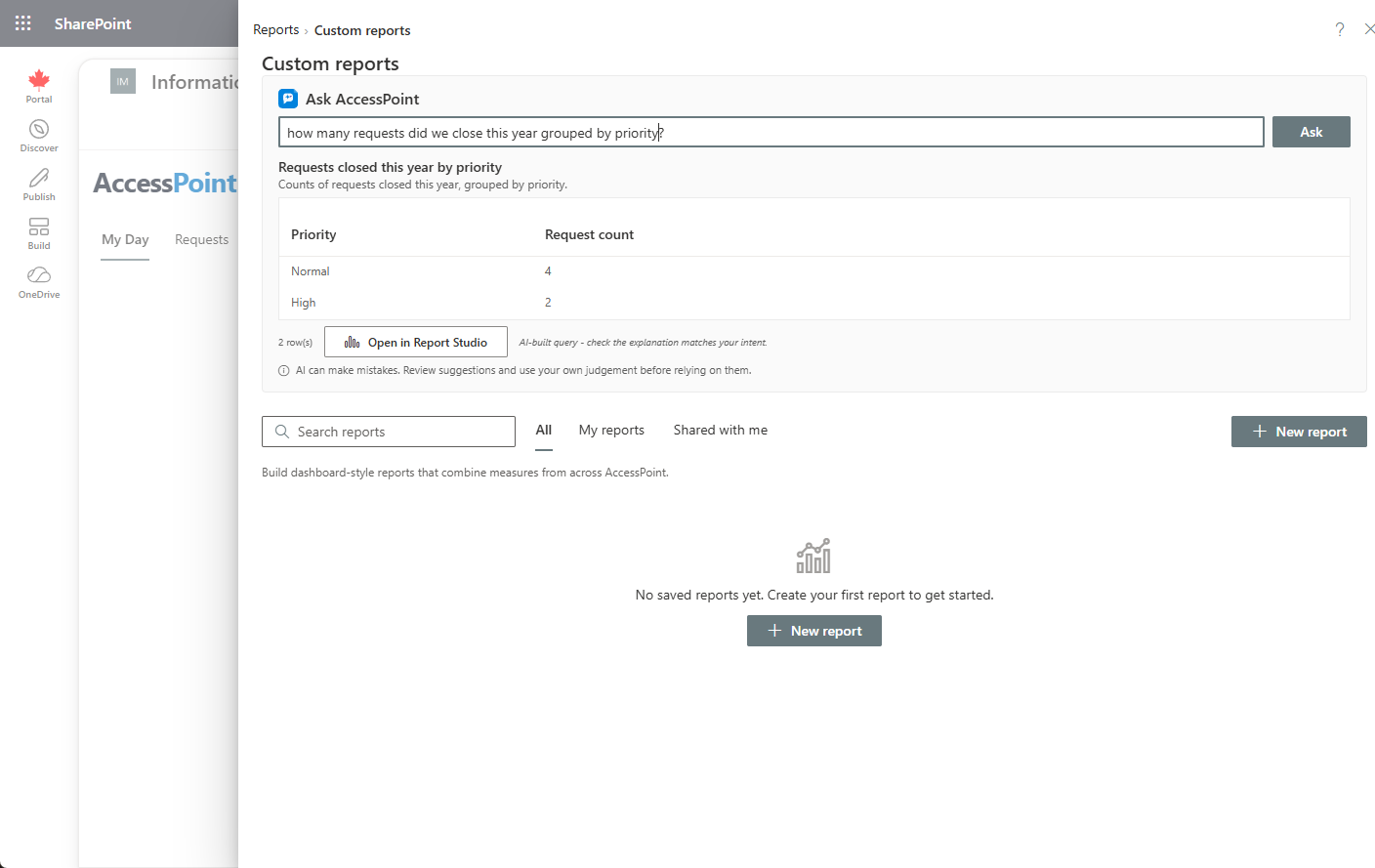
Ask AccessPoint is optional: it appears only where AI Assist has been deployed to your subscription and the feature is switched on under Settings → Features.
Saving and Sharing
- Click Save to name the report and optionally add a description.
- Toggle Share with everyone in the tenant to make it a shared report; otherwise it stays private to you.
- Saved reports are listed on the custom-reports home; shared ones are labelled "(shared)".
- You can update or Delete reports you own, and pin a saved report to My Day as a live tile.
Fee totals per currency. A sum or average of fees across requests in different currencies shows one total per currency (a KPI card lists CA$1,500.00 and $75.50; a chart labels its bars Closed · CAD) with a short note saying so. The Requests subject has a Fee currency field you can group or list by, and fee amounts are shown in each row's currency. Amounts are never converted, and the Excel export keeps plain numbers and adds a Fee currency column beside them.
Switching subjects intelligently keeps compatible selections — grouping Requests by complexity survives a switch to Consultations, for example — and Clear report starts fresh. Report definitions are stored language-neutrally, so a shared report reads correctly in every user's language.
Two subjects were widened in the 2.0.51 release — worth revisiting if you built reports against them before. Privacy risks now covers the whole register rather than only assessment-anchored risks (it previously omitted incident-anchored and standalone risks entirely, with no indication it was partial), and gained the posture fields — over appetite, residual likelihood/impact, target level, acceptance dates and expiry, realized-as-incident. Time entries now carries the case anchor, so hours logged against an assessment, incident, or complaint are attributable instead of arriving with a blank request.