
User management — adding users from Entra ID, assigning roles, and managing role assignments
Last updated: August 09, 2026 by Steve
Manage Users
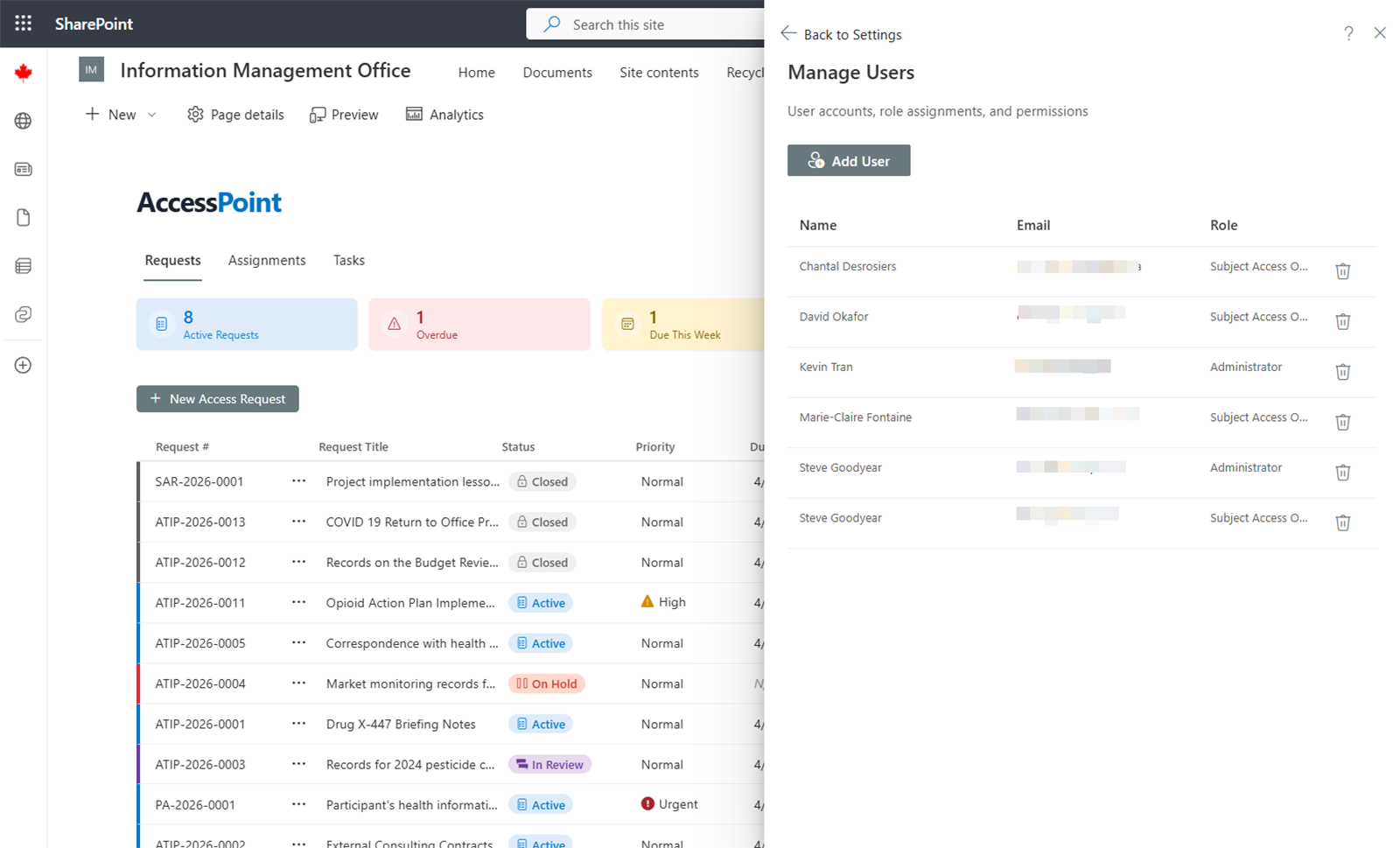
The Manage Users screen lets administrators add users from the organization's Microsoft Entra ID directory and assign them roles in AccessPoint. No separate usernames or passwords are needed — users sign in with their existing Microsoft 365 accounts.
Adding a User
- Click Add User.
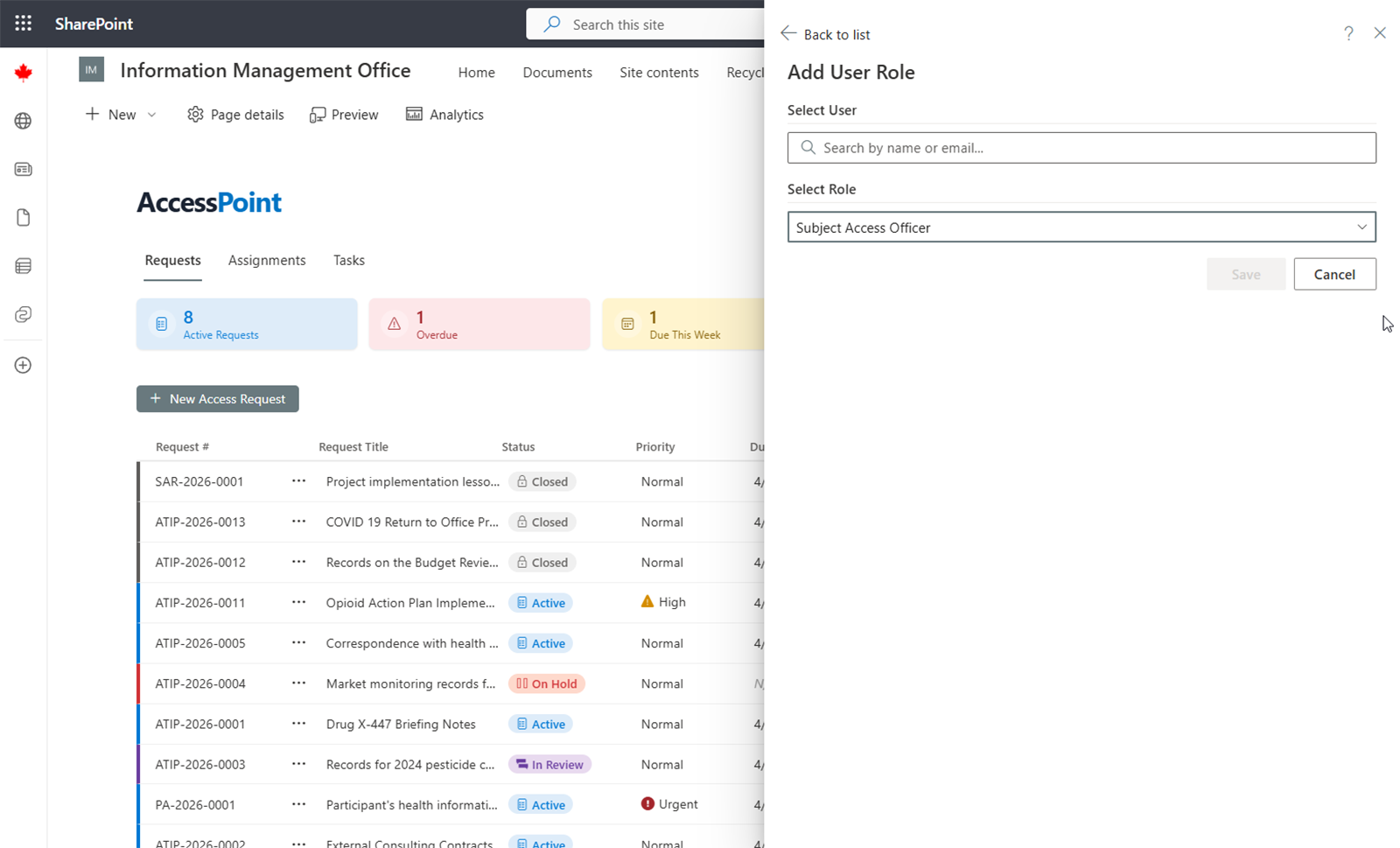
- Search for the person by name or email address. The search queries your organization's Entra ID directory.
- Select the user from the results.
- Assign one or more roles (see role descriptions below).
- Click Save.
Changing Roles
To change a user's roles, find them in the user list, click Edit, adjust their role assignments, and save.
Roles
The roles you assign here are your tenant's standing roles. Administrator is the only built-in role — it always resolves to every permission and can never be removed from the last active administrator. Every other standing role is tenant-defined, typically seeded from a jurisdiction pack — the pack-shipped Request Coordinator, for example, is the de-facto access-and-privacy-officer role — and shaped on the Roles and Permissions page. Most offices define roles matching these archetypes:
| Role | Description | Sees PII |
|---|---|---|
| Administrator (built-in) | Configure system settings, manage users, and access all administrative functions | Yes |
| Request Coordinator (pack-seeded tenant role) | Manage the full request lifecycle — create, assign, extend, close, and respond to requests | Yes |
| Custodian | Collect and submit documents for assigned work. Cannot see requestor personal information | No |
| Contributor | Complete tasks within assignments. Cannot see requestor personal information | No |
| Reviewer | Review requests and flag/resolve redaction concerns. Cannot see requestor personal information | No |
| Reader | Read-only access to associated requests and shared documents. Cannot see requestor personal information | No |
Custodian, Contributor, Reviewer, Reader, and Advisor are relationship roles. They are conferred automatically by the work you assign — a custodian assignment, a contributor task, a review, an advisor/reader membership — scoped to that specific record, and they cannot be assigned on this screen. You don't hand these out here; they follow the work. See Roles and Permissions for the full assigned-versus-relationship split.
PII Visibility
Requestor personally identifiable information (PII) is visible only to roles holding the view-requestor-PII permission (Administrator and coordinator-style roles). Custodians, Contributors, Reviewers, Readers, and Advisors never see it — the server strips it from every response.
Multiple Roles and Expiry
A user can hold more than one role. Permissions are additive — a user with two roles receives the combined permissions of both. A role assignment can also carry an optional expiry date: once it passes, the role confers nothing. That is useful for temporary coverage, and for contractors and client users whose access should lapse on a known date.