
Who has left, or looks like they have, and what open work they still hold — with the dialog to reassign or release that work.
Last updated: October 20, 2026 by Steve
Departed Users Report
Reports → System and compliance → Departed users answers "who has left — or looks like they have — and what do they still hold?". It is available to people holding user.manage.
It is a state report: the figures are the position as of today, the banner says so, and the shared date range never narrows it.
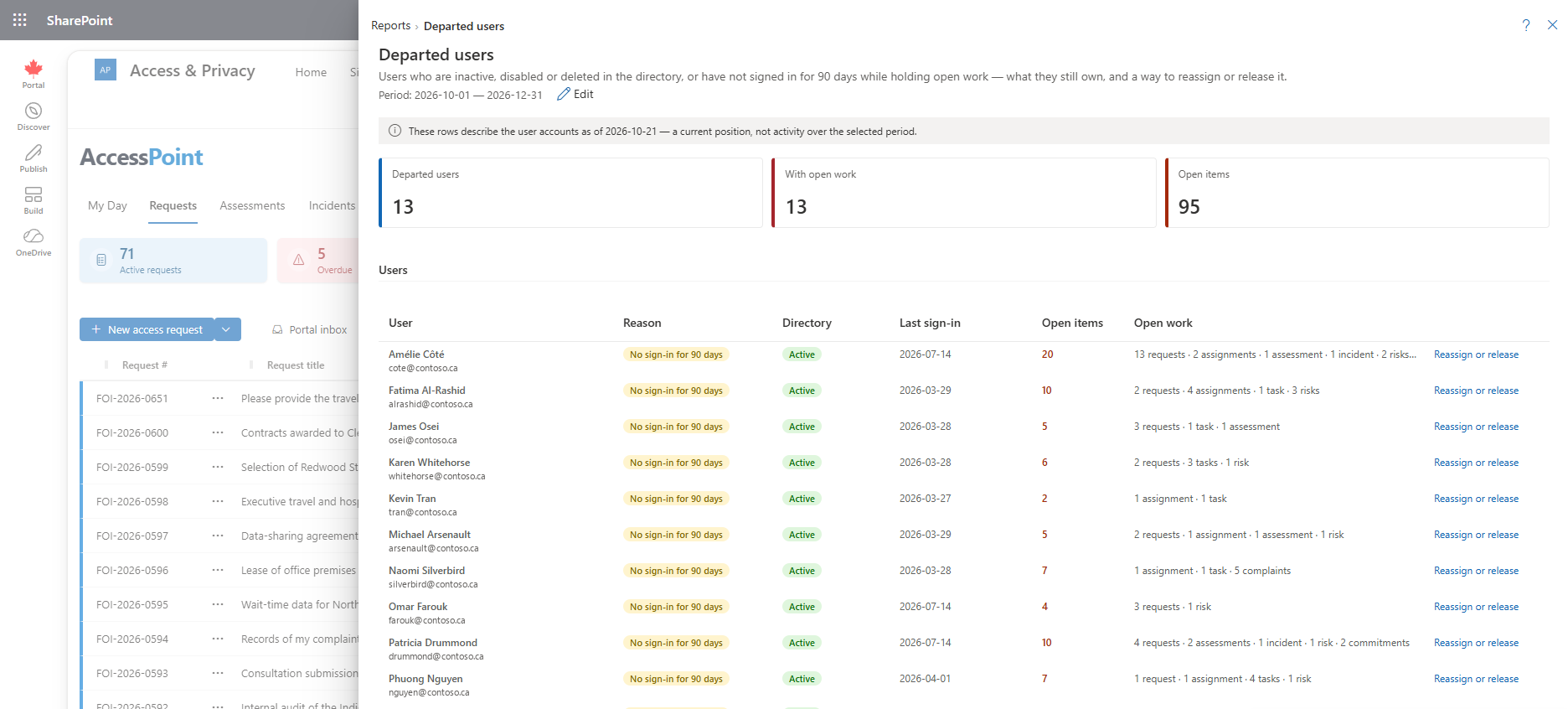
Who Is Listed
A user appears when they are:
- Inactive in AccessPoint;
- Disabled, Deleted or Not found in the directory (Microsoft Entra ID); or
- without a sign-in for 90 days while still holding open work. A stale sign-in alone is not departure; it is listed only when someone is waiting on that person.
Each row shows a Reason pill, the directory status, the last sign-in, the open items total, and a breakdown by family: requests, assignments, tasks, reviews, assessments, incidents, complaints, risks, commitments and other.
Reassign or Release Work
Each row carries Reassign or release, which opens the same dialog as Manage users → ⋯ → Reassign or release work…. It lists everything the person still holds, grouped by kind, with a count per group and Show items to expand the rows (the first 200; the count is always the true total).
- Pick a default target — an active user who receives every group you set to Reassign or Transfer without naming a target of its own. Only active AccessPoint users are offered, never the person being offboarded.
- Choose one action per group under Case accountability and work items. Where the column can be blank, Clear is pre-selected and available. Where it cannot — the access officer of a request, custodian assignments, contributor tasks, delegated assessment sections, complaint workstreams and risk treatment tasks — Reassign is pre-selected and you must supply a target. Work items may instead be Cancelled (Cancel work), through each item's own cancel path. A request can never be cancelled this way. Leave as is skips a group.
- Decide about personal items. Saved views can be Shared with everyone, Transferred, Deleted or Kept. Saved reports can be transferred, deleted or kept.
- Read the Processed automatically section. Standing roles expire, case access grants are revoked, delegations given and received end, document check-outs are released and subscriptions and followed threads are removed whenever a person is offboarded. They are listed for transparency, not choice.
- Tick Also deactivate this user (pre-selected for an active user), optionally record a reason, then Review and run. The confirmation lists exactly what will happen and whether the account will be deactivated. Run executes the plan.
- Read the results. A table shows, per group, the action actually applied, how many rows were processed, how many were skipped and why (Closed, Already assigned, Not found, Last administrator (grant kept)), and how many failed. Each group runs in its own transaction, so a failure in one never undoes the others. Fix the cause and run the dialog again for what remains.
You cannot run the dialog on your own account; another administrator must do it. If the person is the only active Administrator, their Administrator grant is kept and the deactivation is refused. Grant Administrator to someone else first.
Every changed record gets an audit entry with the reason Offboarding, mirrored into the audit ledger. The leaver's own history is never rewritten and their user record is never deleted, so past attestations, decisions and comments keep their author.
The Daily Notice
After the nightly directory check, if anyone the report would list still holds open work, every holder of user.manage receives one Departed users notice in the Notices feed that day, for example 3 departed users still hold 11 open items — reassign or release the work in Manage users. Clicking it opens Manage users. There is one notice per day, and none when there is nothing to do.
How Departures Are Detected
Manage users shows a Directory reconciliation strip with when AccessPoint last checked and how many accounts are disabled, deleted, not found and inactive. Three feeds keep it current:
- The nightly service check asks Microsoft Entra ID about every AccessPoint user. Accounts in the directory recycle bin become Deleted, accounts Entra ID no longer resolves become Not found, accounts with sign-in blocked become Disabled, and everyone else is confirmed Active.
- The in-app check, Run directory check now, performs the same check from your own session. On tenants that opted out of the
User.Read.Allpermission it also runs automatically once a day when someone holding user.manage first opens the app. - Sign-in records the account as Active.
When a check finds an account Disabled, Deleted or Not found, the person is deactivated automatically with the reason Directory: Disabled (or Deleted, Not found). If the account later comes back, the next check reactivates them, but only when the directory caused the deactivation. A deactivation an administrator made by hand is undone only by an administrator or by the person's own sign-in.
Deactivate is not an access block. It stops people being offered the person in pickers and lists them in this report, but a person whose account still exists and who holds a role can still sign in, and signing in reactivates them. To remove access, disable or delete the account in Entra ID and remove their roles.
A partner-organisation guest whose home account is disabled still shows as enabled in your directory, so only the "no recent sign-in with open work" signal catches them.
Related Pages
- Manage Users — the user list, deactivation and the directory strip.
- Roles and Permissions — roles, including roles granted to a Microsoft Entra group.
- Notifications — the Departed users notice.
- Reports — the reports menu this report opens from.