
Custodian assignments dashboard — assigned work across requests and assessments, progress, and document collections
Last updated: July 12, 2026 by Steve
Assignments Dashboard
The Assignments Dashboard is the home screen for Custodians — your personal work queue. It shows every custodian assignment issued to you across all requests, plus any assessment section work delegated to you, and any request assignments delegated to you by another custodian.
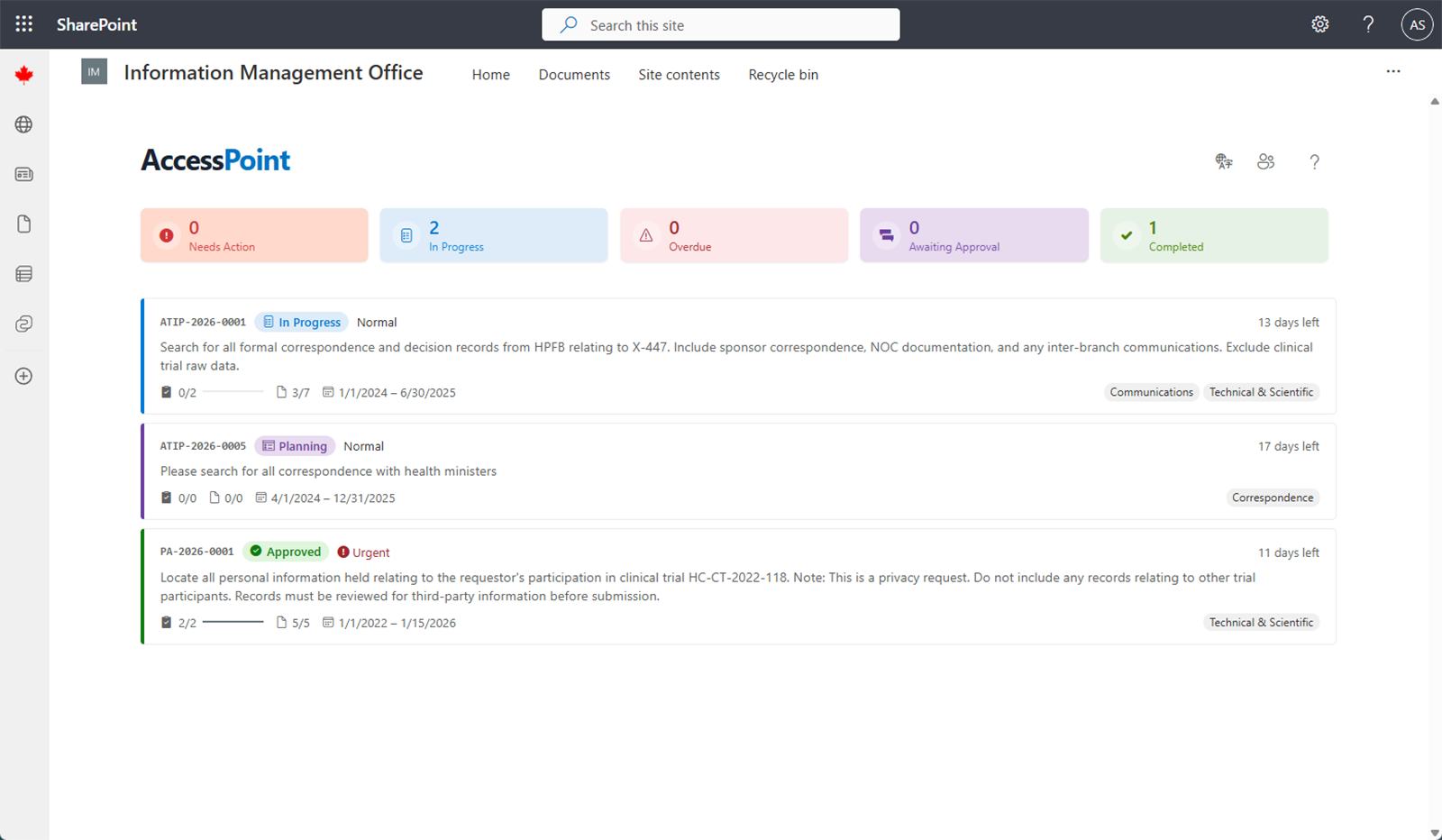
Summary Cards
Summary cards run across the top and double as filters. Click one to narrow the list; click it again to clear:
| Card | Shows |
|---|---|
| Needs action | Assignments returned to you with Changes Requested |
| In progress | Assignments you are actively working |
| Overdue | Anything past its due date and not yet closed |
| Awaiting approval | Assignments you have Submitted, pending the access officer's decision |
| Completed | Terminal items (Approved or Cancelled) |
| Delegated | Appears only when work has been delegated to you; shows those items |
By default the list behaves as a working queue: it hides completed and cancelled items and sorts the most actionable work first — Changes Requested, then In Progress, then Submitted.
The Assignment List
Each card shows the parent it belongs to (a request number, or a Complaint or Incident number for investigation work), a colour-coded status badge, priority, a due-date countdown, a task-completion bar (for example 3/5), and a responsive-versus-total document count. A Returned counter with an undo arrow flags how many times work has bounced back, and assignments delegated to you carry a "Delegated by …" badge.
All instructions are sanitized — you never see the requestor's name, email, or other personal information.
Click any card to open the full Assignment Details, organized into tabs:
| Tab | What you do there |
|---|---|
| Details | Read the instructions, keywords, scope dates, and information categories; add and open repositories (the places you will search); log hours if your tenant enables self-entry |
| Tasks | Break the assignment into contributor tasks and track their progress |
| Documents | Review documents gathered against the assignment and mark each one's relevance (for example Responsive) |
| Attestation | Complete and submit the formal attestation certifying your search is complete |
| History | The full audit trail of status changes and edits |
Working an Assignment
Add the repositories you will search, create tasks for records held by others, gather documents and mark their relevance, then complete the attestation and submit. Submitting moves the assignment to Awaiting approval. The access officer then either Approves it or uses Request changes, which returns it to you as Changes Requested with notes explaining what is needed. A Discussion button in the header opens a threaded conversation anchored to the assignment.
Assignments anchored to a complaint or incident hide the attestation and some document and hours actions, but instructions, tasks, and documents remain fully viewable.
Delegating Work
If you will be away, you can hand your assignment work to a colleague for a period without the access officer re-issuing anything. See Delegations.