
Learning paths are ordered lists of tasks, training cases, help pages, notes, links and modules that a lead assigns, with due dates and a progress table.
Last updated: November 10, 2026 by Steve
Learning Paths
A learning path is an ordered list of up to twenty items for a kind of work — first tasks, training cases, help pages, and notes and links of your own. With AccessPoint Learning, a learning path also holds modules and can count training done elsewhere.
Your jurisdiction packs provide learning paths (for example New ATIP coordinator, New privacy officer and Breach team member). A training lead assigns a learning path to people and follows their progress.
Learning paths were called training paths (and sometimes curricula) before AccessPoint 2.6.0.
Your Own Training
Open the Training hub and select My training. It shows your Get started list (even with Don't offer tips on), the learning paths assigned to you with each item's state, and the ones you have finished with the date. With nothing assigned, it offers Browse training cases. My Day shows Assigned to you by , due .
Modules are taken in My learning, with the learning path's due date and, where it has one, Valid until.
Making Learning Paths (Training Leads)
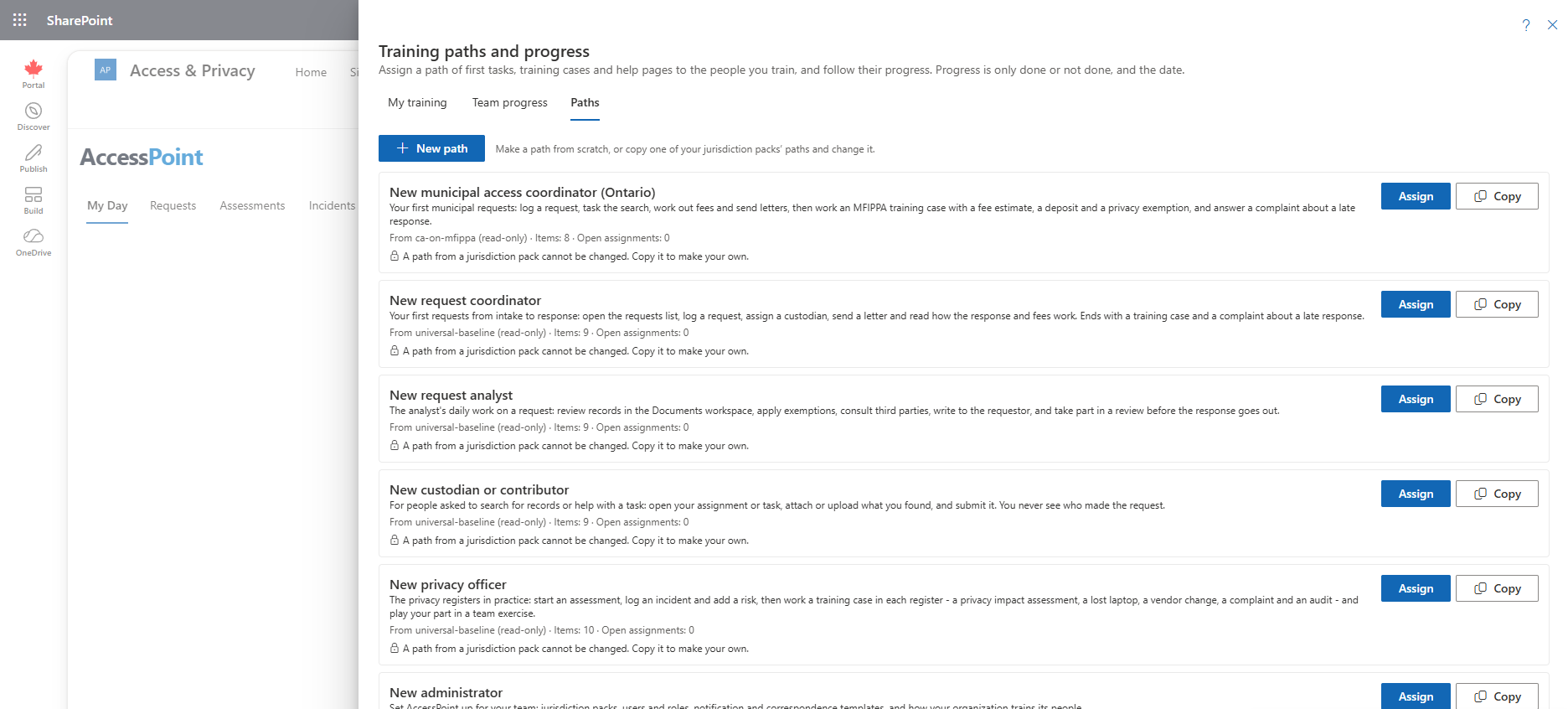
Training leads hold Manage training. Open Learning paths and progress from the Training hub. It has the tabs My training, Team progress and Paths.
- New path on the Paths tab starts one from scratch: a title, an optional summary, an optional role brief, and the items in the order people should do them. A path needs at least one item before it can be assigned.
- A pack's path is read-only, so that a pack update can refresh it without overwriting your changes. Copy turns it into a path you can change.
- Your own paths can be edited, switched off for assignment, and deleted once nobody has them open. A path that is still assigned to someone cannot be deleted.
Items of Your Own
- A note is your organization's own text — a title and a few paragraphs, such as who to ask or how your office handles a step. The person ticks it by reading it (Read opens it).
- A link opens a web page in a new tab. Its address must start with
https://, and opening it ticks it. - The role brief is shown to the person above the items: what the role involves and what the path covers.
Leave a blank line between paragraphs. A path's title, summary, role brief and the texts of its notes and links are saved in the language you are working in. People using another language see that text until someone edits the path in theirs. Formatted text (a list, a link inside the text) that came with a jurisdiction pack's path is kept as it is when you edit a copy.
Assigning a Learning Path
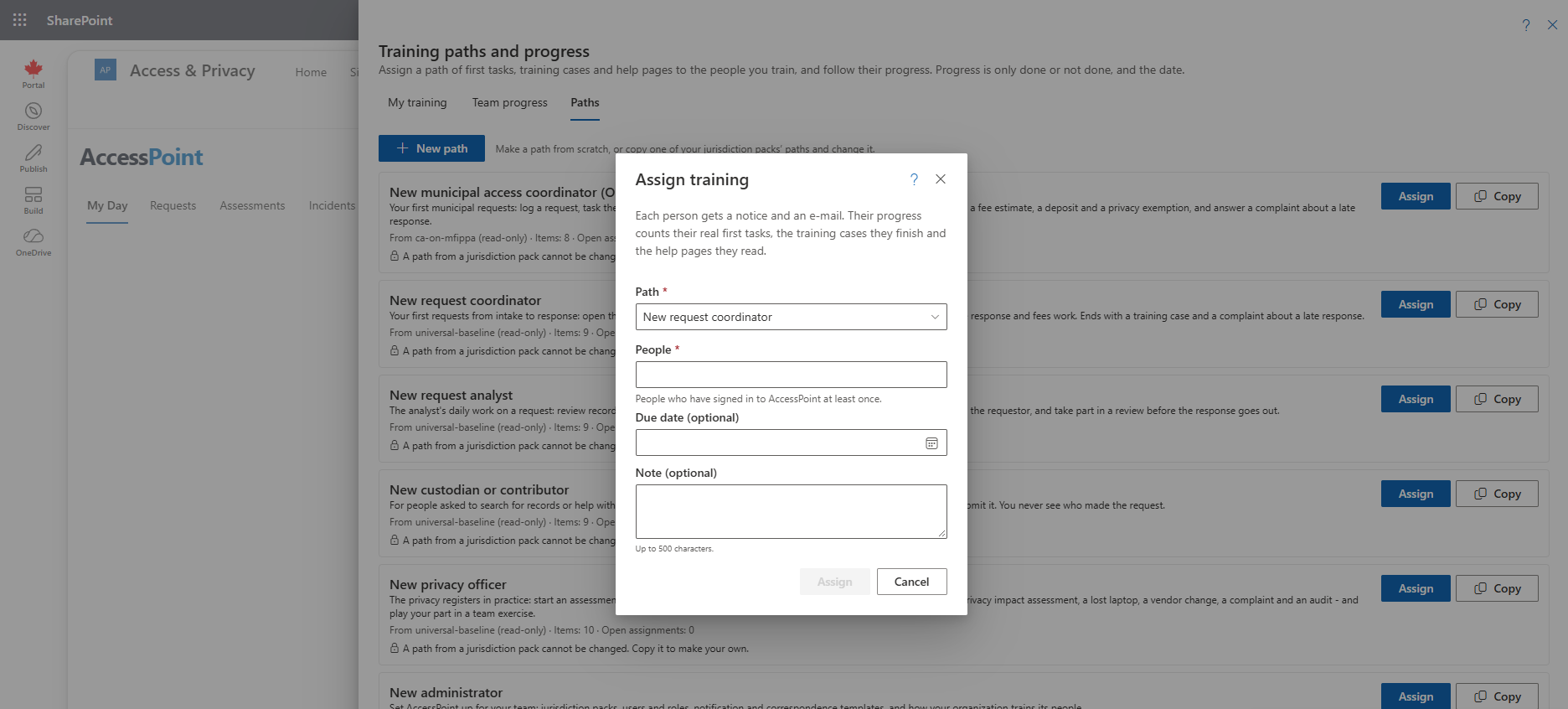
- Select Assign.
- Choose the path.
- Choose the people — anyone who has signed in to AccessPoint.
- Optionally set a due date and add a note of up to 500 characters.
Each person gets a notice and an e-mail (the Training assigned template, which can be changed under Settings → Notifications; never Teams). Progress counts the real first tasks they do, the training cases they finish, the help pages and notes they read and the links they open.
Instead of assigning by hand, a lead can let AccessPoint enrol the right people with audience rules.
The Team Progress Table
The Team progress table shows each person against each item of the path: Not started, In progress, or Done with the date.
- Export CSV downloads the table.
- Withdraw (with a confirmation) removes a path from someone's My Day. What they have done stays done.
With AccessPoint Learning, Team progress also shows each person's Overdue, Expires and Certified, and exports the completion records. See Completion Records and Team Progress.
Learning Path Settings (AccessPoint Learning)
The Studio's Learning paths tab lists your learning paths; choose one to change it. Only people who manage training change a learning path — its modules and its settings. An author sees it read-only with Only someone who manages training changes a learning path…. A pack's learning path is read-only too, but its audience rules are yours.
- Modules — add a published, switched-on module by its code, move it, or remove it. The path's other items stay as they are. A module already on a path stays there if the licence changes or the module is retired.
- Due after — days from enrolment (empty: no due date).
- Valid for — months a completion stays valid (empty: it does not expire). The completion record's Valid until is its last valid day, and AccessPoint renews it before then (see Completion Records and Team Progress).
- Offer a certificate on completion — people who complete the learning path can get a certificate (see My Learning).
- Done when the learner completes — Every required item (the default) or A number of the items (how many of them).
- Mentor — whom a Talk to step names: The learner's manager (read from your organization's directory), A named person, The learning path's owner (the person who made it; a pack learning path has none), or No mentor.
- Obligation codes it covers — separated by commas, for the Obligation coverage report.
Training done elsewhere is an item you add in Learning paths and progress → Edit path: what to complete, and the providers it accepts. A lead records the completion for the person (see Completion Records and Team Progress).
Who Marks a Talk To Step
Either the learner or the mentor:
- The learner selects Mark done once they have talked — also where a mentor is named — and the record says it was the learner's own statement (attested).
- The mentor confirms it from Waiting for you in My learning, before or after the learner (confirmed, the stronger of the two).
Where the learning path names nobody — no mentor, a pack learning path's owner, a module someone opened from Browse, or The learner's manager when AccessPoint cannot read managers from your directory — only the learner can. The Studio warns you when you choose The learner's manager and managers cannot be read (the Microsoft 365 permission to read them was not granted). In Hosted AccessPoint, which has no Microsoft 365 directory of your organization to read, choose a named person or the learning path's owner.
Assigning a Learning Path Someone Completed
Assigning by hand stays in Learning paths and progress → Assign, as for any path. Assigning a learning path someone has already completed, while the completion is still valid, skips them. After it expires, the assignment opens a new cycle beside the old one — a renewal, where checks, decisions and acknowledgements are asked again.
What Is Recorded
Progress records only whether an item is done and the date. There are no scores, timings or clicks. It is kept for 90 days by default (an administrator can set 30 to 365), longer while an open assignment still needs it, and it is removed when the person leaves your organization.
If an administrator switches off Show progress to the person who assigned it, a lead sees only whether each path was assigned and finished. Administrators always see the detail. Completion records are kept separately, for years — see Completion Records and Team Progress.
Editions
Learning paths, assigning by hand, the progress table and the jurisdiction packs' modules are part of the core product in both AccessPoint for Microsoft 365 and Hosted AccessPoint. Adding a new module to a path, certificates, recertification, training done elsewhere and audience rules need the AccessPoint Learning module — included in every AccessPoint for Microsoft 365 marketplace plan, and the AccessPoint Learning add-on in Hosted AccessPoint.
Related Pages
- Training Hub — where My training and Learning paths and progress open.
- My Learning — taking the modules on a learning path.
- Audience Rules — enrolling people automatically.
- Completion Records and Team Progress — records, certificates and renewals.
- Training Readiness Report — completion and overdue totals across the team.
- Settings → Training — assigned training, progress visibility and retention.
- Notification Templates — the Training assigned e-mail.