
Whether the database behind AccessPoint is keeping up — load, timeouts, slow commands and space, what each status means, and how to change the database size.
Last updated: October 20, 2026 by Steve
System Health
Settings → Setup → System health tells administrators, in plain language, whether the database behind AccessPoint is coping with the work, before saves start to time out. Without it, a database that is too small for its workload shows nothing until a save fails: on a test system in October 2026, saves on a Basic database took 20 to 33 seconds for an hour before one hit the 60-second limit.
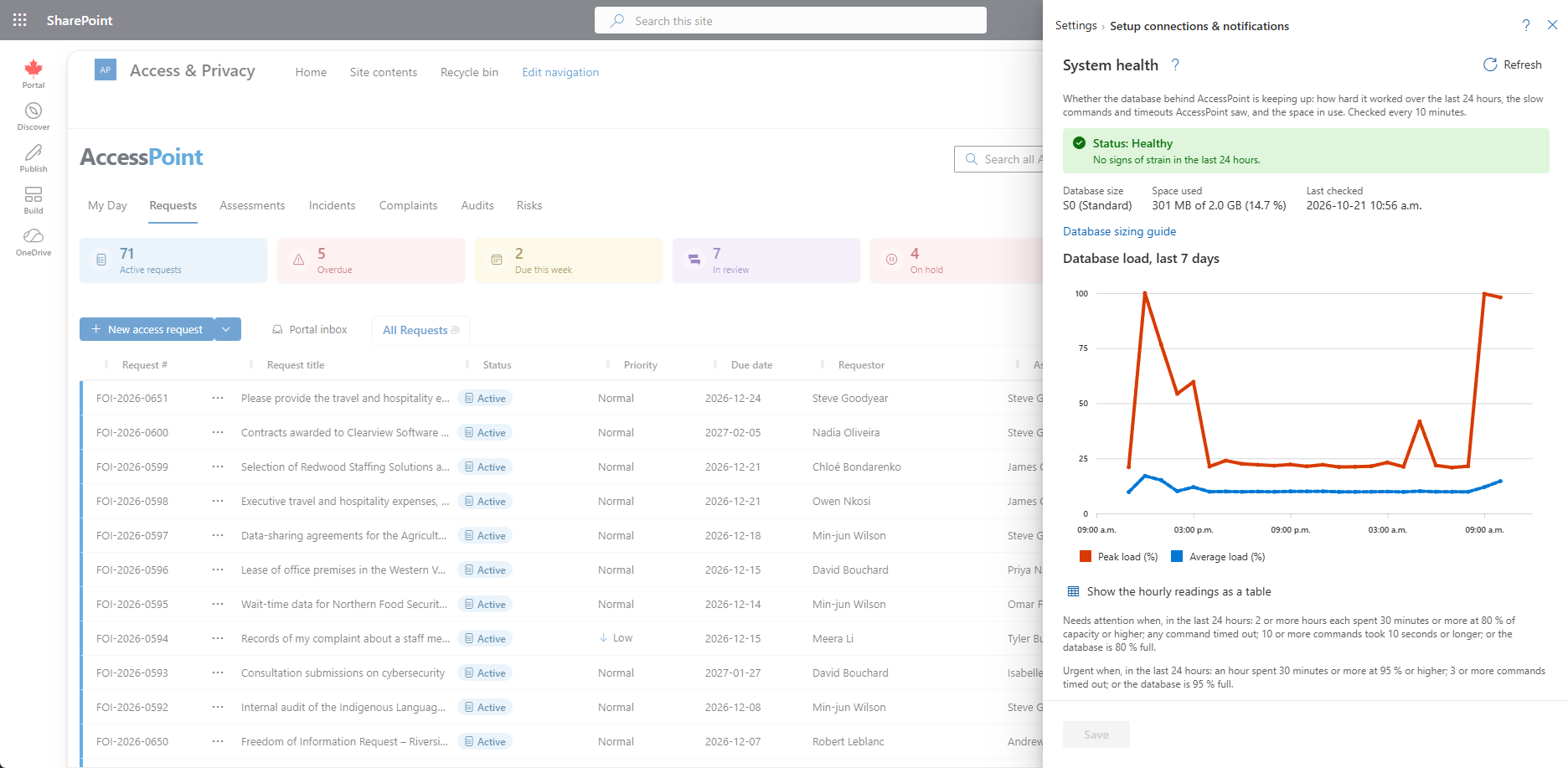
What AccessPoint Reads
Every 10 minutes AccessPoint reads three things from inside the database, read-only:
- Load — the database's own record of how hard it worked, in 15-second samples (the DTU percentage: the highest of CPU, data reads and writes, and log writes, as a percentage of what the database's size allows). It is kept as hourly figures: the peak, the average, and how many minutes were at 80 % or more and at 95 % or more.
- Slow commands and timeouts — every database command AccessPoint runs that took 10 seconds or longer, and every one that ran out of time (the 60-second limit) and failed.
- Space — the space in use against the database's maximum size.
The Three Statuses
Status is worked out over the last 24 hours.
| Status | Raised when |
|---|---|
| Urgent | The database is 95 % full or more (a full database refuses every save); OR 3 or more commands timed out; OR in one hour the database spent 30 minutes or more at 95 % load or more |
| Needs attention | The database is 80 % full or more; OR any command timed out; OR in 2 or more hours the database spent 30 minutes or more at 80 % load or more; OR 10 or more commands took 10 seconds or longer |
| Healthy | None of these |
A short burst, such as a big report or an import, does not raise anything: the load has to be sustained for half an hour within a clock hour. Readings older than 24 hours drop out on their own, so the status clears itself a day after the database recovers. Nobody has to dismiss it.
What the Section Shows
- The status and each reason, with when it was last seen.
- The database's size (for example S0 (Standard)), the space used, and when it was last checked.
- The recommendation.
- Links to the database in the Azure portal (when the deployment template recorded its resource ID, which every deployment from 2026-10-02 does) and to the sizing guide.
- A chart of the last 7 days of hourly load (peak and average), with Show the hourly readings as a table for the same figures as an accessible table.
- The rule itself, spelled out at the bottom of the section.
Where You Hear About It
A System health notice goes to every active administrator (those with configuration.manage) the first time in a day that the database needs attention. It is sent once a day, plus one more that day if the status then becomes urgent. Clicking it opens Settings → Setup at System health.
System health also appears as a card on My Day. An administrator who has already acted can Acknowledge the card to hide it for themselves until the database strains again in a later hour, the status becomes Urgent, or 7 days pass. The status in this section is unchanged.
What to Do
- Load, timeouts or slow commands — move the database to the next size up: Basic to S0, S0 to S1, S1 to S2, S2 to S3, S3 to S4, S4 to General Purpose 4 vCores, and General Purpose 2 to 4 to 8 vCores. In the Azure portal open the database, then Compute + storage, choose the size and apply. The change is online: connections drop for a few seconds at the switch. A redeploy in Upgrade existing installation mode keeps the size you chose.
- Space — on Basic (2 GB at most) move to S0, which includes 250 GB. On any other size raise the maximum data size under Compute + storage, or move to a size with more storage.
- If the database is already large and still under strain, look at what was running in the hours the table flags (a stress test, a bulk import, a large export) before buying more capacity.
AccessPoint never changes the size itself. It holds no Azure permission to do so; someone with rights on the subscription does it in the portal.
Database Sizes
These are starting points, not limits; the number that matters is how busy the database is. Costs are approximate pay-as-you-go list prices, so check the Azure pricing calculator for your region and agreement.
| Size | Compute | Storage | A starting point for | Approx. cost (USD/month) |
|---|---|---|---|---|
| Basic | 5 DTU | 2 GB | Trials and demos only | ~$5 |
| S0 (the default for a new installation) | 10 DTU | 250 GB | A small office, up to about 1,000 requests a year | ~$15 |
| S1 | 20 DTU | 250 GB | Up to about 3,000 requests a year | ~$30 |
| S2 | 50 DTU | 250 GB | Up to about 8,000 requests a year, or several busy registers | ~$75 |
| S3 | 100 DTU | 250 GB | Up to about 20,000 requests a year, or a shared service | ~$150 |
| S4 | 200 DTU | 250 GB | Large shared services, heavy reporting | ~$300 |
| General Purpose, 2 / 4 / 8 vCores | 2–8 vCores | 64 GB maximum, raise as needed | The largest organizations, or when you want vCore pricing | from ~$370 (2 vCores) |
When Load Readings Are Not Available
The load figures come from a database view that exists only in Azure SQL Database and needs the VIEW DATABASE STATE permission. The API's default database identity has it. With the least-privilege runtime (sqlLeastPrivilegeRuntime) the API grants it to its runtime role at every start. Where the view cannot be read, the section says so, and timeouts, slow commands and space are still checked.
Good to Know
- Timeouts and slow commands are counted by each running copy of the API and added together. They cover the commands AccessPoint runs through its data layer, not the schema update at start-up or the report engine's own queries.
- A deployment shared by several Microsoft 365 tenants shows every tenant's administrators the same database readings.
Related Pages
- Setup — the Setup group of Settings where System health sits.
- Deployment — database sizing and the deployment parameters.
- My Day — where the System health card appears.
- Notifications — the System health notice.