
How Office records with hidden content are shown and held for release, and how spreadsheets are laid out on pages — paper, scale, headings and gridlines.
Last updated: October 20, 2026 by Steve
Document Conversion
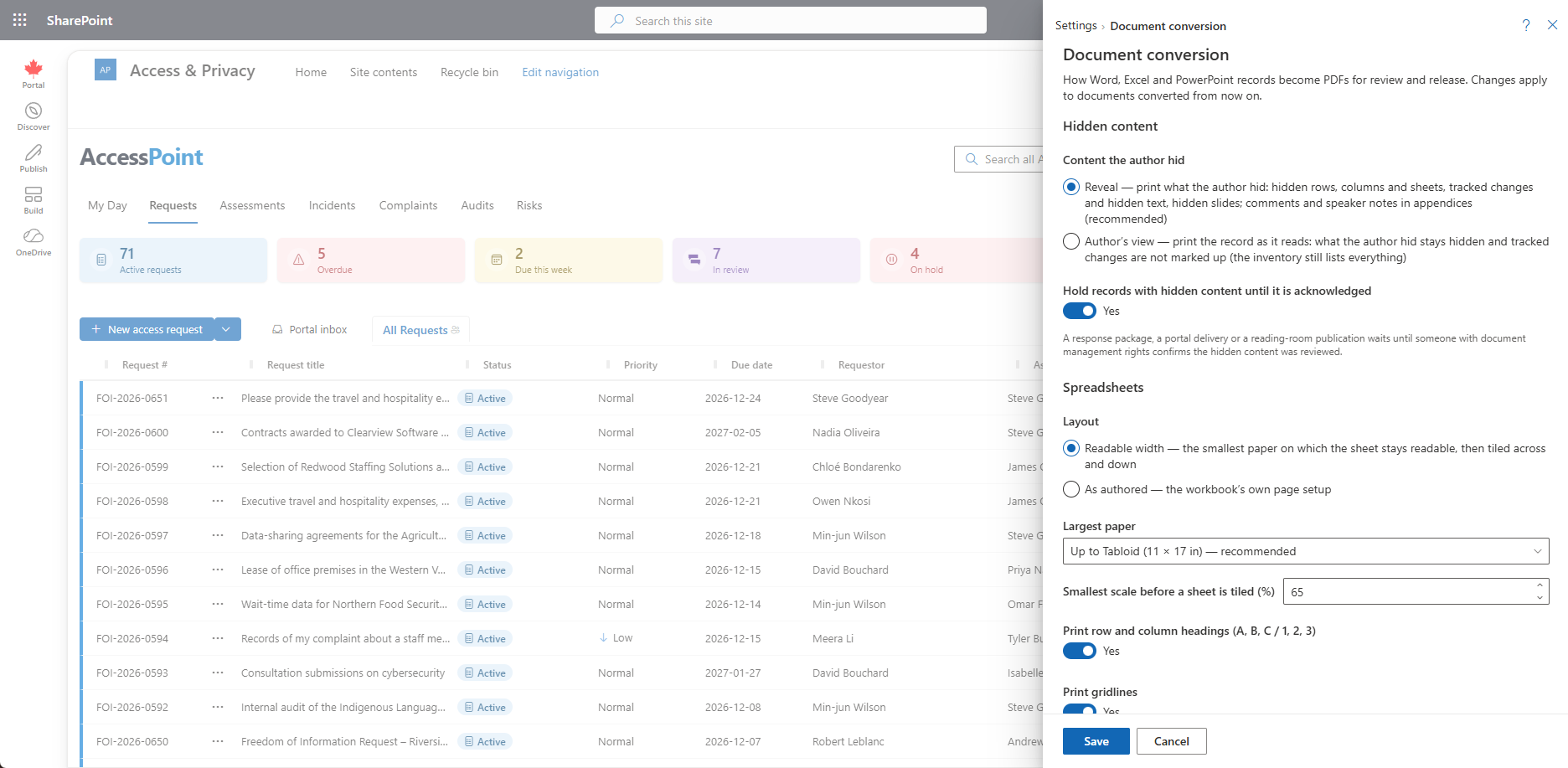
When AccessPoint converts an Office record to PDF for review, it can reveal what the author hid and lay spreadsheets out so they stay readable. Settings → Document conversion sets the organization's defaults. Administrators use it to decide how hidden content is shown, whether a record with hidden content is held back from release, and how wide spreadsheets are paged.
Changes apply to documents converted from then on. A document already converted keeps its PDF until it is converted again (Re-convert on the row).
Hidden Content
Spreadsheets, Word documents and PowerPoint decks often hold more than what prints: hidden rows, columns and sheets, comments, tracked changes, hidden slides and speaker notes. The setting for hidden content has two choices:
- Reveal (the default). What the author hid is printed, so a reviewer sees it and can decide what to withhold. In a spreadsheet, hidden rows and columns print in place, hidden sheets follow the visible ones with a Hidden in source footer, and comments appear in a Comments and notes appendix. In a Word record, tracked changes print as markup, hidden text and sections print, and comments go in a Comments appendix. In a PowerPoint record, hidden slides follow the visible ones, with comments and speaker notes in appendices.
- Author's view. Only what the author left visible prints. The record reads as the author saw it. The inventory of hidden content is still produced.
Holding Records Until Acknowledged
Every converted Office record gets an inventory of what it holds beyond what prints. A record with findings shows a Hidden content revealed or Hidden content found chip, and Review hidden content… in the row menu lists the findings.
The second setting decides whether records with hidden content are held until acknowledged. It is on by default. While it is on, such a record cannot leave the tenant, in a response package, a secure delivery or the reading room, until someone with document.manage on it confirms they reviewed the hidden content and gives a reason. The acknowledgement covers that inventory: if the record is converted again and the inventory changes, it is asked for again. An export that includes unacknowledged records is refused, and the message names them.
Metadata on its own is not a finding. Document properties, an attached template and similar technical parts are listed but never raise the chip or hold a release, because none of them is in the PDF or in a released file.
Spreadsheet Layout
The layout settings control how a sheet is split across pages:
- Readable width or As authored. Readable width puts each sheet on the smallest paper on which it stays readable. As authored follows the page setup the author saved.
- Largest paper. The biggest paper a sheet may use. Sheets move from Letter (or A4) to landscape, then to Legal and Tabloid (A3), up to this limit.
- Smallest scale. How far a sheet may be shrunk to fit. The default is 65 %. A sheet still too wide at that scale is split into pages across, then down. The header row repeats on every page, and so does column A when a sheet is split across.
- Headings and gridlines. Whether row and column headings (A, B, C and 1, 2, 3) and gridlines are printed. A footer showing the sheet and page number is also printed.
A cell whose text would be cut off by its neighbor or a page edge is widened, never narrowed, then wrapped, so every character reaches the PDF.
Staff can change the layout of a single spreadsheet from Page layout… on the row menu or the viewer toolbar, which shows the page count and paper for each choice before anything changes. Use the organization default returns that document to these settings. Changing a layout withdraws the document's existing marks, so the dialog says how many first.
When a layout uses paper larger than Tabloid (A3), the Pages column also shows the standard-page equivalent, and fees and the complexity and statistical reports count those.
Releasing a Spreadsheet as a File
A workbook can go out as a spreadsheet instead of, or beside, its PDF, for requestors who ask for data they can sort and total. On the record, Release as offers PDF, Spreadsheet (XLSX), CSV (one file per sheet) or PDF and spreadsheet. As the request prefers follows the format preference recorded on the request, and with neither the record goes out as PDF.
The released file is rebuilt from the original's values and never a copy of the original. Withheld cells read as withheld, formulas are replaced by their last result, and charts, macros, embedded files and document properties are left out. Before anything is released, the file is checked independently, and the package is refused, naming the record and why, if the check finds a problem such as a mark that is not on cells. Where a total depends on withheld cells, the viewer lists those cells and offers to mark them or to release them as they are.
SharePoint Lists
Add from Microsoft 365 → Lists captures a SharePoint or Microsoft Lists list as a spreadsheet. It then converts like any workbook, so a wide list gets readable paper, and its ID and Title columns and header row repeat on every page.
Tagged PDFs for Screen Readers
A redacted, scanned or untagged record cannot keep the tags a screen reader needs. When an accessible edition is needed, AccessPoint rebuilds each record as a tagged PDF, with its text, headings, tables and figures in reading order and every redaction announced where it sits. This is a separate setting, Redaction appearance → Accessible edition of response packages: When it is needed (the default), For every response package that needs one, or Off. Editions need Azure AI Document Intelligence, billed per page read. Building only the editions that are used keeps that cost down.
Related Pages
- Request Documents — hidden content review, page layout and the redaction workflow.
- Redaction Appearance — redaction style, the accessibility check and accessible editions.
- Features — the feature toggles.