
Creating an assessment (PIA/AIA/Security) — type, template, the AI impact and security questionnaires, subject, and the preliminary screener
Last updated: October 20, 2026 by Steve
Creating Assessments
New Privacy Impact Assessments (PIAs), Algorithmic Impact Assessments (AIAs), and Security assessments are started from the create dialog on the Assessments dashboard toolbar. It is used by privacy analysts, security assessors, and coordinators who hold the create assessment permission.
Key Terms
| Term | What it means |
|---|---|
| Assessment type | PIA, AIA, Security (SEC), or a custom type. Drives which templates are offered and whether scoring/tiering and the harm-to-individuals lens apply. |
| Template | The questionnaire (sections and typed questions) the assessment runs on. Carries the governing legal authority and, optionally, a preliminary screener. |
| Privacy subject | The durable thing being assessed — a Program, System, Initiative, Data-sharing arrangement, Process change, or Technology adoption. Reused across assessments and incidents. |
| Screening list | A regulator's list of processing that requires (or is exempt from) an assessment, which the screener shows as one question. |
Creating an Assessment
- Pick the assessment type. The type drives which templates are offered and whether scoring applies — a note appears for scored types.
- Pick a template. The list is filtered to the chosen type; exact-type templates sort first, generic ones follow. The template's governing legal authority shows read-only beneath it. For the AI impact and security types, each jurisdiction pack brings its own questionnaires — see below.
- Enter the assessment name (required).
- Choose the subject. Start typing in the subject box — matching existing subjects appear. Pick one, or type a new name to inline-create a subject on save.
- (Optional) If you hold the customize permission, tick customize the questionnaire to clone the template just for this assessment right after it is created. The customized questionnaire can be changed only while the assessment is Active; it is locked once the assessment goes to review.
- Click Create — or, if the template defines a preliminary screener (threshold analysis), click Continue to screener.

Closing the dialog with unsaved entries prompts before discarding.
AI Impact Assessment Questionnaires
The AIA type offers a questionnaire for each AI instrument your jurisdiction packs carry. Pick the one your organization must follow; where none applies, use the universal one.
| Questionnaire | Pack | When to use it |
|---|---|---|
| Universal AI impact assessment (ISO/IEC 42005 structure) | Universal baseline | Any AI system, when no official instrument applies. Gives an impact level from 1 to 4. |
| Canada federal AIA | Canada federal | Automated decision systems under the Directive on Automated Decision-Making. Gives the impact level I to IV and its requirements. |
| EU AI Act FRIA | EU AI Act | High-risk AI systems used by public bodies and certain credit and insurance deployers (Article 27). |
| Council of Europe HUDERIA | EU AI Act | A full human rights, democracy and rule of law assessment, on its own or as the long form of the FRIA. |
| UK algorithmic transparency record (ATRS) | UK data protection | Algorithmic tools of UK government departments and public-facing bodies. A record you publish, not an assessment: it links your DPIA. |
| Scottish AI Register entry | Scotland | AI systems used by Scottish public bodies. |
| Netherlands IAMA | Netherlands | Algorithms and AI of Dutch public bodies; it also covers the AI Act FRIA. |
| US federal AI impact assessment (OMB M-25-21) | US Privacy Act | High-impact AI of US federal agencies, with the AI use-case inventory entry. |
The risks you record in these questionnaires are the assessment's risks and appear on the Risks tab. Only the universal and Canada federal questionnaires calculate an impact level. The packs are a starting point built from public information about the legislation, not legal advice — your legal counsel validates and adjusts them.
Security Assessment Questionnaires
A Security assessment decides whether an information system may operate. Each pack ships a questionnaire for the security type, picked from the template list: a framework-neutral one in the Universal baseline (with ISO/IEC 27001:2022 and NIST CSF 2.0 references), and one each for the Canada federal (ITSG-33), British Columbia (IMIT 6.11 STRA), United States (NIST RMF), United Kingdom (NCSC CAF / GovAssure), Australia (ISM / PSPF) and New Zealand (NZISM / PSR) packs. See Assessment Details for how the questionnaire works with the Categorization, Controls, POA&M and Authorization tabs.
The Preliminary Screener
When the template defines a screener, a second step asks the threshold questions — Yes/No or choice, each with optional guidance. Every question must be answered.
When a screener question asks about a regulator's list, it shows the list itself — what the authority says requires (or is exempt from) an assessment — so you answer against the real wording; see DPIA Validation.
Based on the answers, the system decides the determination:
- Screened out — a lightweight compliance record is created with no sections.
- Otherwise, the full section set is instantiated.

Re-assessing a Subject
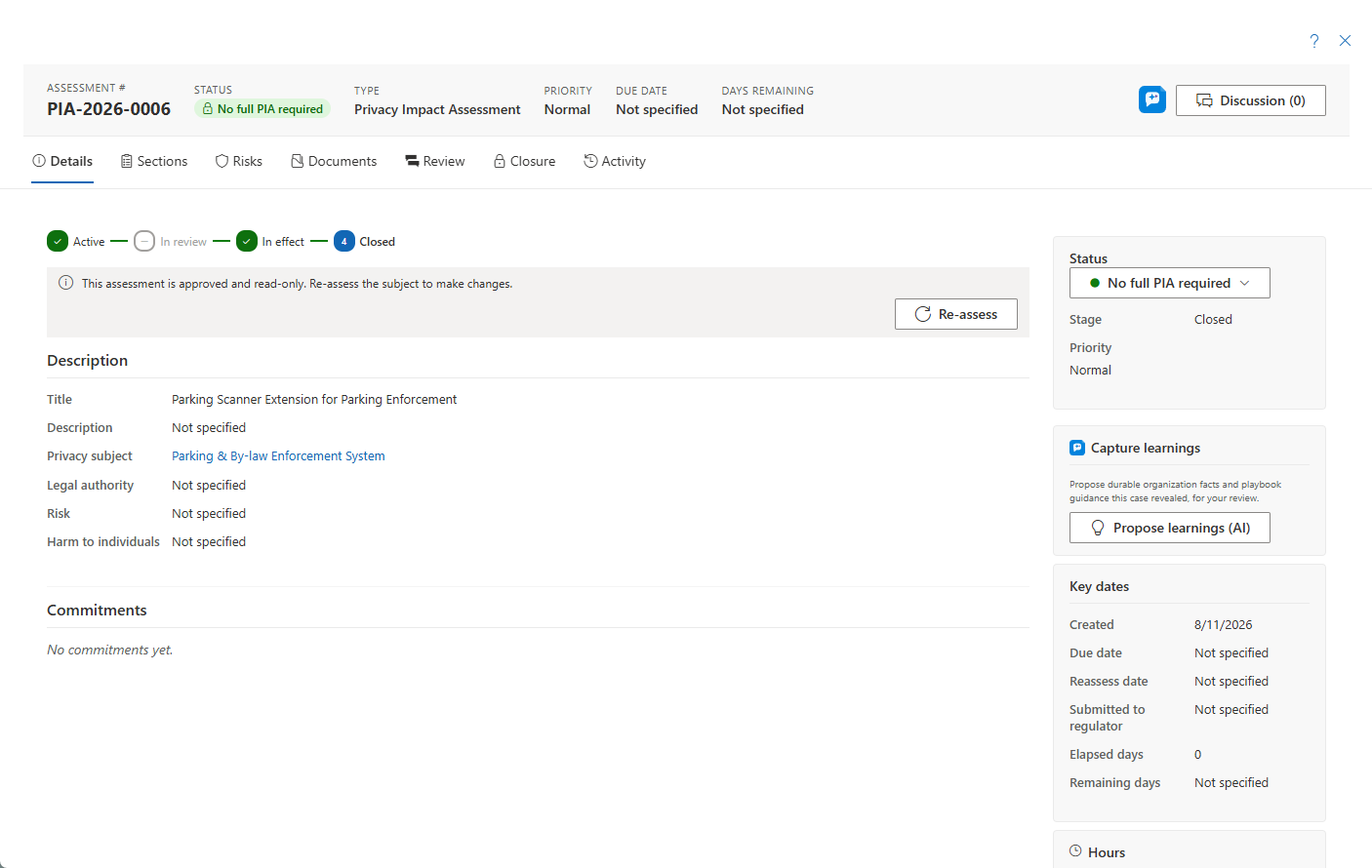
When you launch a new assessment from a subject via Re-assess, the subject is pre-filled and locked. Re-assess also skips the screener, because the subject was already determined to need an assessment. Re-assess is how a frozen (In Effect or Closed) assessment moves forward — see Assessment Details.
Next Steps
- Work the new assessment in the detail panel — see Assessment Details
- Manage the subject you assessed in the Privacy Subjects inventory of the Privacy program
- Set an assessment's validation steps in motion — see DPIA Validation