
Register the providers requestors pay fees through — Offline, Stripe Checkout, a generic hosted page or Paymentus — test them, and reconcile settlements.
Last updated: October 20, 2026 by Steve
Payment Providers
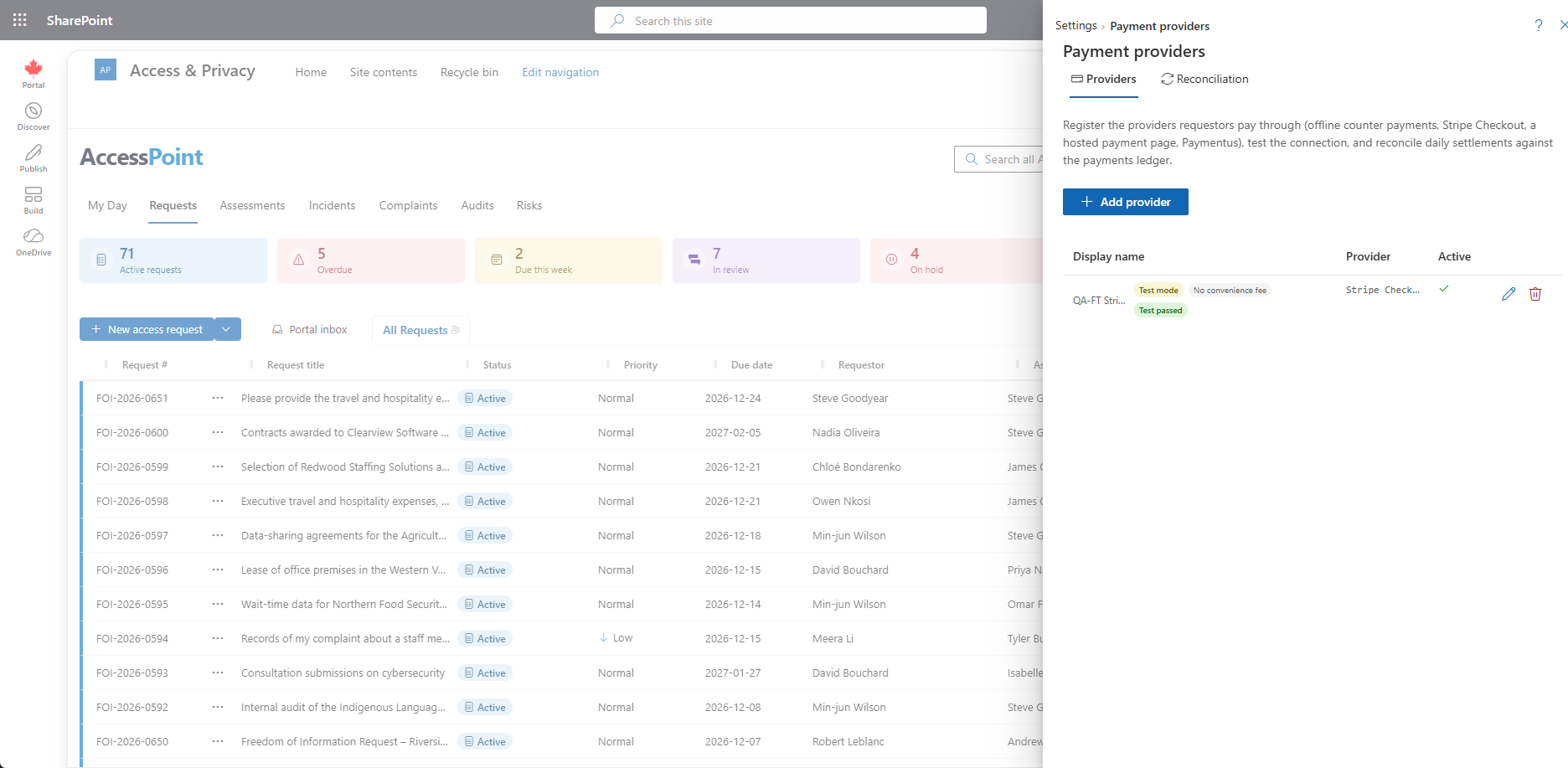
AccessPoint collects fees electronically through payment providers. A provider only moves the money: the fee itself comes from the fee calculator, your jurisdiction pack and the requestor fee categories. Settings → Foundations → Payment providers is where you register the providers a requestor can pay through. You need the fee.configure permission.
The requestor pays on the public portal and is sent to the provider's own hosted payment page. AccessPoint never sees card or bank details. See Online fee payments for the overview.
What You Need First
Online payment rides on the public portal, because the pay page and the provider's notification address live on the portal host.
- Deploy and enable the portal. See Public Portal.
- In Settings → Getting started → Features, turn on Payments. It is off by default. Payments are part of the Public portal module of your subscription; without it the switch shows as not included. The offline Record payment action works regardless.
- In Settings → Requestors → Requestor fee categories, set the thresholds your statute or fee policy calls for. The waive-below amount waives a net fee under it in full. The prepayment threshold raises a deposit request when an issued estimate reaches it. The deposit percent is the share of the estimate requested as the deposit (empty means the whole estimate). Jurisdiction packs may carry these.
The Providers
| Provider | What it is |
|---|---|
| Offline | Cash, cheque, counter and transfer payments that staff record. It needs no configuration and no portal. |
| Stripe Checkout | A hosted Stripe Checkout page. Test keys give a full sandbox. |
| Generic hosted page | Any processor that offers a hosted payment page reached by a signed redirect or a session call, with a server-to-server notification. Field names and values are configuration. |
| Paymentus | A Paymentus fully hosted one-time payment page. |
Registering a Provider
- Open Settings → Foundations → Payment providers and choose Add.
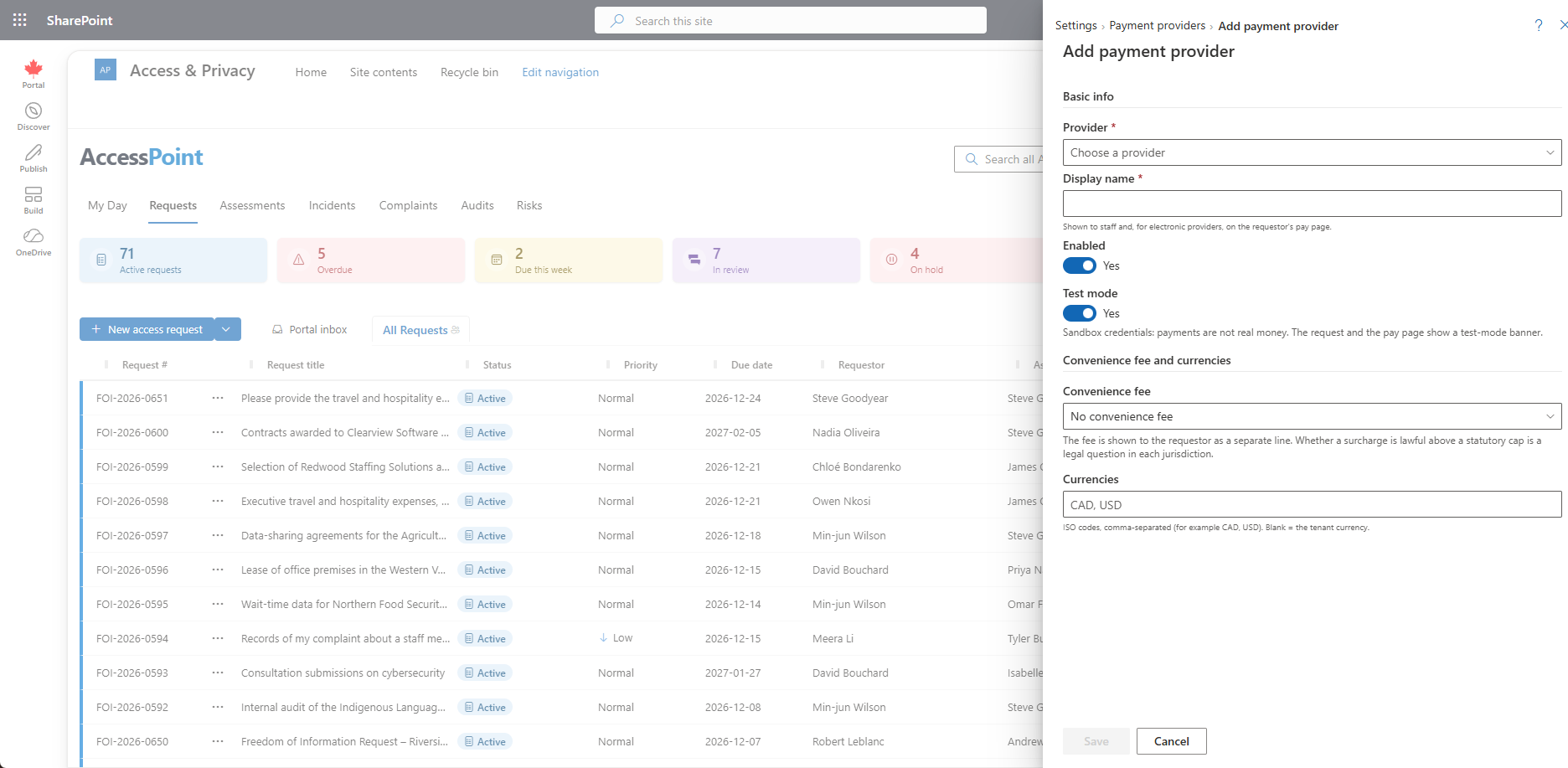
- Choose the kind and give it a display name.
- Fill in the provider's own fields. Secrets are masked after saving, and entering
***on a later save leaves a secret unchanged. - Choose the convenience-fee model: none, payer pays (a percentage and a fixed amount, shown to the requestor before they are sent to the provider), or agency absorbs. Whether a payer-pays fee is lawful above a statutory cap is a legal question for your jurisdiction.
- Set the accepted currencies.
- Keep Test mode on while you use sandbox credentials. A banner shows while the tenant's electronic provider is in test mode, and test payments are captioned separately in the Fees Collected Report.
- Save, then copy the notify URL shown on the provider's row and register it with the provider.
- Choose Test connection and read the result of each step.
- Switch on Enabled when you are ready.
The row shows the notify URL, the last Test connection result with its steps, and whether the provider's notification is trigger only. Registering an Offline row is optional; with one, offline payments carry its display name in reports.
Stripe Checkout
- Register the provider with a secret key and a webhook signing secret. Use a test key (
sk_test_) with Test mode on. Optional fields set the payment method types and a statement descriptor suffix. - In the Stripe Dashboard, in test mode, create a webhook endpoint for the notify URL with the events
checkout.session.completed,checkout.session.async_payment_succeededandcheckout.session.async_payment_failed. - Paste the endpoint's signing secret (
whsec_…) into the registration. - Run Test connection. It checks that the key prefix matches the Test mode flag, that a signing secret is present, and that Stripe answers a balance request.
- Make one sandbox payment end to end from a test request. Issue an estimate, choose Send payment link, pay with the Stripe test card
4242 4242 4242 4242, and confirm the ledger row, the receipt e-mail and the requestor's case page. - To go live, use a live key and a live-mode webhook endpoint with its own signing secret, and turn Test mode off.
Generic Hosted Page
A generic provider is configured field by field: how the session is started (a redirect with signed parameters, or a call that returns a redirect address), the request signing secret, how the processor signs its notification, how a paid status is recognized, and optionally a status query address and a refund address. The registration form lists every field with its meaning. If the notification is signed with an HMAC over the body, it is treated as a verified fact. If it carries only a shared secret or nothing, it is trigger only, and the provider's status query settles the payment, so a status query address is required.
Paymentus
Registration needs the biller code Paymentus assigned, the API and hosted-page addresses, a pre-shared key, and the payment type code for records fees. Paymentus's notification is always treated as a trigger. Several details, such as the hosted-page parameters and the notification format, depend on your Paymentus implementation, so keep the registration in test mode against the test hosts and verify them with your Paymentus account team before going live.
How a Payment Is Confirmed
A requestor's return to the portal never marks anything paid. A payment is booked only when the provider confirms it server to server, either through a notification whose signature AccessPoint verifies or through AccessPoint's own query of the provider. A trigger only provider's notification only prompts that query. After a payment, the requestor receives a receipt by e-mail, and the pending-fee clock pause on the request is lifted when no payment request remains open.
If your portal sits behind an Azure Front Door web application firewall, the firewall must allow the provider's posts to the notify URL.
Delete or Disable
A provider that has taken payments cannot be deleted, so the ledger keeps its history. Disable it instead.
Reconciliation
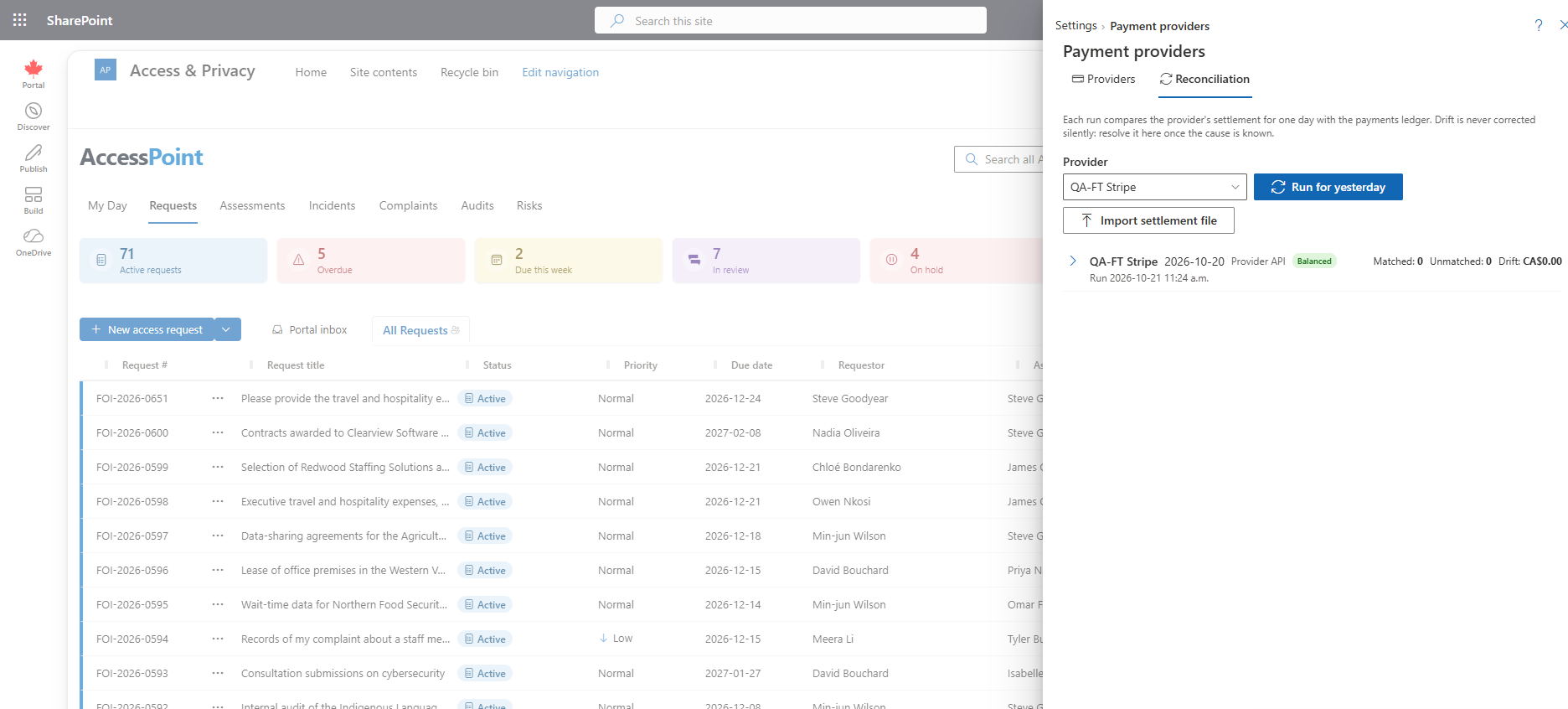
The Reconciliation tab lists the daily settlement differences for each provider: matched, unmatched and drift.
- Run reconciliation for a chosen date, for a provider with a settlement service (Stripe).
- Import settlement file for a provider without one. It accepts a CSV with a header row and columns for transaction id, kind (payment or refund), amount, currency and, optionally, a reference and a settled-on date.
- Resolve a reconciliation with notes. Drift creates work for a person; nothing is corrected silently.
Accessibility of the Provider's Page
The provider's hosted page is the provider's, not AccessPoint's. Before turning electronic payments on, ask the provider for its accessibility statement for the hosted page, and test the page in test mode with a keyboard and a screen reader in each language your portal offers. The portal's pay page tells requestors there are other ways to pay and links your support address from Settings → Public portal. The Offline provider records a payment made any other way, with the same effect on the request.
Related Pages
- Public Portal — the portal that hosts the pay page.
- Fees Collected Report — payments, refunds and the net.
- Request Response — the Fee panel, payment links and refunds.
- Features — the Payments switch.
- Online fee payments — the capability overview.