
Turn on and configure the public intake portal — allowed sites, languages, bot challenge, uploads, the embed snippet, intake forms, requestor messages and the portal's own wording.
Last updated: October 20, 2026 by Steve
Public Portal
The public intake portal lets requestors send, track and pay for requests, and collect released records, without an account. It is a separate, internet-facing web app that is deployed beside AccessPoint. It is off by default and opt-in for each tenant. Settings → Foundations → Public portal is where you configure everything about it. You need the portal.configure permission, and the panel tells you when the portal web app is not deployed. A tenant whose subscription does not include the Public portal module sees the switches locked.
Staff triage what the portal receives in the Portal Inbox. For the overview, see Public intake portal.
Before You Start
- Deploy the portal. The portal is a second web app that your deployment adds when
deployPublicPortalis set (the deployment script switch is-DeployPublicPortal). It has its own managed identity and reaches only the data it needs. Requestors submit requests, track them, collect secure deliveries and pay fees there, each step protected by an e-mailed one-time code. See Deployment. - Set up the sender mailbox. The portal's e-mails (verification codes, receipts, delivery confirmations) go out through AccessPoint's notification sender mailbox, so notifications must be configured in Settings → Setup.
- Switch the portal on. In Settings → Getting started → Features, turn on Public portal. The row says so when the portal web app is not deployed.
- Choose a web address. A custom domain can be bound to the web app directly or placed behind Azure Front Door. Add the DNS records promptly: every link in an e-mail and the embed snippet use the custom domain from the moment it is set.
The Settings Tabs
The panel has four tabs: General, Embed & diagnostics, Intake form and Wording.
General
- Enabled, the allowed host origins (the web sites that may embed the form), the languages offered and the default language. The offered languages are your requestor languages, up to the eleven the product ships in.
- Bot challenge. The default is a proof-of-work challenge that the browser solves silently and the portal serves itself, with no third-party CAPTCHA and no cookies. You can also choose none. Set the minimum number of seconds before a form can be submitted. A filled honeypot field does not refuse the request; it makes the challenge required even when the bot challenge is off.
- Uploads. The allowed file extensions and the per-file and per-submission size limits. Files are checked by extension and by content, and stay in a staging area until you accept the submission.
- Auto-promote. Known requestors only (an existing contact who is not marked frivolous or vexatious and has no custom active-request limit) or All verified submissions, with the default request type and access officer. Auto-promoted submissions become Draft requests assigned to the default access officer, and a default officer is required for the setting to act.
- Reference prefix, optional. With
TV, references readTV-2026-W6KTD3; left empty they read2026-W6KTD3. - Show the statutory due date to the requestor, delivery-link validity (the days a secure delivery stays open, 30 by default) and rejected-submission retention (30 days by default).
- Keep the portal copy after registration (days). 30 by default. Once a submission is promoted or merged, its original is part of the request, and this setting clears the portal's copy of the answers, e-mail address, client details and staged files that many days later. 0 keeps them.
- Support e-mail, a postal address for requests (plain text, up to 300 characters) and the privacy-notice URL (https only). With the support e-mail, the postal address is how the form tells a requestor whose browser cannot run it where else to send a request.
- Requestor notices. The Normal review time (business days), where 0 states none, and Include a copy of the answers in the received notice (off by default, because e-mail is not a protected channel; turn it on only if your privacy policy allows it). Also whether Email the requestor starts ticked when you reject or merge a submission.
- Requestor messages. Off, Replies and additions (the default) or Any open phase. A requestor can reply while you are waiting on them and add detail or files while the request waits for review or is under review. A message never changes the request's status or restarts a paused clock. Each one is logged as an inbound communication, notifies the access officer and puts a follow-up on My Day.
- When a request is closed. The public outcome shown for each closure, such as released in full, in part, withheld, no records, withdrawn, transferred or not proceeded, and the review-rights text: how to ask for a review and by when.
- Offer "See all your requests", Before you ask (a note and up to six links to what you already publish), and Suggestions on the status page, the clarity assistant (off by default; Checklist, or Checklist and AI questions, with a daily cap on AI runs).
- Program areas. Which of your program areas the portal offers under "Which part of the organization?", with a public name and short description in each language and each area's default custodian and default repository. Nothing is assigned by itself: the defaults are suggested as chips in Add assignment.
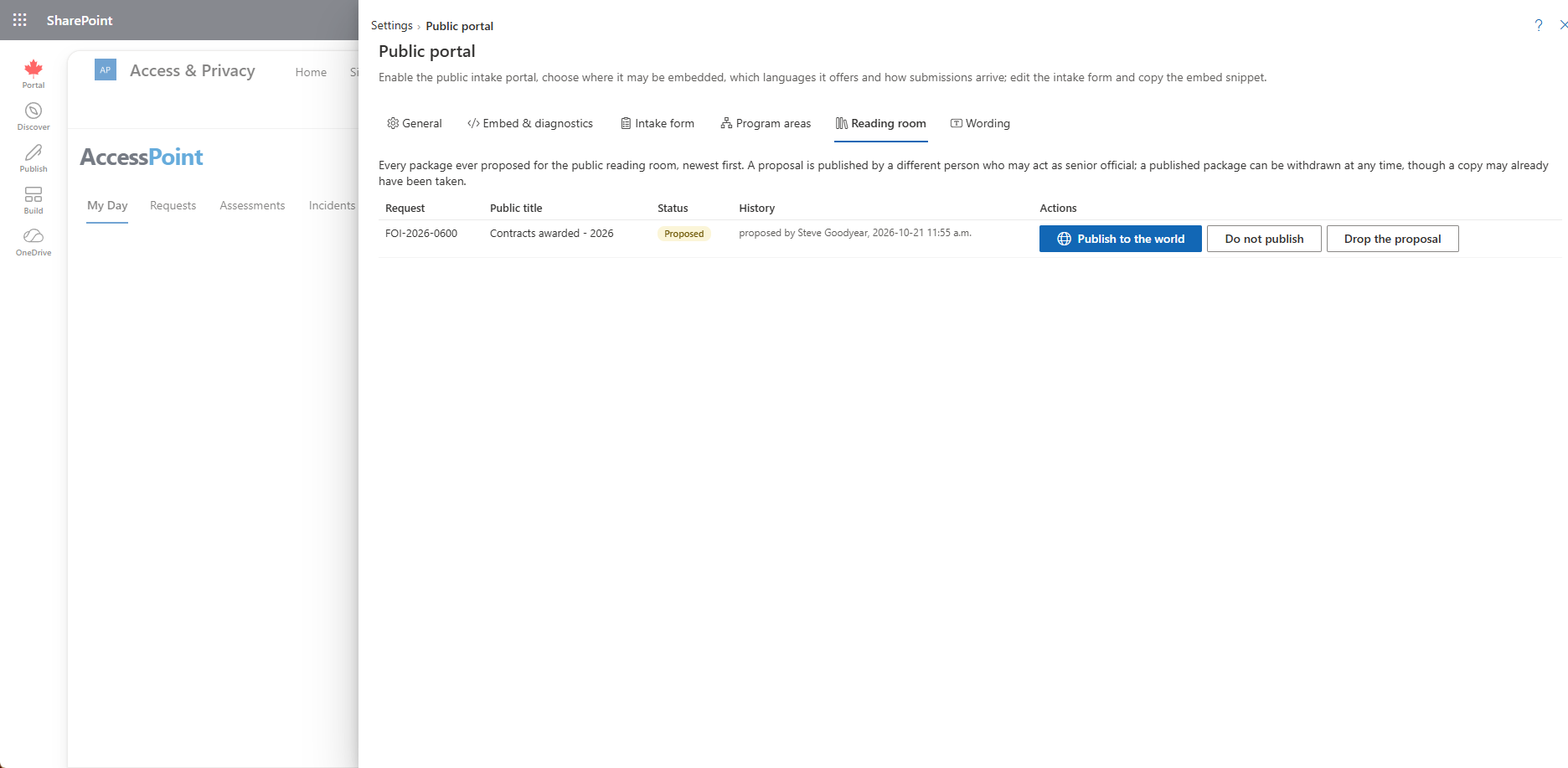
- Public reading room, off by default. When on, a merged-PDF response package can be published for anyone to search and download at the portal's reading room. Publishing takes two people: one proposes the package, and a different person who may act as senior official publishes it. The Reading room list shows everything ever proposed, newest first, with publish, decline and withdraw actions.
- Appearance. The portal pages and the embedded form follow your look. Choose a colour theme (each visitor's device, or light or dark for everyone), colours grouped as Page, Text and links, Form fields, Buttons, Header, Messages and Keyboard focus, a font preset (all fonts already on the visitor's device), the text size, corner radii and page width, and a logo. The logo is a PNG or JPEG of up to 200 KB and 1200 × 400 pixels, and its hidden metadata is removed when you upload it. As you type, the page warns, without blocking Save, when a colour pair falls below WCAG 2.2 AA contrast. Advanced: JSON edits the same settings as the object the portal receives. Every change is recorded in the audit trail.
Embed & Diagnostics
- The copy-ready embed snippet: two lines of script for your own web site. By default it loads a stable address that follows every portal upgrade, so it needs no change when the portal is updated.
- A site whose policy requires subresource integrity pins the versioned file instead, with the SHA-384 shown under the snippet (Copy hash), and replaces both the address and the hash after each portal upgrade.
- The standalone page URLs: each published form is also available as its own page, and the portal's home page offers a button for every published form.
- A status strip showing whether the portal is deployed, enabled and has its identity granted, how many forms are published, how many submissions await triage, unsent e-mails and open deliveries. If it reads No mail key, save the General settings once; it clears on its own.
Intake Form
The form editor lists every form. New form starts from a template, under a key you choose; the key becomes the form's standalone address. The templates come from the jurisdiction packs you applied: the guided request, the request for your own information, the privacy complaint and the privacy concern report from the Universal baseline. A form registers in one register, chosen when it is created: Requests, Complaints or Incidents.
- Layout. Single page (the default) shows every section with a checklist above Send request. Step by step shows one section at a time, with 2 to 8 steps, a step list, Continue and Back, and a Check your answers step. The text can be identical in both, so you can switch layouts freely, and the Intake Quality Report shows which one requestors finish more often.
- Sections carry a short title for the step list, a hint under the title and worked-example pairs, in every language you offer.
- Fields: text, long text, e-mail, phone, choice, multiple choice, date, yes/no, file upload, address and information. A Time period field lets you hide choices, set the earliest year and set the span at which the advisory line warns. A field's placeholder disappears as soon as the requestor types, so never put an example in it; use the hint or a worked example.
- Mappings. Each field maps onto the request: requestor name, e-mail, phone, address, language or organization, the description, the date range, request type, preferred format, on-behalf-of, attachments, accessible format asked for, or a custom field.
- Validation and conditions. A field with a pattern can carry its own message in each language. A pattern that is not a valid regular expression cannot be saved.
- Per-language text. A translation never overwrites the base language.
- Preview saves the draft and opens it in a new tab exactly as a requestor would see it. A banner says it is a preview, the link works for fifteen minutes and nothing entered there is sent.
- Save draft as often as you like. Only Publish changes what requestors see, and publishing checks the form: exactly one required e-mail field, exactly one description field, every choice with options, and so on.
- Registers as request type. Set this on a form so every submission from it lands on one request type. For the request for your own information, choose the type that verifies identity before the clock starts.
Wording
Wording lets you replace the text the portal itself shows, per language: page headings, buttons, hints, field errors, the e-mailed-code steps, the status names, the letter names, the session time-out warning and the delivery and payment pages.
- Choose the language.
- Narrow the list with the group tabs or the search box. Search matches the string's key, the built-in text and your text.
- Type in Your text under the built-in text. An empty box keeps the built-in text, and Reset to built-in empties it.
- Save or Discard. These act on the language shown, and switching language or leaving the tab with unsaved changes asks first.
Your text must keep every placeholder the built-in text has (such as {0}), must not add any, must be plain text on one line and at most 2,000 characters. The portal picks up saved wording within a minute. The language names, the form's own titles and questions, and the e-mails sent to requestors are not covered here: the notices are correspondence templates under Settings → Correspondence templates.
Operating the Portal
- Requestor sessions end after 30 minutes without activity, and eight hours at most. A one-time code is valid for 10 minutes and locks for 15 minutes after five wrong attempts. An address may receive five codes an hour. These are portal app settings set by an operator; the pages state the values in force.
- The portal's health check is
/health. - The e-mails the portal sends are in the requestor's language and can be edited as correspondence templates: Portal notice: request received, not accepted, added to an existing request, and the records-available notice.
- Electronic fee payments ride on the portal. See Payment Providers.
Related Pages
- Portal Inbox — how staff triage submissions.
- Payment Providers — online fee payment through the portal.
- Features — the feature toggles, including Public portal and Payments.
- Deployment — deploying the portal web app and its custom domain.
- Intake Quality Report — whether the intake forms are working.
- Public intake portal — the capability overview.