
Documents tab — uploading documents and recordings, adding from Microsoft 365 (including Teams meeting recordings), email attachment extraction, previewing and classifying records, redacting with Find & redact and suggested redactions, label modes, the Download menu, cross-request document history, optional AI Assist, applying exemptions, and response packaging
Last updated: September 03, 2026 by Steve
Documents
The Documents tab is where all records related to a request are collected, reviewed, and prepared for response.
Uploading Documents
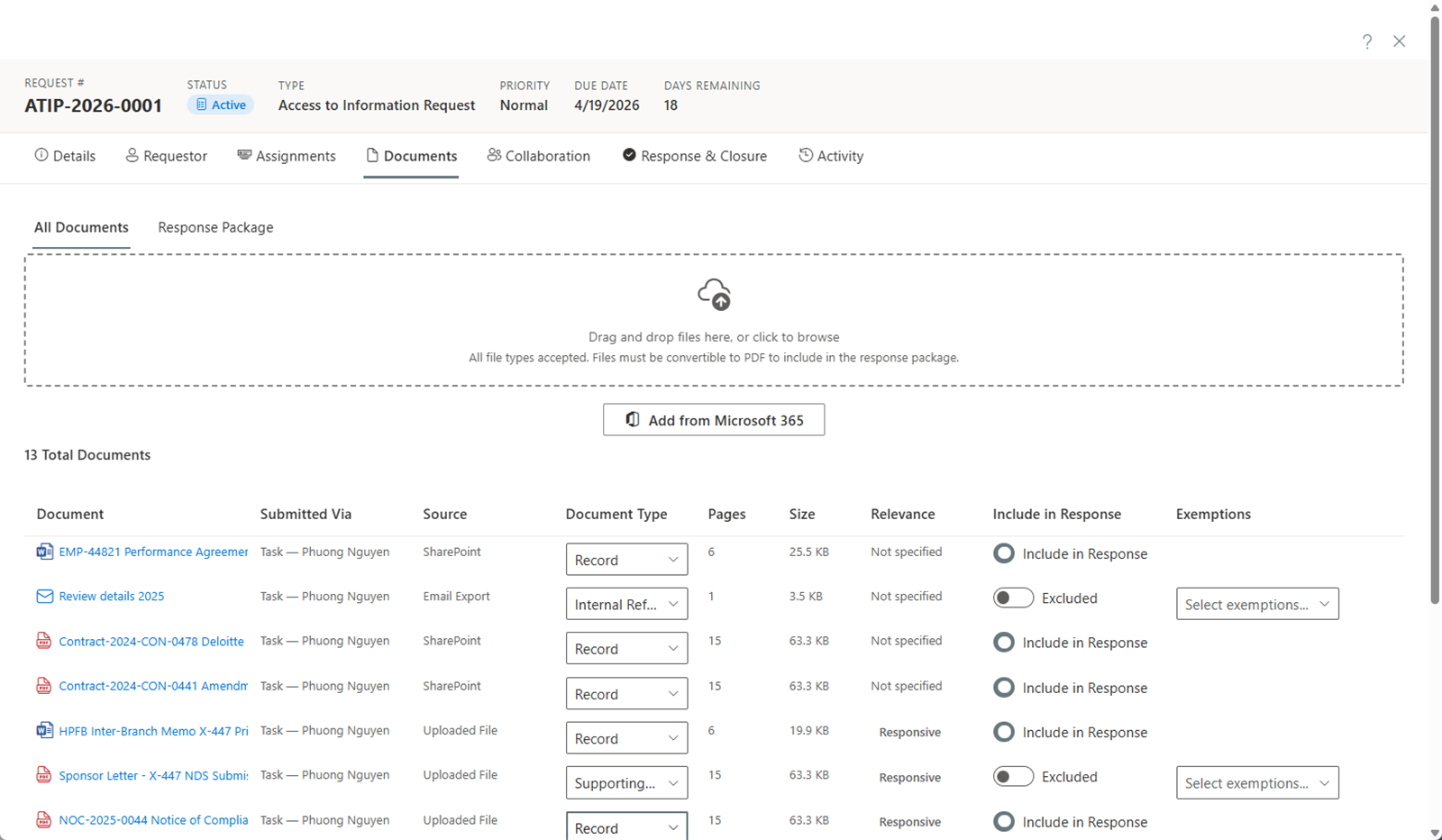
Click Browse or drag and drop files directly into the drop zone on the Documents tab. You can select or drop multiple files at once — they are uploaded sequentially with a combined progress indicator. Documents can be up to 100 MB each; video and audio recordings and large archives can be up to 2 GB. Files over 100 MB upload in resumable blocks through the Upload queue panel, which shows progress per file and survives a dropped connection (pause, resume, cancel) — keep the page open until it finishes. Recordings then open in the media viewer, with transcripts and time-based redaction: see Video & Audio Records.
The same workspace runs on every case type — privacy assessments, incidents, and complaints carry a Documents tab with the same upload limits, previews, and redaction viewer.
Adding from Microsoft 365
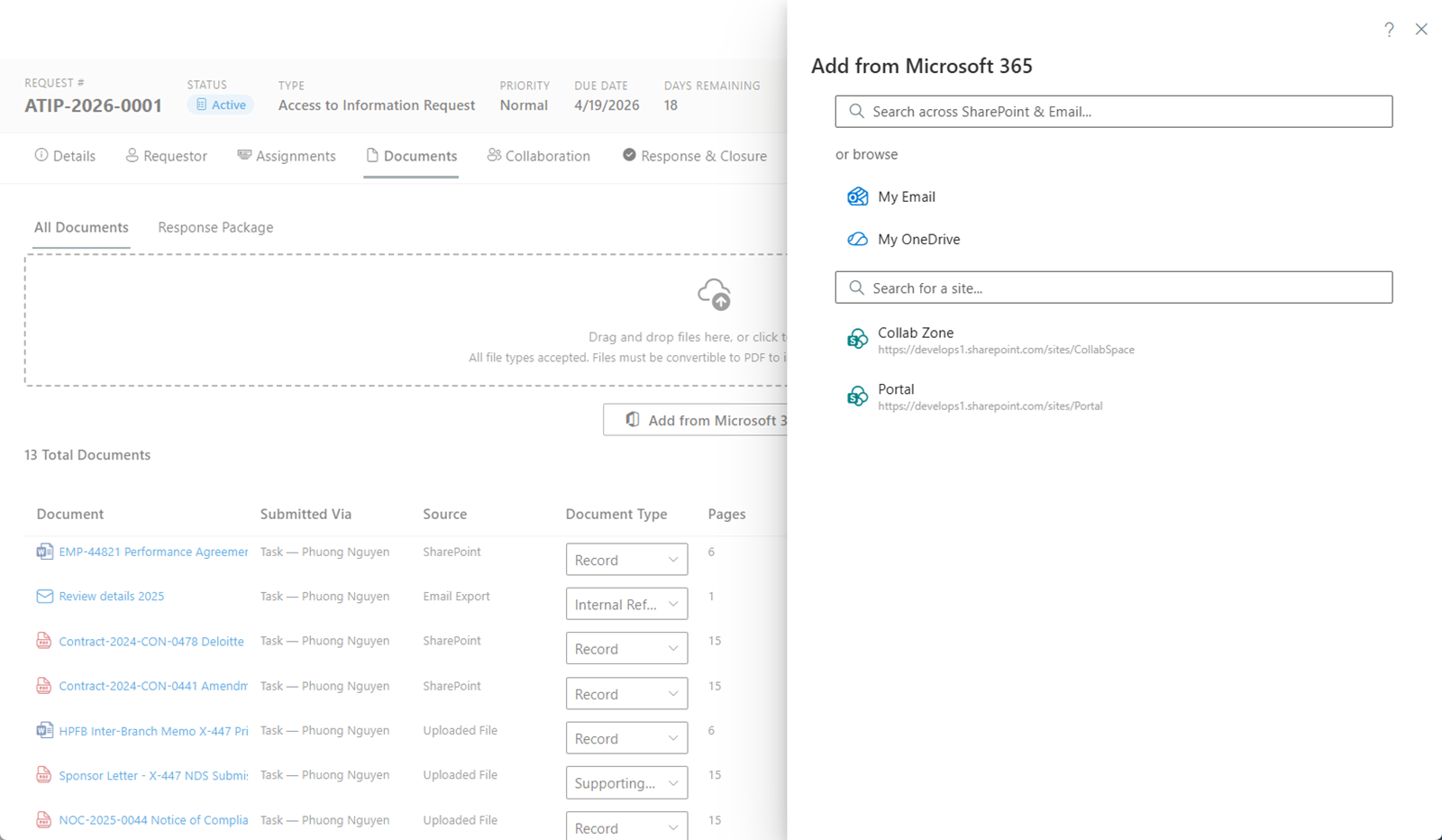
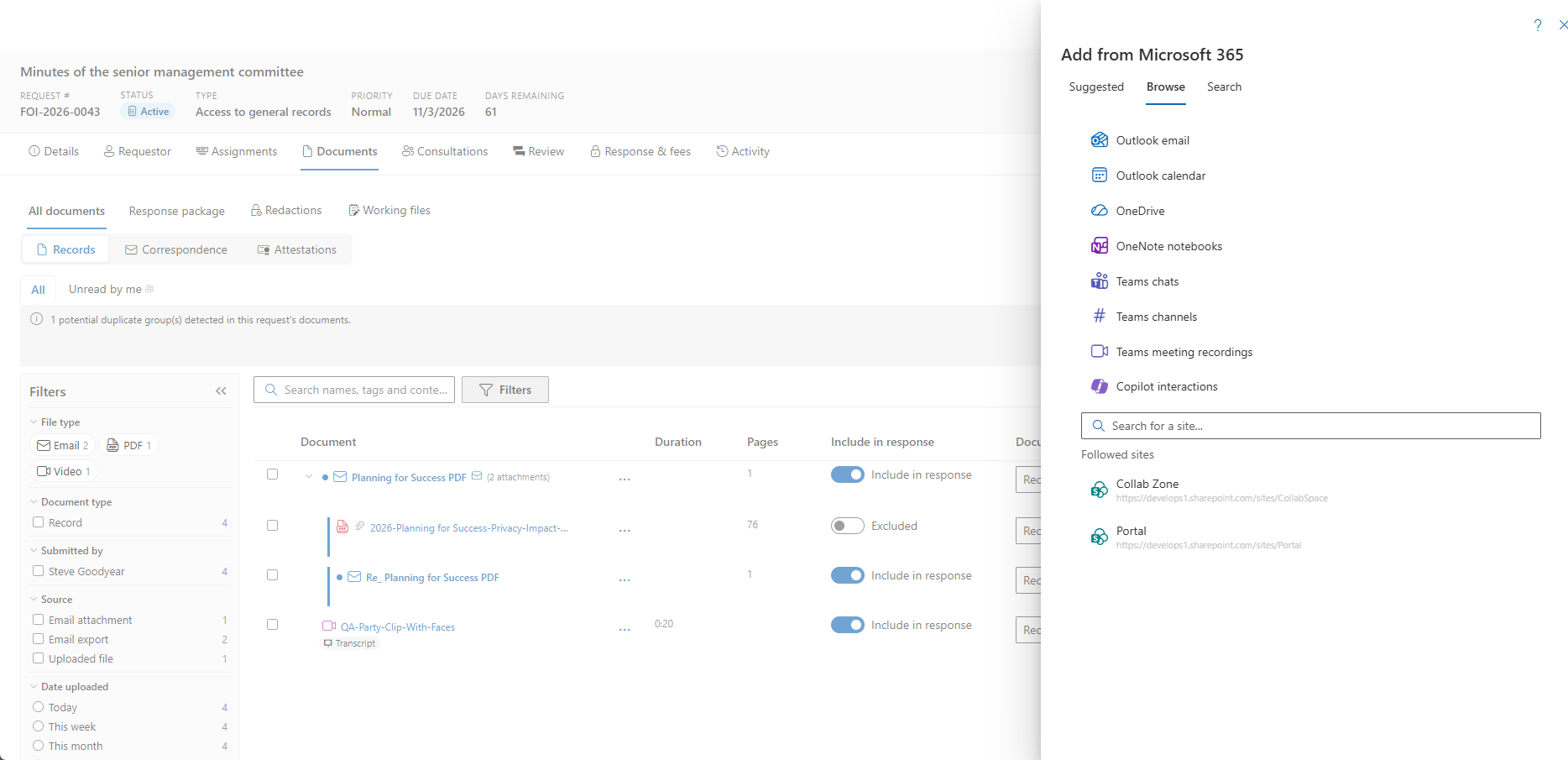
Click Add from Microsoft 365 to search or browse records across your organization's Microsoft 365 environment, including SharePoint, OneDrive, and Outlook mailboxes.
Search
Type a keyword to search across all connected Microsoft 365 sources. Results are grouped into two sections:
- Files — Documents from SharePoint sites and OneDrive.
- Emails — Email messages from Outlook mailboxes.
Select the items you want to add to the request.
Browse
You can also browse Microsoft 365 sources directly:
- My Email — Browse Outlook folders and select individual emails (saved as .eml files).
- Shared mailboxes — Browse one of your tenant's configured intake mailboxes (Settings > Organization), or any shared mailbox you already hold Exchange Full Access to. Listing a mailbox in Settings grants nothing by itself — Graph enforces your existing Exchange permissions.
- My OneDrive — Browse your personal OneDrive files and folders.
- Followed Sites — Browse SharePoint sites you follow, navigating through document libraries and folders.
- Search for a site — Find a specific SharePoint site by name.
Files are copied into the request's document store. Emails are saved as .eml files preserving headers, body, and inline content. When an email has file attachments, each attachment is extracted as its own record — a paperclip marks it and its source reads Email attachment — so you can review, classify, redact, and include attachments independently. Attachments group under the parent email as a family with an expand/collapse chevron, inherit the email's task, folder, and scope, and selecting the parent cascades to its children. Inline signature images and S/MIME signature blobs are not extracted; a forwarded message becomes its own email record whose attachments are extracted in turn. Emails imported before extraction was enabled (or while the tenant toggle is off) can be processed later with Extract attachments on the row — safe to repeat, it only adds what is missing. An attachment that arrived separately can be joined to its email afterwards with Link to email… on the row. The original files and emails in Microsoft 365 are not modified.
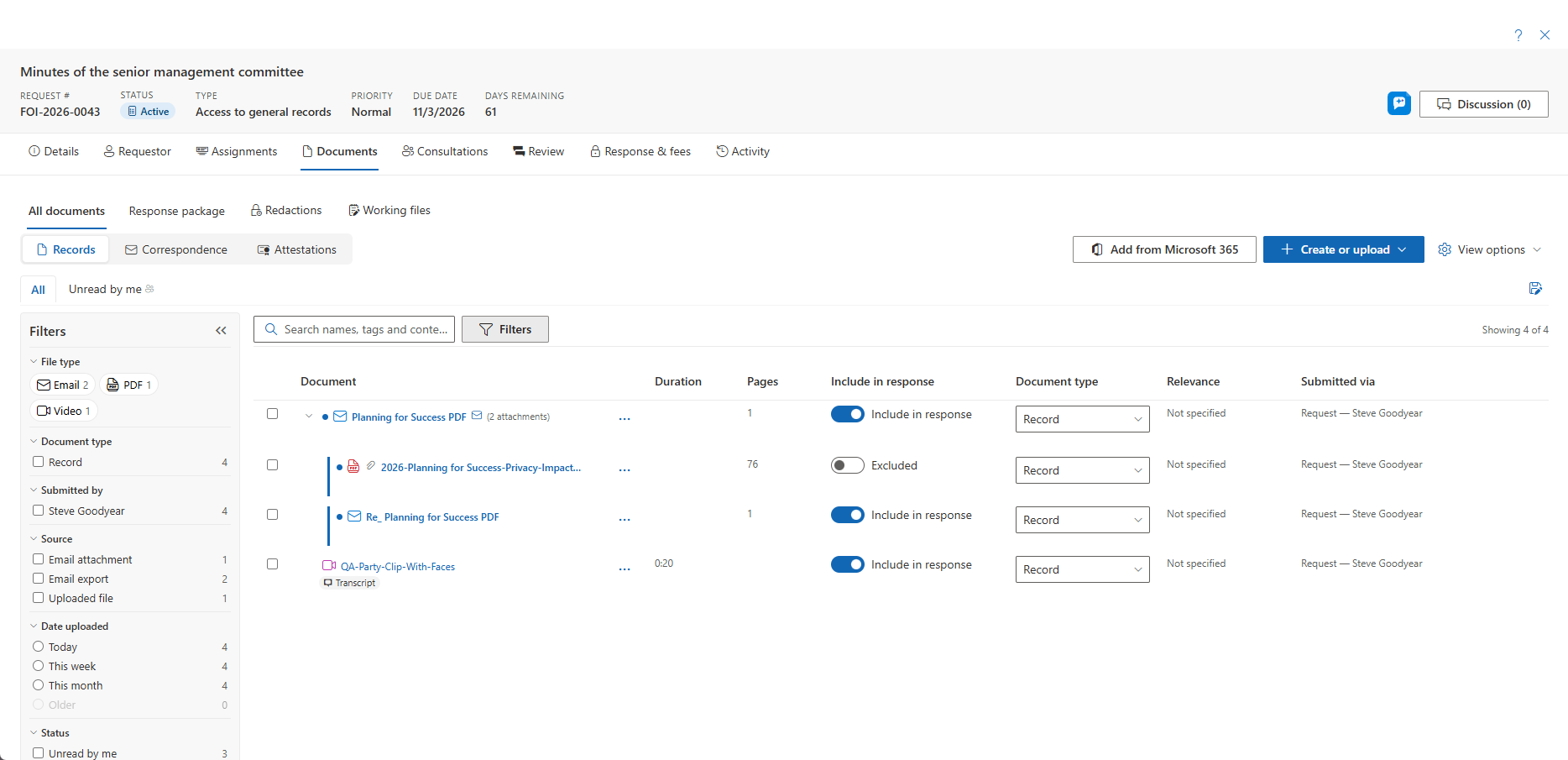
More capture sources
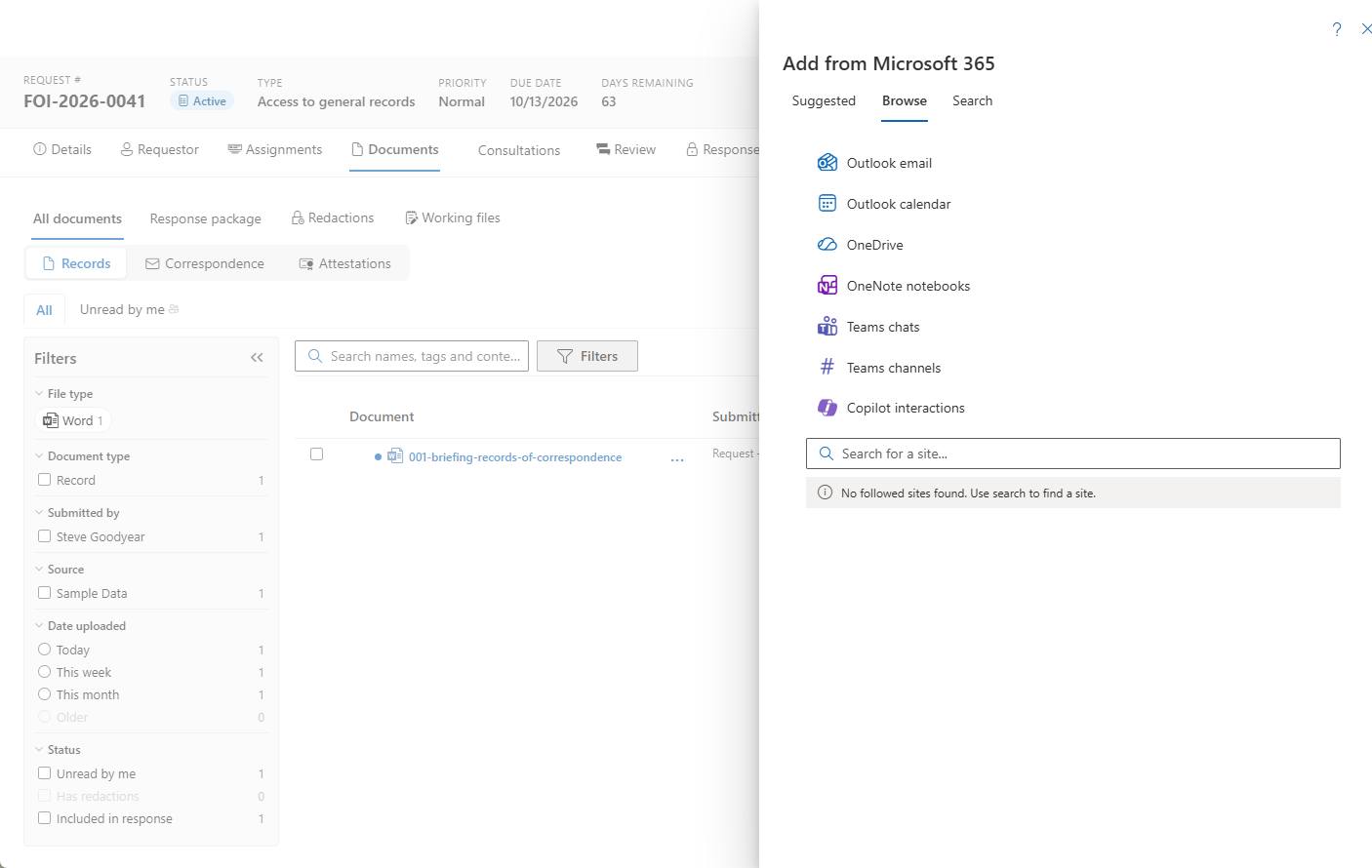
Beyond files and email, Add from Microsoft 365 can also capture a custodian's own records from across Microsoft 365:
- Outlook Calendar — the custodian's meeting schedule. Private items are excluded by default, and a disclosure banner explains what was left out.
- Copilot interaction history — the custodian's Microsoft 365 Copilot interaction history. Copilot capture runs server-side and can take a moment: the picker closes immediately and the workspace shows a "Capturing Copilot sessions…" spinner until the transcripts land.
- Teams meeting recordings — recordings of meetings the custodian organized, with the Teams-generated transcript when one exists. The recording downloads through the browser into the upload queue and continues in the background while the page stays open. See Video & Audio Records.
- Lists, OneNote, and Teams chats and channels — captured alongside Outlook email. When capturing a List, a Columns control lets you choose exactly which columns the exported record includes — with a Populated only shortcut to drop empty columns — so a wide list captures as a focused, readable record.
- Suggested documents — records the picker surfaces automatically, derived from the request's title, scope, and keywords.
Microsoft 365 capture is a per-tenant feature toggle. When it is turned off for your tenant, these sources are hidden.
Previewing Documents
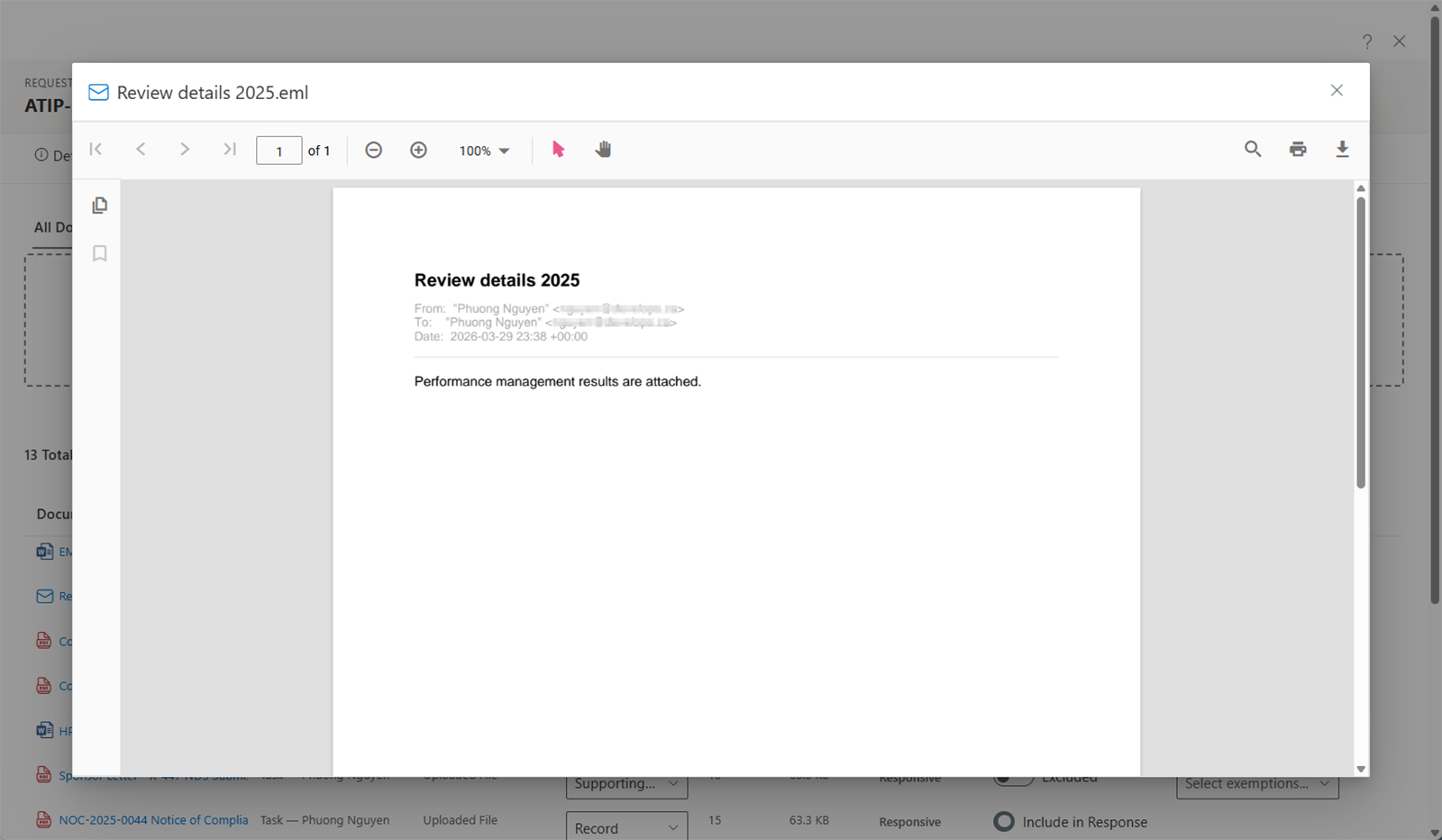
Click a document name to open the preview viewer. AccessPoint supports previewing:
- PDF files
- Microsoft Office documents (Word, Excel, PowerPoint)
- Images
- Text files
- Email messages (.eml and .msg files, rendered as formatted PDFs)
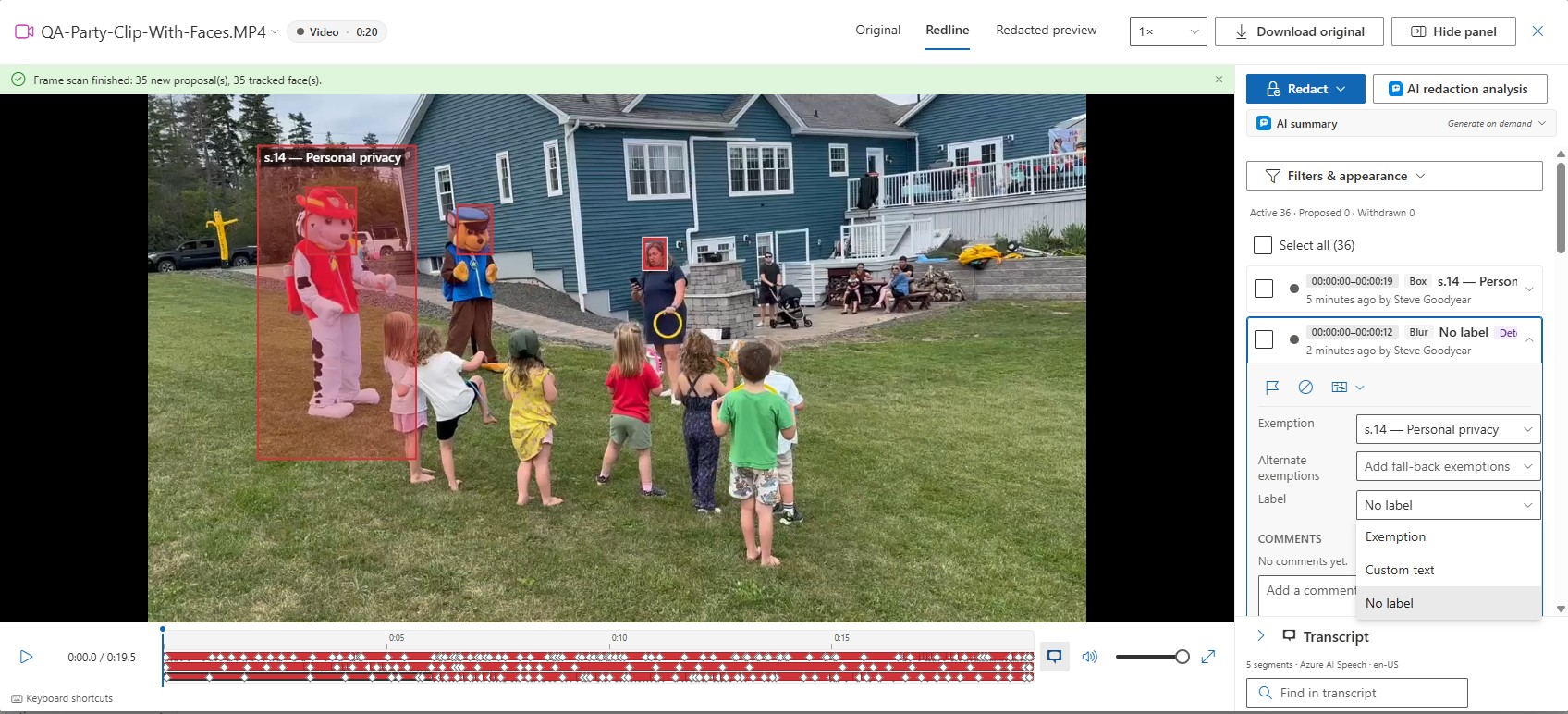
- Video and audio recordings, which open in the media viewer with playback, transcript, and time-based redaction — see Video & Audio Records
A multi-hundred-page scan opens in the same viewer with pages streamed on demand — jumping deep into the document renders that page directly rather than loading everything before it. In the background AccessPoint also prepares a viewer-optimized copy of very large PDFs, used only for on-screen preview and never for downloads or the released package, so a large scan pages noticeably faster from the second open onward.
Classifying Documents
Each document can be classified as:
- Responsive — The document is relevant to the request and should be considered for the response.
- Not Responsive — The document is not relevant to the request.
- Duplicate — The document is a duplicate of another record already in the request.
Who can classify a given document depends on where it came from:
- Documents collected via an assignment are classified by the Custodian assigned to that assignment.
- Documents collected via a task are classified by the Contributor assigned to that task.
- Documents uploaded directly to the request — including documents attached to a correspondence entry or an external consultation — are classified by the Subject Access Officer or an Administrator.
This mirrors ownership: whoever collected the document decides whether it's responsive.
Classifying Multiple Documents at Once
To classify several documents in one step, use the multi-select icon in the Relevance column header. A menu lets you apply a value to all unclassified documents in one click, or to a row selection (tick 2 or more checkboxes first).
Redacting Documents
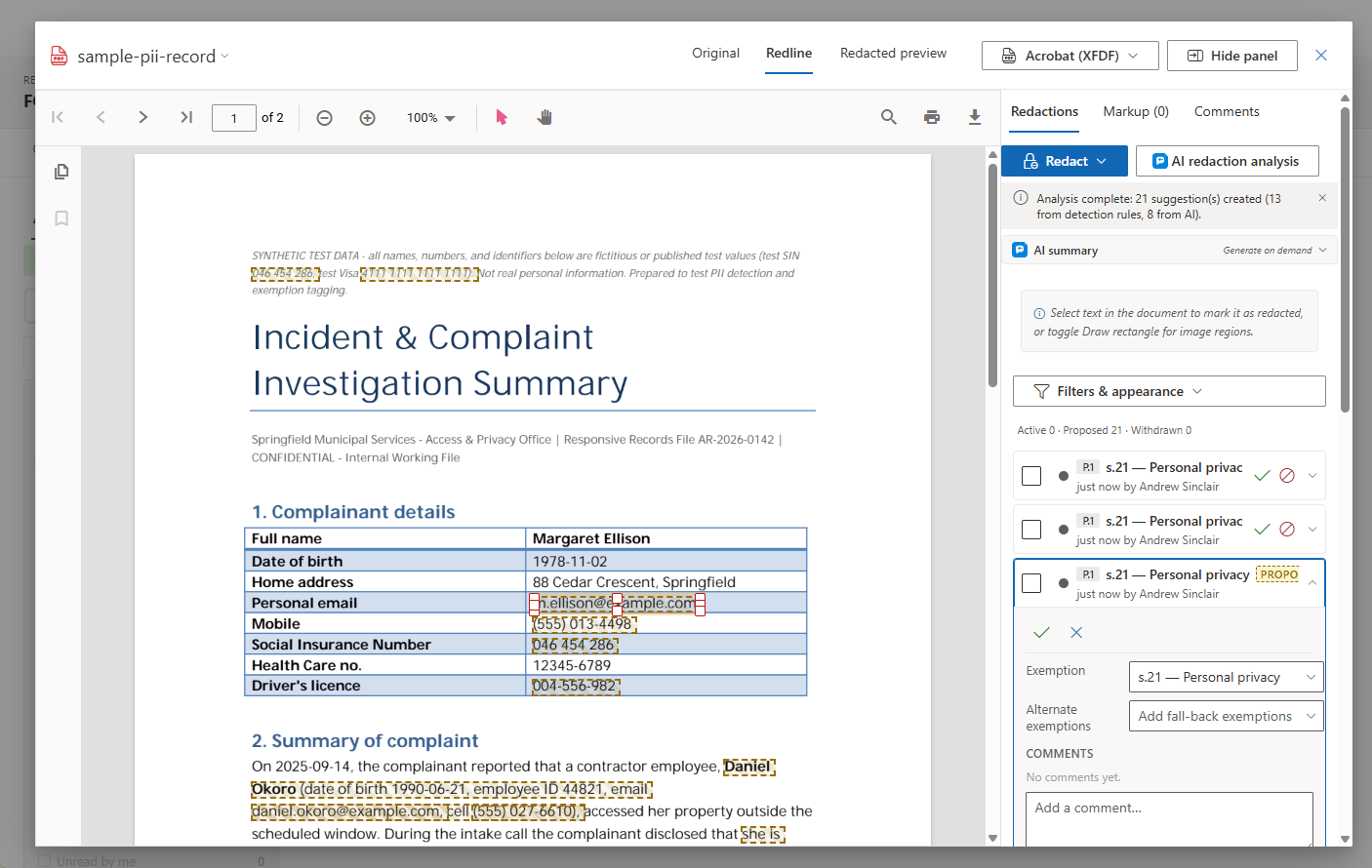
The Redactions sub-tab is where records are marked up for release. Alongside manual redaction, three tools speed the work — and all of them only ever propose a redaction. A person accepts or dismisses every machine-produced redaction, each one carries an origin badge (Pattern, Suggestion, or Propagated) and its matched text, and proposed redactions render as dashed amber boxes that can never reach an export until they are accepted.
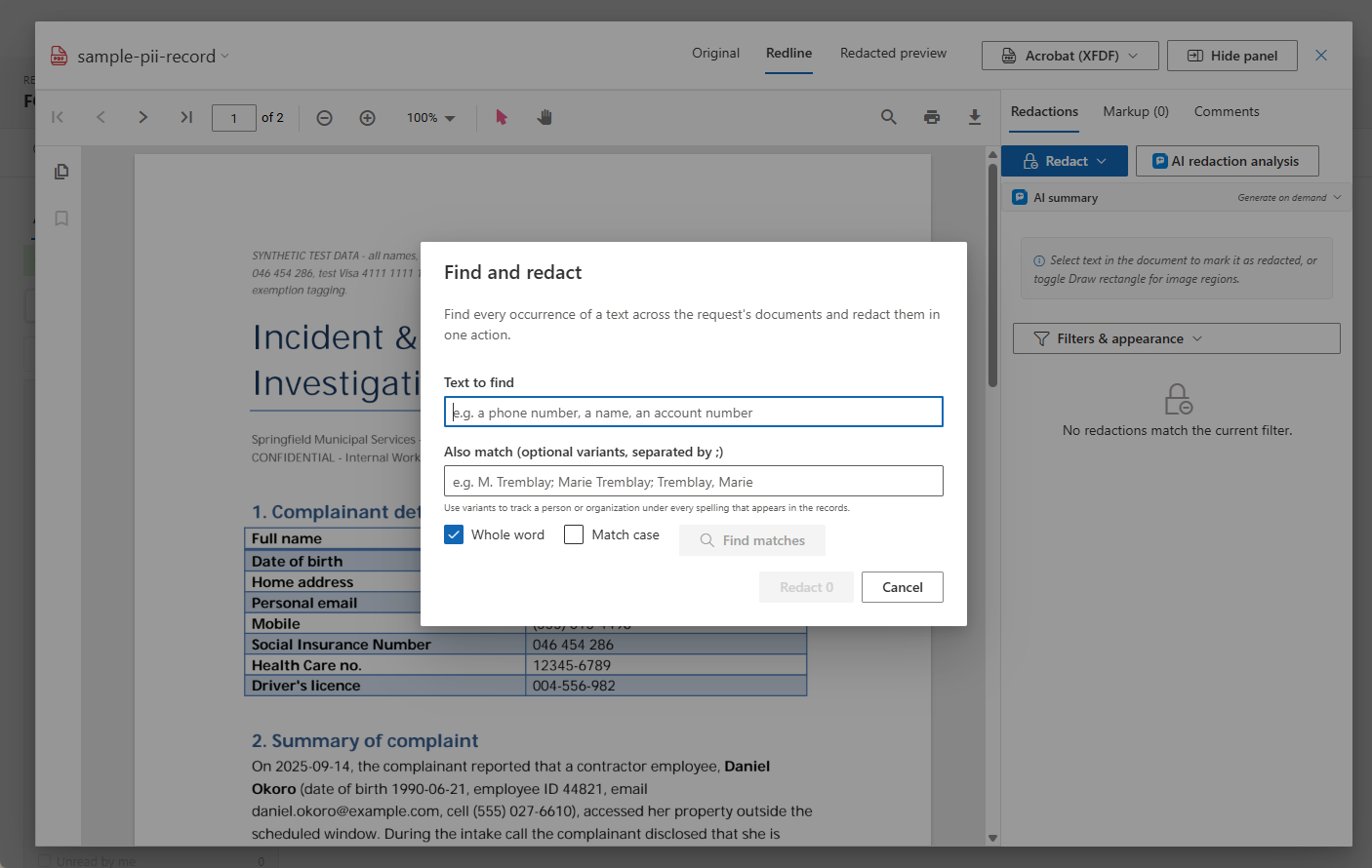
- Find & redact — type a text (a phone number, a third party's name, an account number), see per-document match counts, pick the exemption(s), and redact every occurrence in one action, placed word-accurately on each page. Choose Propose for my review so hits await your accept/dismiss, or Apply immediately so hits are applied but flagged for verification.
- Live pattern matching — keep a Find & redact term as a pattern and it runs automatically on every new document added to the request, so the same third party never needs hunting twice. The Patterns panel shows each pattern's applied, awaiting-review, and dismissed counts, and lets you re-run, pause, or retire it.
- Suggested redactions — Scan for suggestions runs your organization's detection patterns (phone numbers, email addresses, SIN/SSN, payment cards, and jurisdiction-specific detectors) across the request and proposes redactions with a confidence score. New documents are scanned automatically after conversion, and — where your jurisdiction pack wires them — accepted suggestions arrive pre-tagged with the right exemption citation.
Filter the sub-tab by Origin (Manual, Pattern, Suggestion, Propagated) and by the Proposed status to review everything the tools did in one place; accept or dismiss inline, per document, or in bulk. These tools work with or without the optional Azure AI Search component — matching runs against the documents themselves.
Nothing proposed slips through. The response-package pre-flight counts unreviewed proposed redactions (pattern, rule, AI, and prior-request suggestions still awaiting accept/dismiss) across the included documents. By default it warns with a Review suggestions shortcut back to this sub-tab; a tenant setting under Settings → Redaction appearance can escalate that to Block, enforced server-side until every proposed mark is accepted or dismissed.
If enrichment partially fails. After a document converts, background enrichment runs — search indexing, redaction pattern and suggestion scans, AI analysis, duplicate detection. When part of that pipeline fails, the document's row shows an amber pill naming what failed, with its own Retry to re-run just the enrichment.
Scanned documents (OCR). When the optional Document Intelligence component is deployed, scanned, image-only documents get their text read automatically, so they participate in content search, duplicate detection, AI summaries, and the redaction tools above like any other document. Without it, scanned documents still match by name, type, and tags.
Working with a redaction mark
- A multi-line selection is one redaction, not many. Selecting a passage that wraps across several lines paints a tight box on each line, but they stay a single entry — one exemption, one set of alternates, one comment thread, one status, one line in the redaction schedule. This mirrors how Acrobat models the same mark, so exporting to XFDF and re-importing round-trips without splitting the passage.
- Adjust a mark in place. Click a redaction to select it, then drag its body to move it or any handle to resize — no need to withdraw and redraw (which would lose the exemption, comments, and history). Geometry changes save to the existing mark; its citation and audit trail carry through.
- Alternate exemptions can be captioned on the mark. When a redaction cites alternates, the overlay can read
s.19 (s.22, s.23)so a reviewer sees the fallback citations without opening the panel; alternates that don't fit collapse to a count (s.19 (+2)), and if even that is too wide only the primary shows. It's a tenant setting under Settings → Redaction appearance, defaulting to redline copies only — the released copy stays clean. - Choose what each mark displays. The Label row in a mark's details controls what paints on the box: Exemption (the default — the citation, with alternates per the setting above), Custom text (exactly the text you type, such as a schedule reference or "Third party"), or No label (a clean box). The label is presentation only — a mark set to Custom or No label keeps its exemption, and the redaction index, exemption summary, schedule, and log always cite it. Select several marks and use Set label to apply a mode in bulk. The same three modes apply to marks on recordings.
- Switching views keeps your place. The Original, Redline, and Redacted preview tabs each load once and stay live, so flipping between them is instant and lands on the page you were reading. Original shows the clean source, Redline shows applied marks, proposals, and reviewer markup, and Redacted preview shows exactly the marks a release would burn.
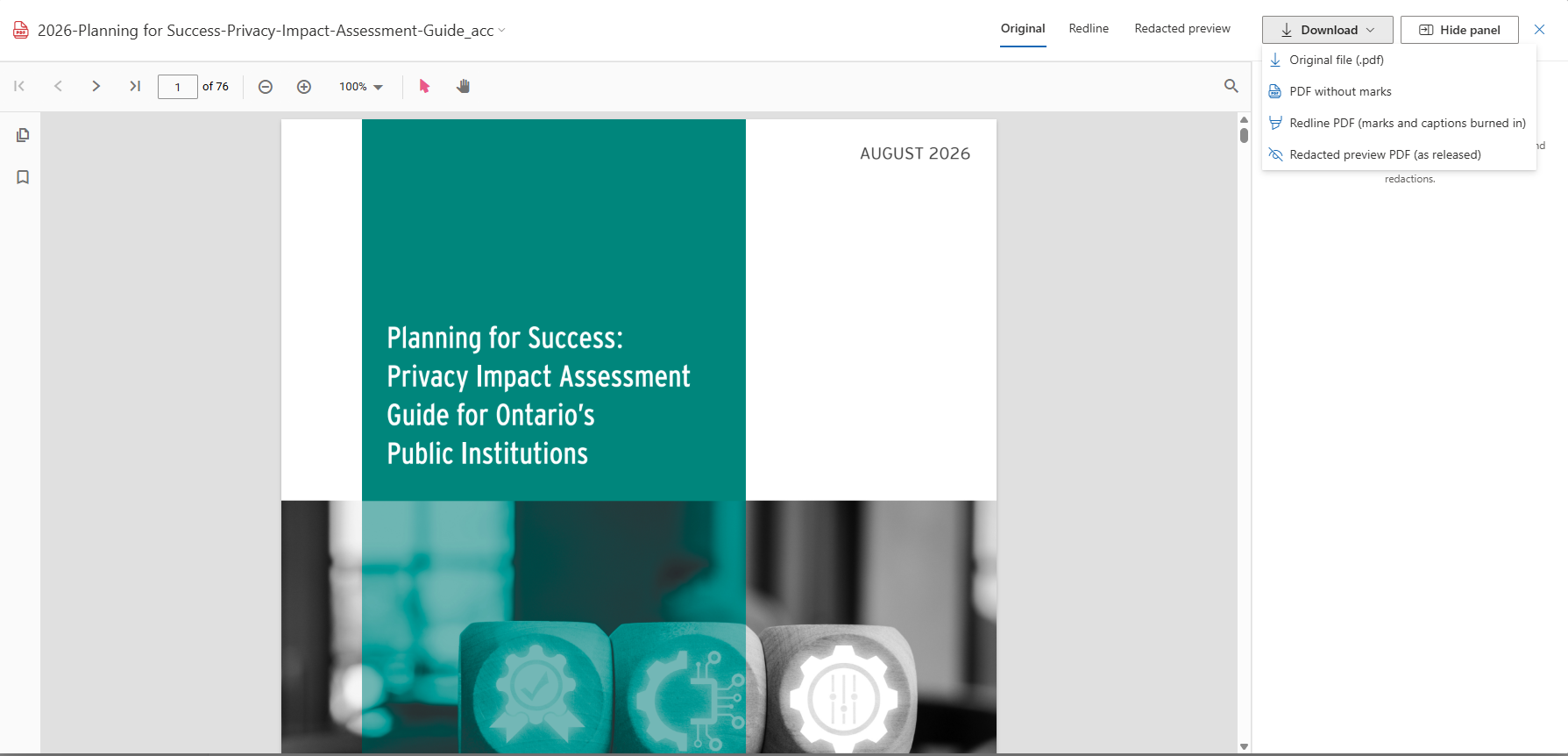
- Downloads name what they give. The viewer header's Download ▾ menu offers the original file in its uploaded format, the PDF without marks, and — on a record with redactions — the burned Redline PDF and the Redacted preview PDF. The redacted preview download physically removes the content under every applied mark before drawing the box, so it is safe to hand out; the redline keeps the content readable under a translucent overlay because reviewers need to verify it. There is no ambiguous download or print button on the viewer toolbar: pick the view you want, and print from that PDF. The Documents-tab row menu also offers Download original, so you can always get the uploaded
.docx,.msg, or image back out.
Cross-Request Document History
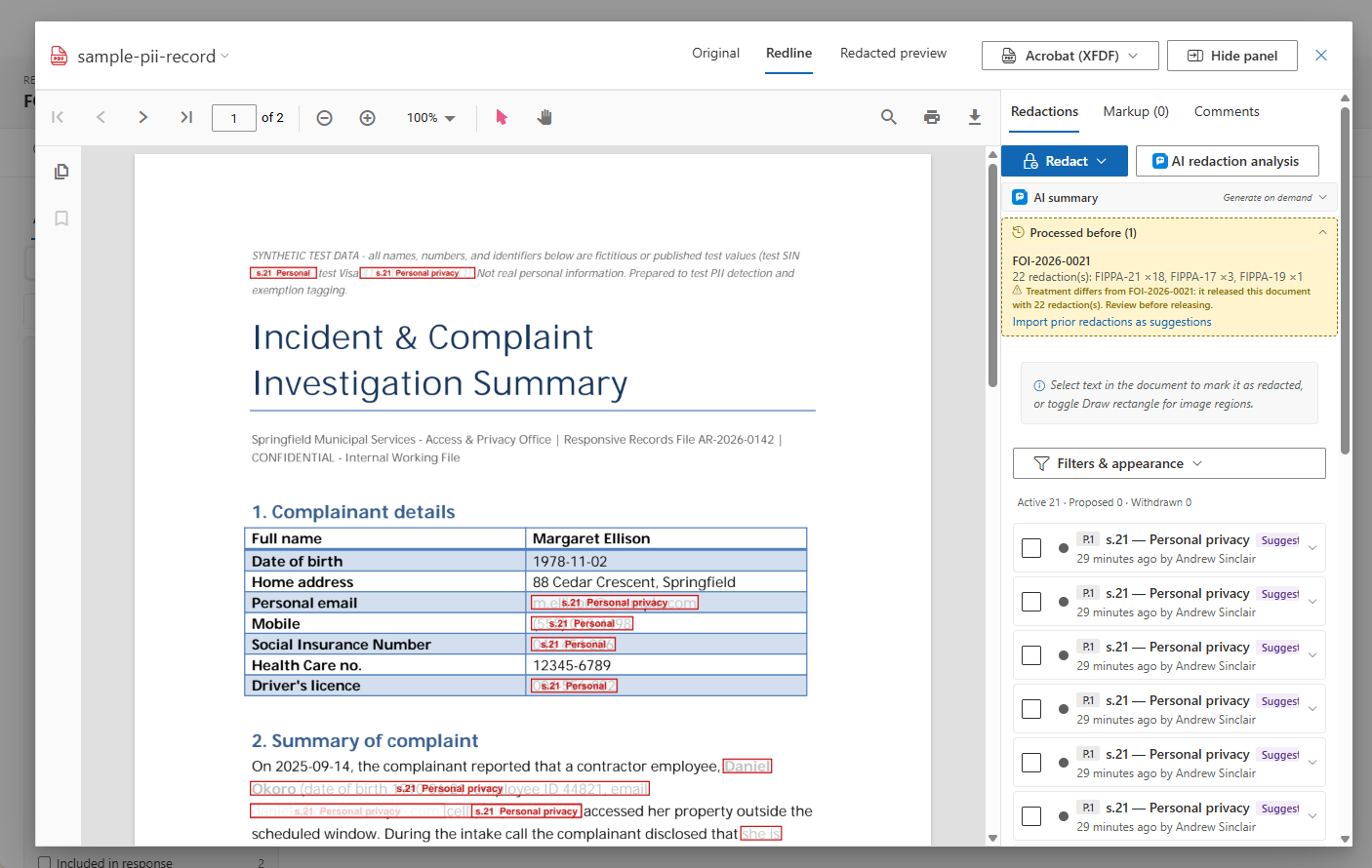
When a document arriving on a request is byte-identical to one you already processed in an earlier request you can access, AccessPoint recognizes it. The workspace shows a banner, and the redaction viewer shows a Processed before panel — the earlier request, its outcome, and its redactions by exemption — with one click to import the prior redactions as suggestions into the current document. As with every suggestion, you review each one before it is applied. History from requests you can't access is never shown.
AI Assist for Documents
When AI Assist is enabled for your tenant, three optional features help with document review. Each one produces a suggestion or an editable draft — a person always decides what is applied.
- AI redaction analysis — in addition to the pattern-based suggestions above, the AI reads document text in context and proposes redactions for personal information about individuals in their personal capacity (officials acting officially are not flagged), advice and recommendation passages, solicitor-client privileged communications, and third-party confidential commercial information — each with a confidence score and a short reason. Proposals flow into the same review pipeline as every other suggestion, so you accept or dismiss them the same way.
- Document summaries — the redaction viewer's side panel offers an on-demand AI summary per document, collapsed until you expand it — generated in your language when you ask for it and cached until the document's content changes.
- Semantic search and duplicate detection — with both Azure AI Search and AI Assist deployed, document search understands meaning as well as exact words, and duplicate detection additionally catches near-duplicates that plain text matching misses, such as a translation of the same memo or a heavily rewritten draft.
AI Assist is optional. These features appear only when your organization has deployed AI Assist; if you don't see them, ask your administrator.
Privacy and responsible AI. AI Assist runs on an Azure OpenAI resource in your organization's own Azure subscription and region — data at rest never leaves your tenancy, and where inference is processed is your organization's deployment-time choice (global, or bounded to the EU/US data zone). Microsoft does not train its models on your content, and prompts and responses are not stored — only usage metadata is kept, visible per record on the Activity tab's AI assist filter. Every AI output is a suggestion or an editable draft that a person reviews and decides on. For how these features are configured tenant-wide, see the Features administrator page.
Applying Exemptions
SAOs can apply exemption codes to documents or portions of documents. Exemption codes are drawn from the configured list set up by your administrator and correspond to the specific legislative provisions that justify withholding information.
Response Packaging
SAOs manage which documents are included in the final response package. From the Documents tab you can:
- Toggle individual documents for inclusion or exclusion from the response.
- Reorder documents to control the sequence in the response package.
A package that includes recordings generates in the background and delivers them as a ZIP with the rendered media files and a hash manifest — see Video & Audio Records and Response & Fees.