
The Audits board lists internal privacy audits and regulator reviews of your practices in one grid, with filters, summary cards, saved views and export.
Last updated: October 20, 2026 by Steve
Audits Board
An impact assessment looks forward: it is written before or around a change. An audit looks back: it tests whether practice matches what your assessments, policies and notices promised. The Audits tab keeps that work, and the reviews a regulator opens into your practices, on one board, apart from the assessments and complaints, so neither skews the other's statistics.
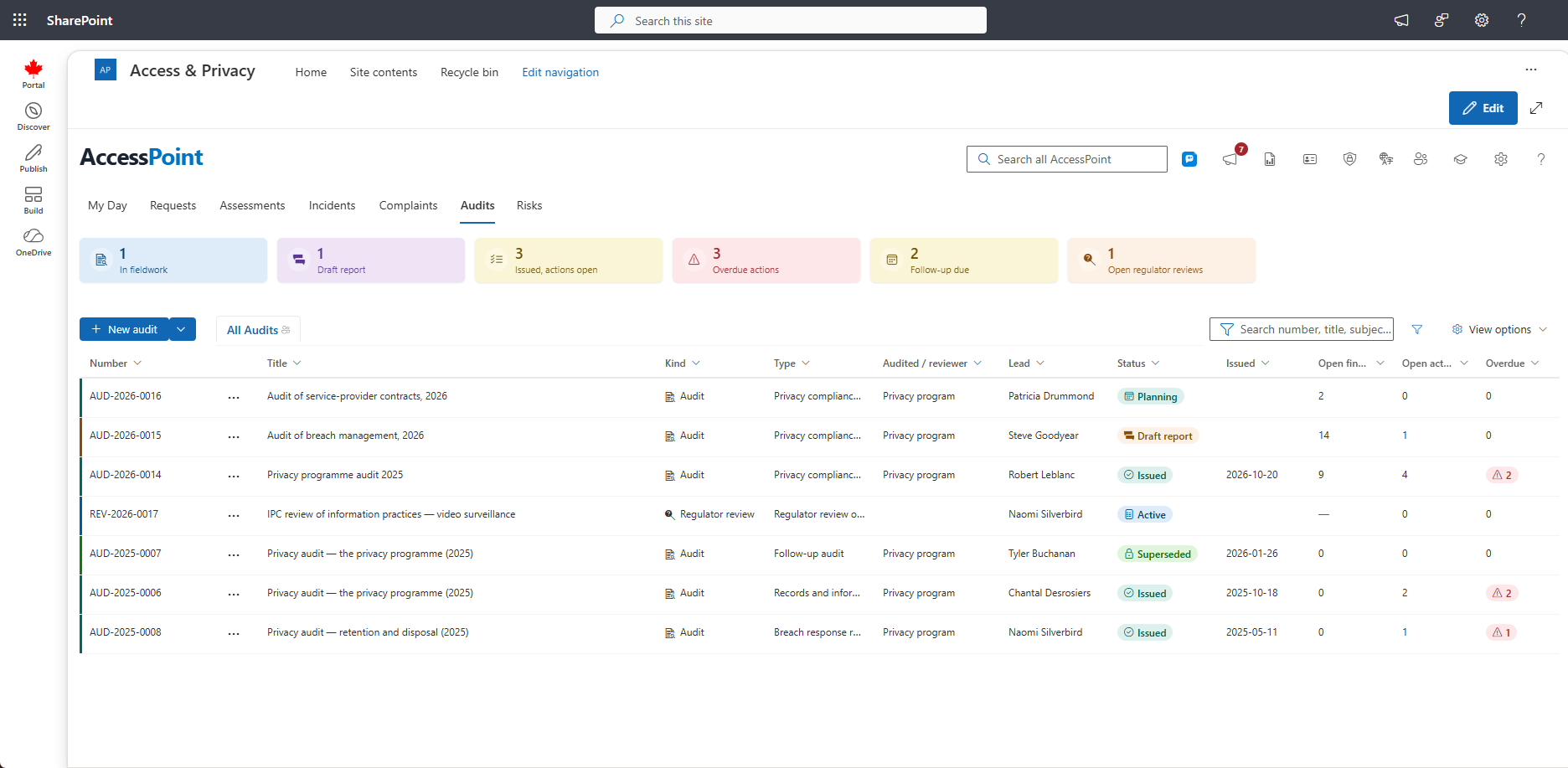
What the Board Lists
The board is one grid with two kinds of row, and it behaves like the Requests, Assessments, Incidents and Complaints boards.
- Internal audits. An audit is an assessment whose type is in the Audit category. It opens in the audit panel. See Audit Details.
- Regulator reviews. A review or own-motion investigation of your practices by an oversight body is registered with Register a regulator review. It is a complaint whose type is marked A regulator's review of our practices (the baseline ships Regulator review of information practices) and runs on the complaint engine: the issues examined as allegations with findings, the regulator's recommendations as commitments with due dates. It appears on the Audits board, not on the Complaints tab.
You see only the audits and reviews you could open from their own registers, whatever you filter on.
Starting an Audit
New audit (you need Initiate assessments) opens a short dialog. See Creating an Audit.
Opening a Row
Click anywhere on a row, or move to it and press Enter. An audit opens in the audit panel, a regulator review in the review panel. The … next to each row's number offers View details and, where you may, Delete audit or Delete regulator review. These follow the rules of the registers: an audit can be deleted only in fieldwork or while its draft report is in review (with Delete assessments), a review only while it is active (with Manage complaints & appeals). Either way you can give a reason.
Columns and Grouping
- Default columns. Number, title, kind, type, what was audited (or the regulator), lead, status, issue date, open findings, open actions and overdue actions.
- Optional columns. Opened, Due, Follow-up due and Open risks can be added from View options → Columns.
- Arranging. Drag a column header to move it, drag its edge to resize it, and click it to sort (click again to reverse).
- Status words. An audit's built-in statuses read in audit words (Fieldwork, Draft report, Issued). A status your organization configured shows its own name and colour.
- Regulator reviews. A review has no open findings or follow-up audit, so those cells show a dash.
- Custom fields appear as columns too. A field set up for Audit shows on audits, one set up for Complaint on regulator reviews, and each shows a value only on the kind of row it applies to. See Custom Fields.
- Group by. View options → Group by groups the rows by kind, type, status, lead, what was audited, or a custom field.
Searching and Filtering
The search box looks in the number, title, what was audited or the regulator, and the lead's name. The filter button next to it opens the filter panel:
- Kind (audits, reviews or both), status, type, and lead (with Me, which always means whoever is looking).
- Open or closed.
- A date range on the opened, due, issue or follow-up date.
- Follow-up audit — due now and Actions — overdue.
- Your custom fields.
Clear filters resets them.
Summary Cards
The cards count the rows the filters leave: in fieldwork, draft report, issued with actions open, overdue actions, follow-up due, and open regulator reviews. Click a card to narrow the grid to it, and click it again to undo. Hover over a card for what it counts.
Views
Choose View options → New view to save what you are looking at as your own view: the filters as well as the columns, their order and widths, the sort and the grouping. It appears as a tab above the grid beside All Audits. Edit or delete your own views from their tab. Administrators publish views for everyone under Settings → Dashboard views → Dashboard: Audit.
Large Boards
The board loads the 200 newest audits and reviews that match your search and filters. When there are more, it says so above the grid. Narrow the search or the filters to reach the rest.
Exporting and Reassigning
- Export. View options → Export view (CSV) downloads the rows and visible columns the board shows, with a cell left empty where a column does not apply to the row's kind.
- Reassign the lead. View options → Select multiple audits and reviews adds row checkboxes. Select audits and reviews and choose Reassign to give them a new lead in one step. Each is checked against its own register's rules, and any the new lead cannot open are listed and skipped.
Links and the Audits Tab Setting
A link to an audit or a regulator review, from a notice, Teams or the activity tray, opens it on the Audits tab. If your organization has switched the Audits tab off (Settings → Features → Audits tab), the Assessments tab lists audits alongside the assessments (the Type column tells them apart), so they always have a home. See Audit Settings.
Statistics
Audits are left out of the assessment reports (analytics, service levels, PIA findings) and practice reviews out of the complaint analytics. Audit activity has its own reports: Audit Portfolio, Audit Findings, Audit Actions, Control Testing and Audit Performance. In Report Builder, filter on the Type category field of Privacy assessments or the Practice review field of Complaints.
Related Pages
- Creating an Audit — the New audit dialog.
- Audit Details — the audit panel.
- Audit Findings — the Findings tab.
- Audit Evidence Requests — the Evidence requests tab.
- Audit Types — how audit types are set up.