
Task detail view — contributor task instructions, document upload, and task completion workflow
Last updated: March 29, 2026 by Steve
Task Details
When you open a task as a Contributor, you see the key information needed to complete your assigned work.
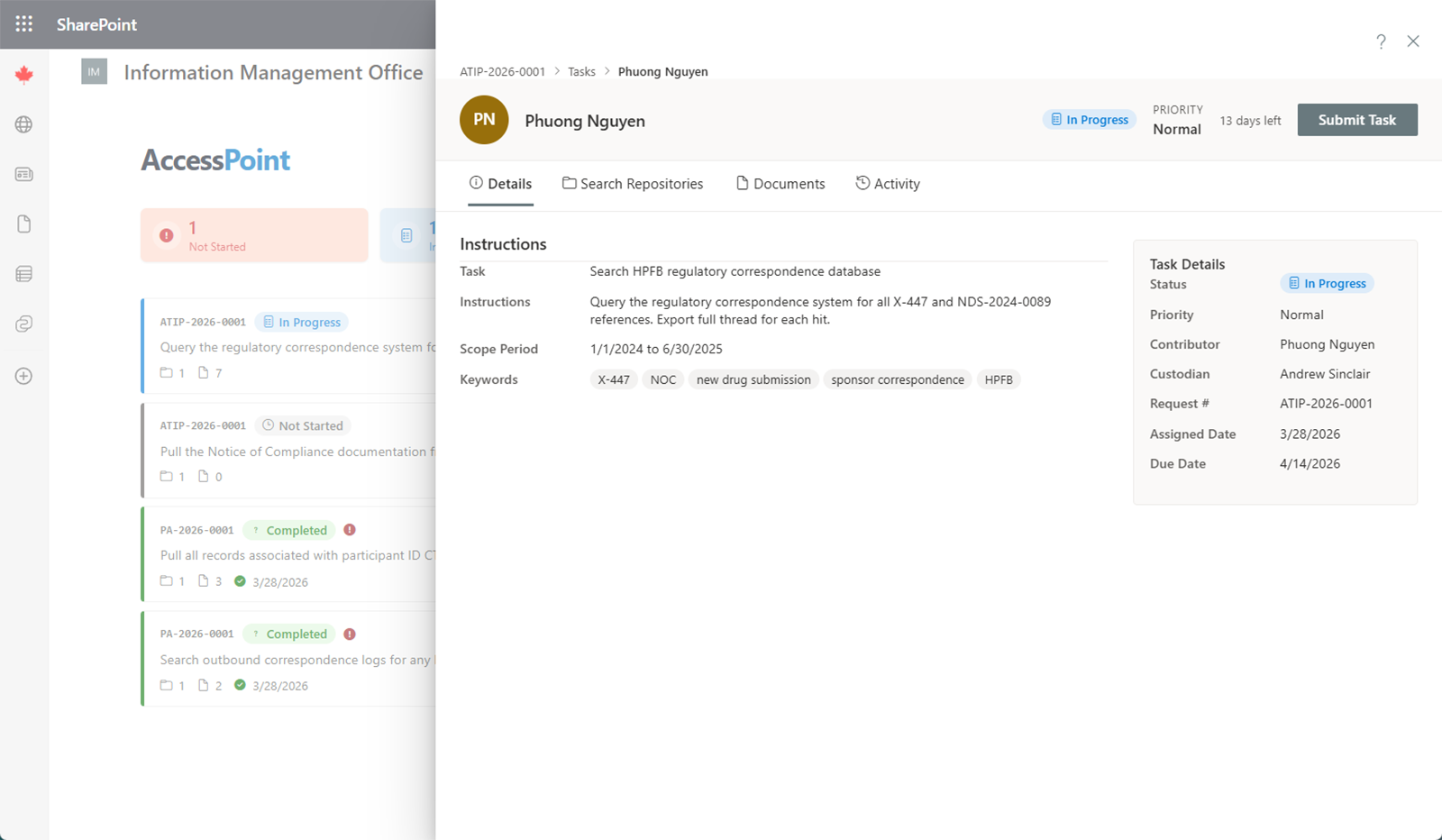
Task Information
The task detail view displays:
- Description — instructions from the Custodian explaining what to search for and where
- Custodian — the person who assigned the task to you
- Due date — when the task must be completed
- Status — the current state of the task
Working on a Task
Follow these steps to complete your task:
- Read the instructions — review the task description carefully to understand what is expected
- Update your status — set the task status to In Progress so the Custodian knows you have started
- Collect documents — drag and drop one or more files into the drop zone, or click Add from Microsoft 365 to search SharePoint, OneDrive, and Outlook for relevant records. Email attachments are automatically extracted as separate documents.
- Mark as Completed — when you have finished collecting all relevant documents, set the status to Completed
Pausing Work
If you need to pause work on a task, set the status to On Hold and add a note explaining the reason. This keeps the Custodian informed about any delays or blockers.
Document Upload
You can add documents to your task using:
- Drag and drop — drop files directly onto the upload area
- Add from Microsoft 365 — browse and search SharePoint, OneDrive, and Outlook to find and attach relevant documents