
Assignments tab — creating custodian assignments, setting instructions, tracking collection progress
Last updated: March 29, 2026 by Steve
Assignments
The Assignments tab is where SAOs assign work to custodians who hold responsive records. Each assignment tells a custodian what to collect and when it is due.
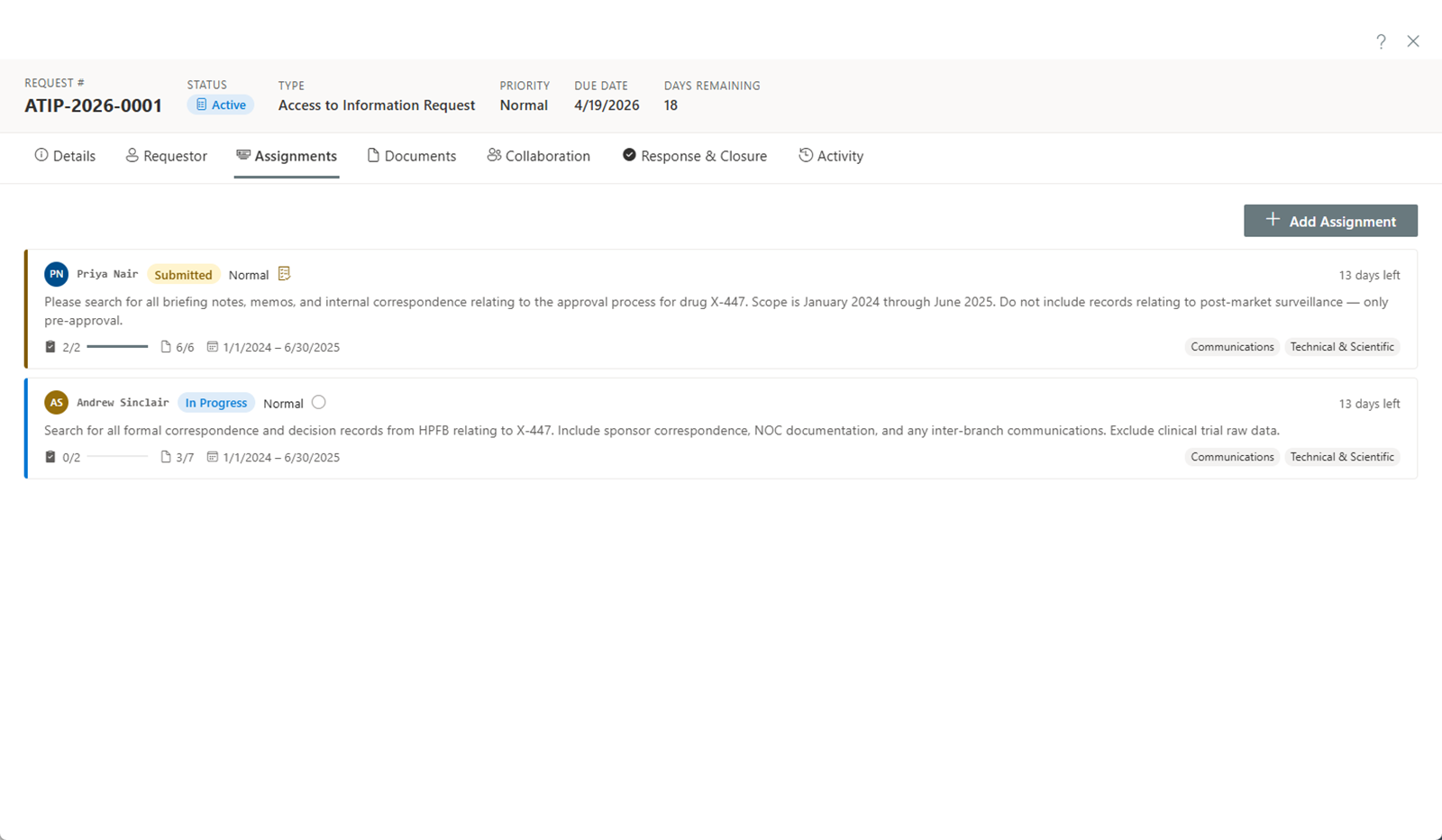
Creating an Assignment
To create a new assignment:
- Click Add Assignment on the Assignments tab.
- Select a custodian from the searchable list of users.
- Set a due date for the custodian to complete their collection.
- Add instructions describing what the custodian needs to collect. Be specific about the subject matter, date range, and types of records needed. Remember that custodians cannot see the requestor's name, so avoid referencing the requestor by name in instructions.
- Select repositories — choose the data sources (e.g., SharePoint sites, file shares, email mailboxes) that the custodian should search.
- Click Save.
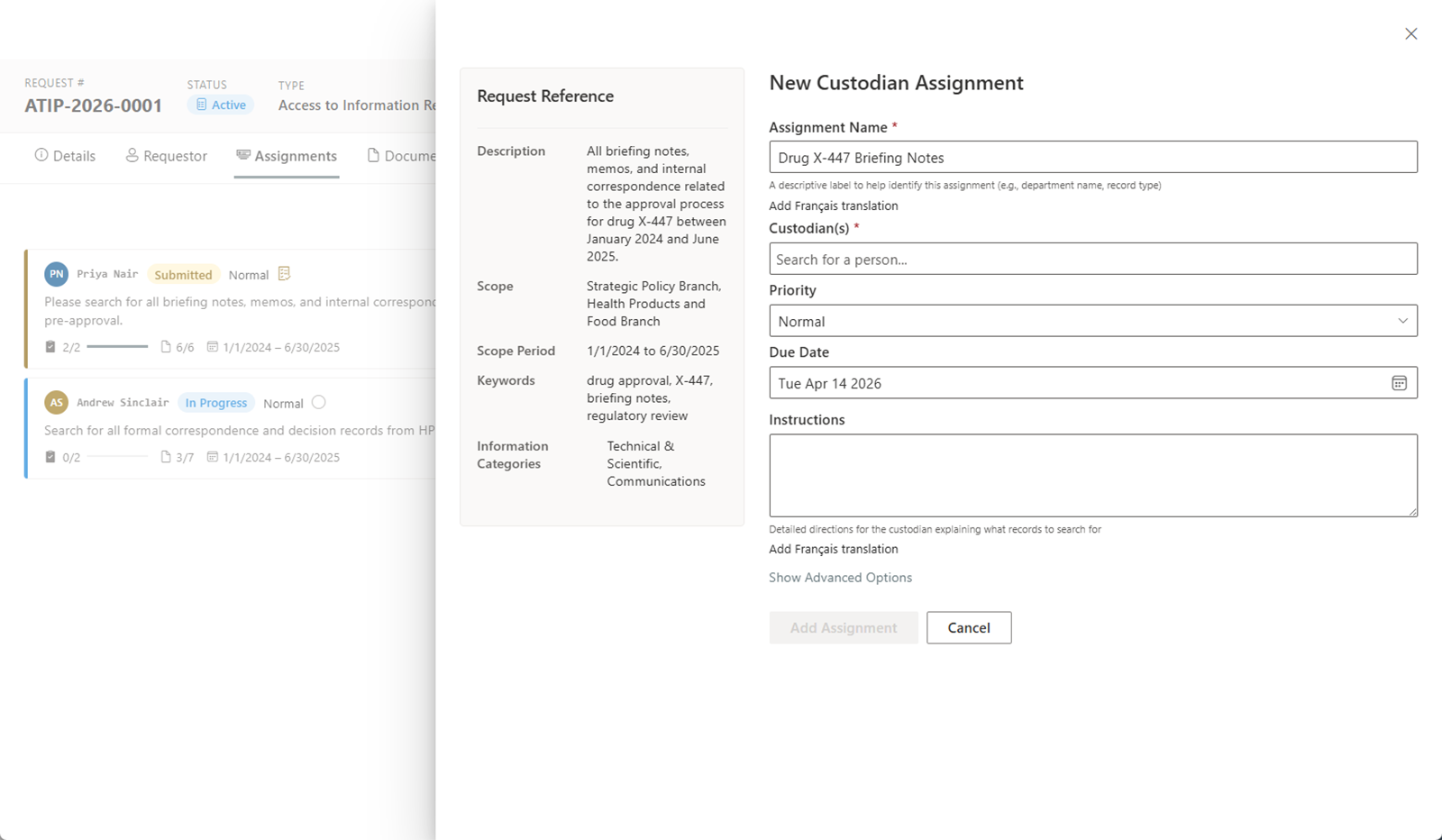
The custodian will see the new assignment on their dashboard and receive a notification (if notifications are configured).
Assignment Statuses
| Status | Description |
|---|---|
| In Progress | The custodian is actively collecting and uploading documents. |
| Submitted | The custodian has completed collection and submitted with an attestation. |
| Changes Requested | The SAO has reviewed the submission and requested changes or additional documents. |
| Approved | The SAO has reviewed and approved the custodian's submission. |
| Cancelled | You cancelled the assignment. |
Reviewing Submissions
When a custodian submits their assignment (along with an attestation confirming completeness), the assignment status changes to Submitted.
To review a submission:
- Open the assignment to view the custodian's collected documents.
- Review the attestation statement provided by the custodian.
- Examine the uploaded documents for completeness and relevance.
- Choose one of the following actions:
- Approve — Accept the submission. The assignment status changes to Approved.
- Request Changes — Return the assignment to the custodian with notes explaining what additional documents or corrections are needed. The status changes to Changes Requested.