
System languages — enabling tenant languages, setting the default language, managing translation completeness
Last updated: March 29, 2026 by Steve
System Languages
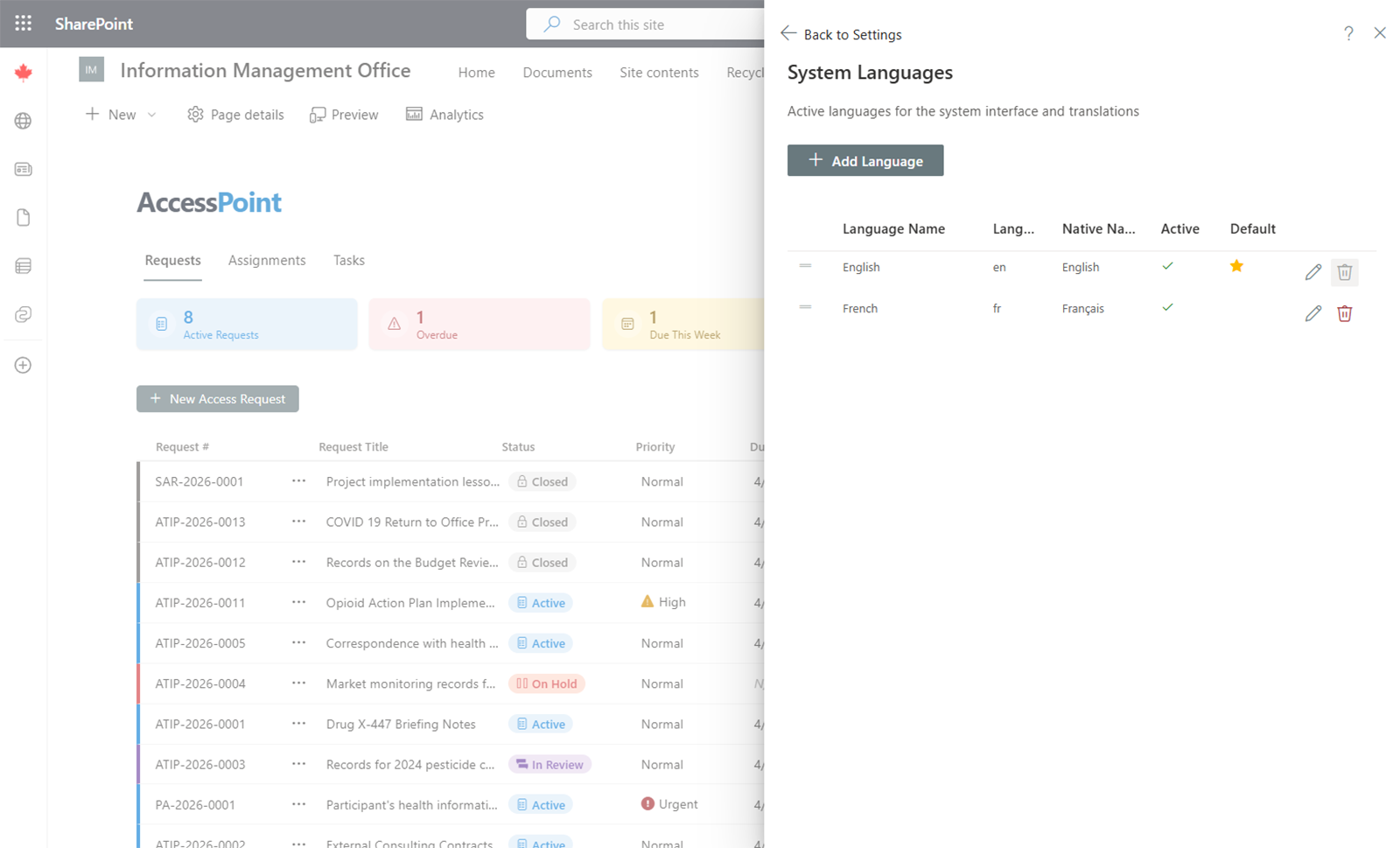
The System Languages screen controls which languages are available in your AccessPoint installation. AccessPoint is fully localizable — every interface element, notification, and workflow label can be translated.
Default Configuration
AccessPoint ships bilingual with English and French for Canadian government deployments. Additional languages can be added to support your organization's requirements. There is no limit to the number of languages you can enable.
Managing Languages
- Add a language — Click Add Language, select the language, and save. The language becomes available throughout the system.
- Set the default language — Designate one language as the system default. This is the language shown when a user has not set a personal preference.
- Remove a language — Languages can be disabled if no longer needed.
Translations
When you add a new language, all configurable text fields (request type names, extension reasons, notification templates, etc.) gain an additional translation field for that language. Items without a translation in the active language will fall back to the default language.
Switching Languages
Users can switch the interface language at any time using the language selector in the top-right corner of the screen. This changes the display language for the current session and is remembered for future visits.