
Custom fields — tenant-defined fields, with a tab for each kind of case, for data the shipped fields do not cover
Last updated: October 20, 2026 by Steve
Custom Fields
Custom fields let you extend AccessPoint's records with data points your office needs but the shipped fields don't cover. You define a field once here and attach it to an entity; from then on it appears on that entity's form, is captured on the record, and becomes available to filter and report on. Custom fields are part of AccessPoint's configuration-over-code approach — you reshape what a record captures without a developer or a redeployment.

Where to Find It
Open Settings from the app toolbar and choose Custom fields in the Foundations group. The panel follows the standard list-plus-editor pattern: a list of defined fields with Add, an inline edit form, and a delete guard that blocks removing a field still in use.
One Tab for Each Kind of Case
The panel has one tab per kind of case — Request, Assessment, Audit, Incident and Complaint — each listing the fields that apply to it. New field starts on the tab you are on.
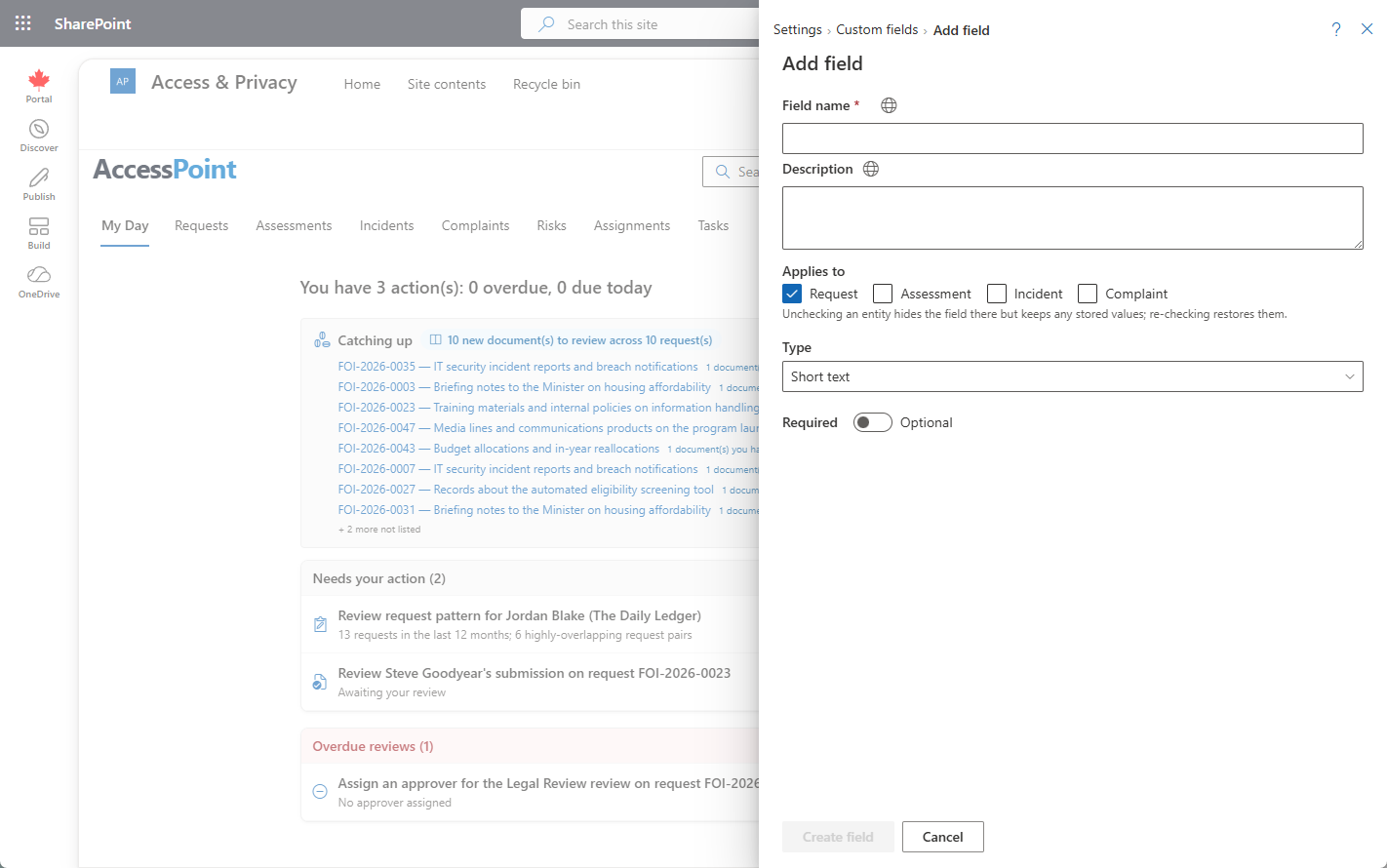
One field can apply to several kinds at once: tick them under Applies to. That is useful when the same classification, such as a client or program area, spans your whole caseload. Audit means an assessment whose type is in the Audit category; Assessment means every other assessment, so a field can be audit-only, assessment-only or both. Unticking a kind hides the field there and keeps the values already stored, so ticking it again brings them back.
Single-select custom fields are also what case-matched roles build access rules on, and a rule follows the field's kinds: a role keyed on an Audit-only field matches audits and never an assessment.
After the 2.5.0 upgrade
Until 2.5.0 audits shared the Assessment fields. The upgrade ticked Audit on every field and every hours category that applied to assessments, so nothing an audit showed disappeared and case-matched roles kept matching the audits they matched before. Untick Audit on the fields and hours categories that do not belong on audits (and Assessment on any that are audit-only). The upgrade runs once: what you untick stays unticked, and a jurisdiction pack update never ticks it again.
What a Custom Field Adds
A custom field is tenant-defined and attached to an entity. It supplements the built-in fields on that entity's record with a value your office tracks — a reference number, an internal category, a program name, or any other data the shipped fields don't already capture.
Where Custom Fields Appear
- On the entity's form — the field shows on the record's detail/edit surface, where users enter and read its value.
- On the dashboard — custom fields are among the selections available in the Requests dashboard filter strip, so they can be built into saved dashboard views alongside status, priority, request type, and assigned officer.
Tips
- Add a custom field only when no shipped field fits — a lean set keeps forms and filters approachable.
- Where a field's label is user-facing, supply translations for each of your tenant's active languages so it reads correctly for every user.