
Get started is the group on My Day that walks you through your first tasks by topic, with Guide me, Practise, Mark complete and optional tips.
Last updated: October 20, 2026 by Steve
Get Started
Get started is a group on My Day, below your work. It is organized by topic and shows only what you can do. It reads Get started — of topics done, and it is collapsed while work is waiting for you. Your own collapse or expand is remembered.
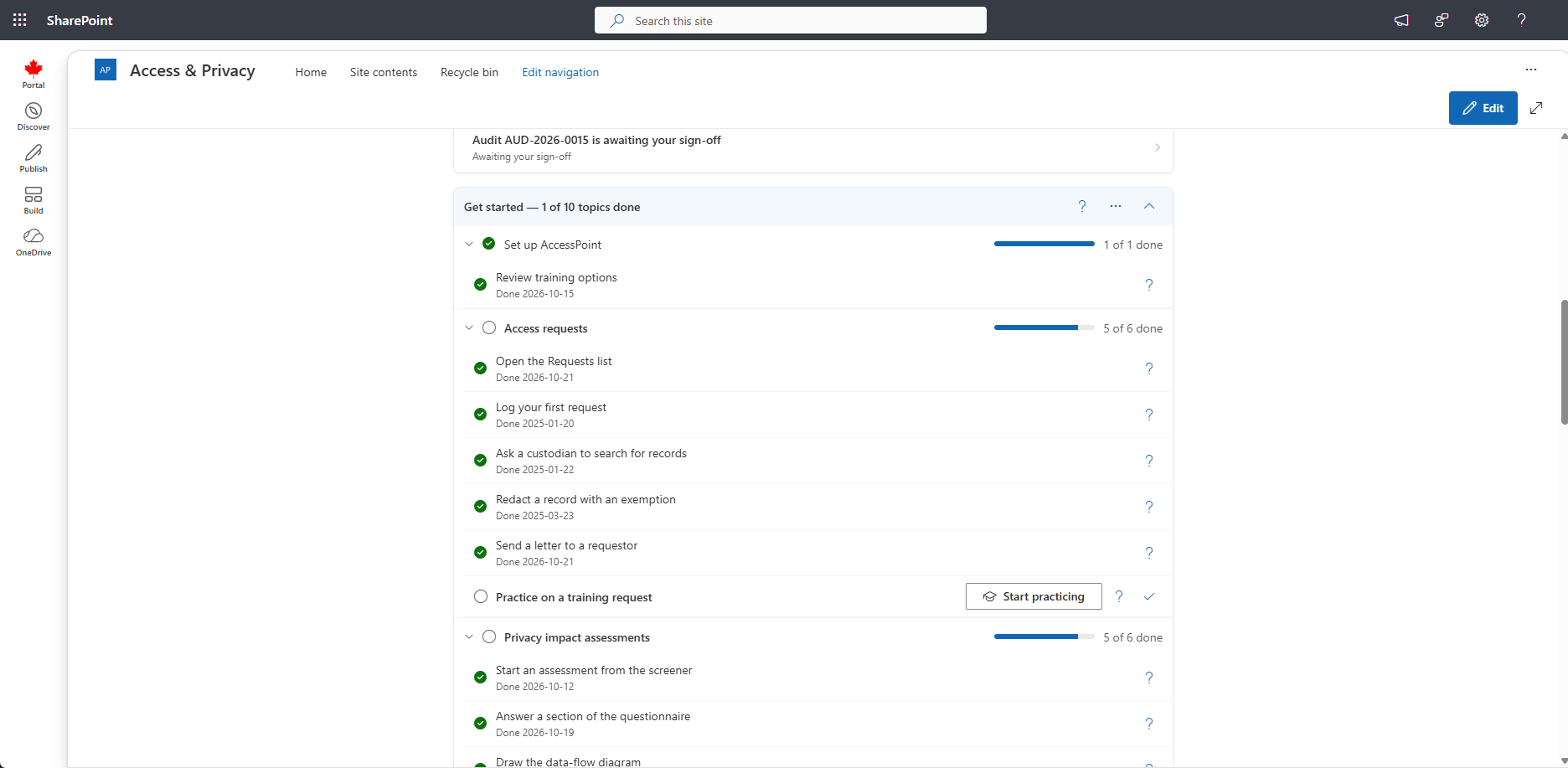
Topics
Each topic is one row: its name, a progress bar and of done in words. Select the row to open its steps (the row is a button — Enter or Space opens and closes it, and a screen reader announces whether it is open). The first topic you have not finished is open when My Day loads; open or close any topic yourself and AccessPoint remembers your choice in this browser. A topic whose steps are all done says Done and stays closed.
You see only the topics — and within a topic only the steps — for the work you can do. A step you cannot do is left out, and a topic with no step for you is not shown.
| Topic | Who sees it | Page |
|---|---|---|
| Set up AccessPoint | Administrators | Get started: Administrator |
| Access requests | People who log or change requests | Get started: Coordinator |
| Privacy impact assessments, Incidents, complaints and risks | People who start or edit assessments, or manage incidents, complaints or risks | Get started: Privacy officer |
| Privacy program | Program managers (Manage the privacy program) | Get started: Privacy program |
| Reviews and sign-off | Reviewers and senior officials | Get started: Reviewer, Senior official |
| Assignments | Custodians | Get started: Custodian |
| Tasks | Contributors | Get started: Contributor |
| Find your way | Readers | Get started: Reader |
| Report incidents | Incident reporters | Get started: Reporter |
| Surveys | Survey respondents | Get started: Respondent |
| Reports | People who view or build reports | Get started: Reports |
| Out of office: delegate your work | Everyone who can delegate their own work | Get started: Delegation |
Steps
Each step has one main action and two icons.
- Guide me (the training icon) highlights the real control on the real screen. See Guide Me.
- Practise appears instead where there is a training case for the step. It opens a training case in train mode.
- ? opens the step's help page.
- Mark complete (the check icon) ticks the step when you have already done it another way.
A step ticks itself when you do it for real. An Open… step ticks when you open that screen; Export a report ticks when you export one; See what your delegate gets ticks when you finish its Guide me; every other step ticks from your real work. Practice in train mode ticks only the Practise steps. Your ticks from before the topics existed are kept.
Progress records only whether a step is done and the date. It records no scores, timings or clicks.
Tips
The ⋯ menu beside the group's expand / collapse arrow has Don't offer tips. Even with tips off, My training (Training hub) still shows your Get started list. To bring tips back, open the Training hub, then My training, and select Show Get started tips again.
If your administrator switches off guided help, Get started, Guide me and the tips are all hidden.
Related Pages
- Training Hub — where My training lives.
- Guide Me — the on-screen tours.
- Training Cases — what Practise opens.
- My Day — the screen Get started sits on.