
Consultation detail — inter-departmental/external consultation parties, statutory windows, correspondence, outcome
Last updated: October 20, 2026 by Steve
Consultations
A consultation is the formal process of asking a third party — another department, an affected business, or an individual — for their view before records that concern them are released. You open a consultation from a request's Collaboration tab (or from the Consultations directory in the Contacts workspace) and work it in a detail panel organised into four sub-tabs — Overview, Parties, Correspondence, and Outcome. Your active tab and edits survive inline saves, so recording a response never jumps you back to the top.

The Statutory Clock (Overview)
The Overview sub-tab shows the consulted party, status, dates, description, and the statutory-clock controls. AccessPoint is regime-aware: depending on the jurisdiction, consulting a third party either pauses or extends the request clock. Use the hold control to apply that clock action:
- For an Extend regime, enter the number of days.
- For a Pause regime, the clock simply stops.
You can attach an exemption reason to the hold. A consultation moves through these statuses:
- Draft — being set up, not yet issued
- Notice sent — statutory notice issued to the party
- Responded — at least one party has replied
- Open — active, awaiting response
- Completed — concluded with a recorded outcome
Parties and Positions
The Parties sub-tab lists everyone being consulted on the file. To add a party:
- Select Add party.
- Type the name, organization, and email — or link an existing entry from the reusable consulted-party directory, which pre-fills those fields.
- Save.
For each party, record their position once they reply — No objection, Objects in part, Objects, or No response — along with a summary and the response date. Positions are colour-badged so you can scan agreement at a glance. Only parties with an email on file can be sent notices from the composer.

Correspondence on the Consultation
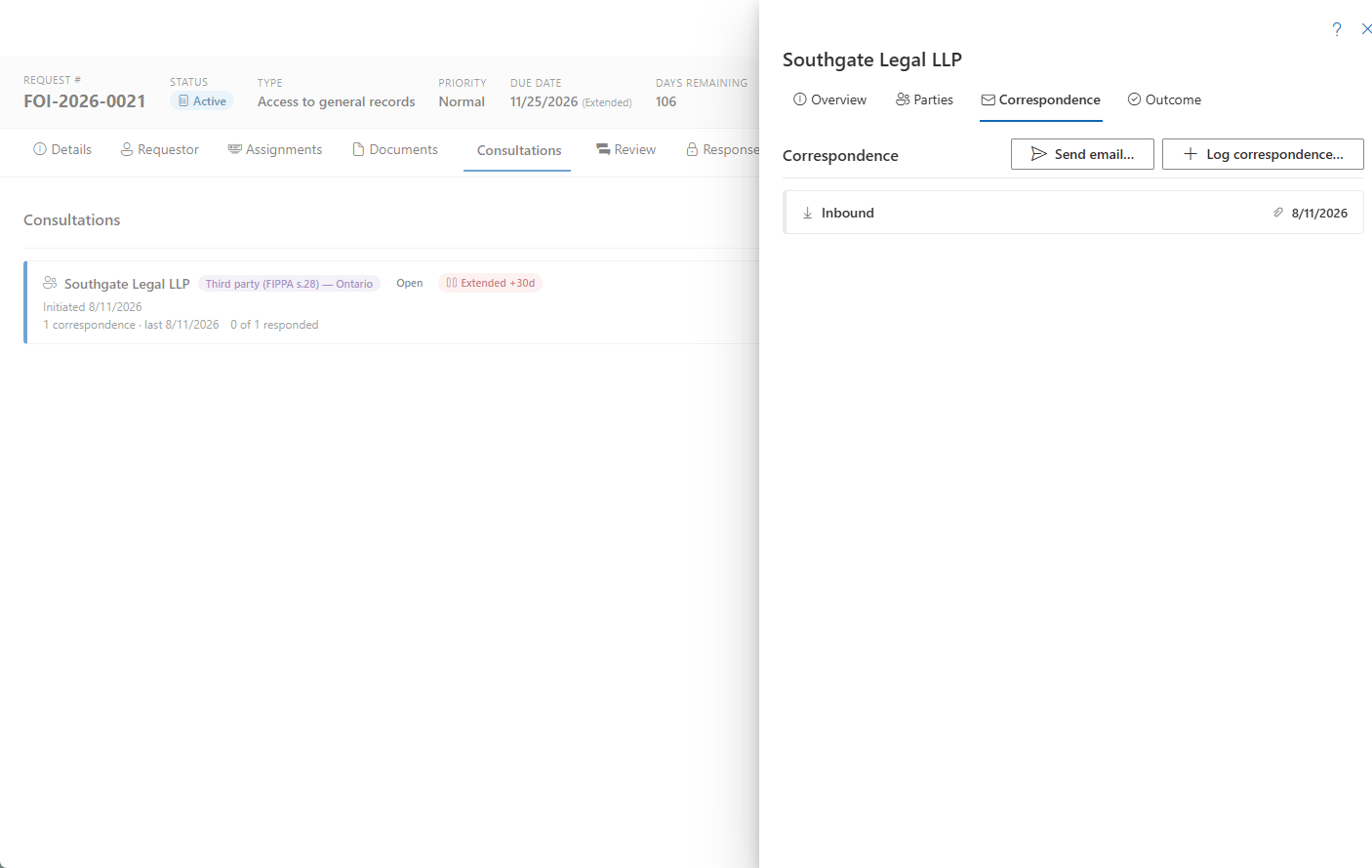
When the communication log is available, the Correspondence sub-tab is the third-party lane of the correspondence engine embedded inside the consultation. From here you can Send notice… (opens the composer pre-set to the third-party notice template and party), Log correspondence (record something already sent or received), or open any existing entry. Anything logged here is scoped to this consultation; each item opens as a correspondence record. Once you have decided, the Third-party decision purpose records the decision letter to the party; sending a third-party decision letter starts the party's review window. Files uploaded to a consultation's correspondence start classified as Correspondence, so they are never included in the response package.
Recording the Outcome
The Outcome sub-tab is where you close the loop:
- Record the overall disposition — No objection, Objects, Disclose over objection, Partial, or No response.
- Add free-text outcome notes and the response-received date.
- Optionally set a document scope — which documents or page ranges the consultation actually covered.
- Click Mark complete to finish in one click; it stamps the outcome and response date together.
If the consultation is already complete you can still Save outcome edits, and notes can be appended at any time as an audit trail.
Re-consulting
The Overview tab carries a Re-consult action (with a confirmation prompt). It creates a fresh follow-up consultation and supersedes the current one, chaining the history so you can trace repeat consultations. If a linked reusable contact exists, you can expand its cross-request history to see every consultation that party has been involved in.
Deleting a Consultation
Deletion is guarded. Once a consultation has notes, a recorded party response, linked correspondence or documents, a document scope, a clock action, or has been superseded, it becomes a real record and Delete is disabled. The panel explains why rather than failing silently.