
The audit panel — engagement, contacts, engagement letter, questionnaire, control tests, the audit report, closure and follow-up audits.
Last updated: October 20, 2026 by Steve
Audit Details
An audit opens in the assessment panel with the audit's own parts added. Which parts appear depends on the audit type, not on its name: a type with engagement tracking shows the Engagement and Contacts cards, one with a findings register shows the Findings tab, and one with evidence requests shows the Evidence requests tab (Settings → Assessment types). The audit types in the Universal baseline have all three on.
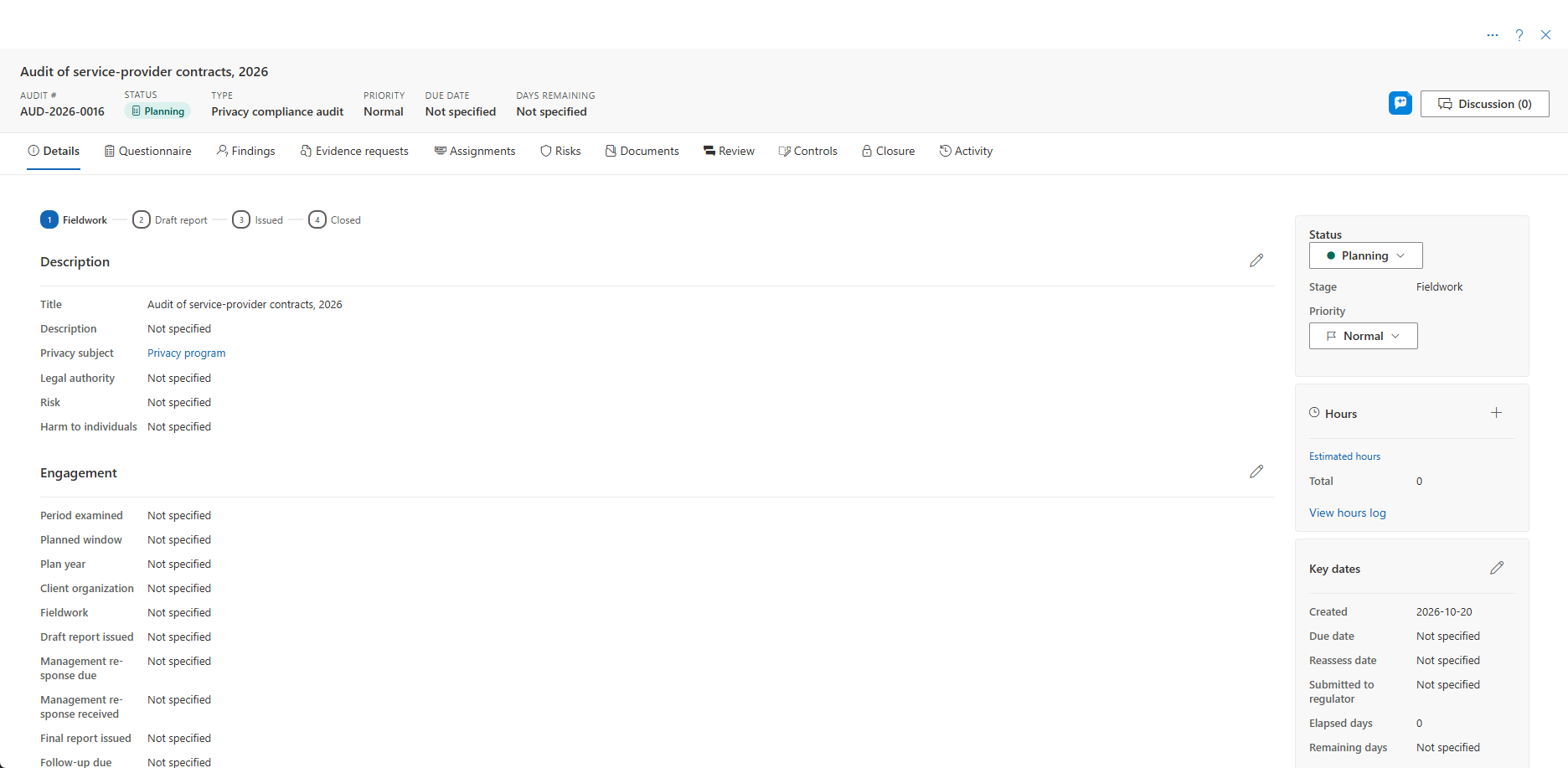
The Panel Speaks Audit Language
Whatever an audit's type is called, its panel says:
- Audit # in the header.
- Questionnaire for the criteria tab (the assessment's Sections).
- Management actions for the commitments card.
- Delete audit in the … menu.
- Close audit and Reopen audit on the Closure tab, where the report area reads Audit report with Generate audit report (the narrative there is printed as the report's conclusion when the questionnaire gives none) and the official record's button Generate PDF record.
- Audit reports for the generated reports on the Documents tab.
- The built-in stages and statuses as Fieldwork, Draft report and Issued (in the header, the Stage row and the lifecycle rail). A status your organization configured keeps its own name.
Once the report is issued, and when the audit is closed, a bar above the tabs says the audit is read-only, with Start follow-up audit beside it. Help opens this page, or on the Findings and Evidence requests tabs their own pages.
Who Sees What
The engagement, the contacts, the findings and the evidence requests belong to the audit team: the lead, the team you shared the audit with, the senior official named on it, and anyone whose role covers it. Someone who was only asked to answer one section of the questionnaire still works on that section, but never sees those parts.
Engagement
On the Details tab, under the description, you record:
- The period examined, the planned window and plan year.
- The client organization, for an engagement done for someone else.
- When fieldwork started and finished, and when the draft and the final report were issued.
- When management's response is due and when it arrived.
- When the engagement letter was signed.
- The hours spent against the hours budgeted, and the fee budget.
- The opinion, chosen from the audit type's scale (for example High, Reasonable, Limited or Very limited assurance) with the reasons for it.
Several dates fill themselves in. Moving the audit into the Fieldwork status records the start, leaving it records the end, issuing the draft report sets the response due date (15 working days by default, skipping weekends and your jurisdiction's public holidays), and leaving Awaiting management response records when it arrived. You can change any of them. See Audit Settings for the response window.
Once the report is issued, the opinion and its reasons no longer change. Everything else stays editable until the audit is closed. If you write the reasons in a language other than your organization's main one, they are saved as a translation of the original.
Engagement Letter
Generate engagement letter builds the letter from the plan (objective, scope, exclusions, criteria, approach, independence), the engagement details and the contacts. It is addressed to the sponsor and carries the timetable, the deliverables, the management-response window, the team, confidentiality, the fee budget, the limitations, the distribution list and a signature block for both sides. It uses your default letterhead (or the template you pick), in the language you choose.
The letter is filed on the audit's Documents tab as a Word working file. Edit it in AccessPoint's own editor, send it, and record the signed date on the Engagement card.
Contacts
The people the audit deals with: the sponsor, process owners, interviewees, evidence providers, report recipients and the client lead, with their job title, organization, email and phone. A contact can be a person in your organization (pick them) or someone outside it.
Tick On the report distribution list for everyone who receives the report. The report's distribution appendix and the engagement letter list them. A contact named on an evidence request cannot be deleted until the request no longer names them.
Questionnaire and Control Tests
- Questionnaire. The audit's criteria. A criterion answered Not met or In progress offers Raise finding, which fills the condition from your explanation and the criteria from the question.
- Controls. The audit type has control testing on. The Controls tab adds controls from the controls library (Add controls to test), and each one records its implementation and its test result. Editing a control also records the test: how often the control operates, whether its design, its operation or both were tested, the methods (inquiry, observation, inspection, re-performance), the procedure, the population, the sample (with the usual sample for that frequency as a hint), the exceptions found and who tested it. Results read Effective or Not effective. A control tested Not effective offers Raise finding, which fills the condition from the tester's notes. A control with a result is part of the record and cannot be removed.
Control results across audits are reported in Control Testing.
Findings and Evidence Requests
The Findings tab is the register of what the audit found: see Audit Findings. The Evidence requests tab lists what the audit asked for: see Audit Evidence Requests.
Management Actions
Findings become actions. A recommendation, once accepted, is a commitment with an owner and a due date. It stays open after the report is issued, reminds its owner in My Day and counts on the board until it is done. See Commitments.
A finding that is not met can also be raised as a risk.
The Audit Report
Generate audit report on the Findings tab (or Generate summary on the Closure tab) prints the audit report in the language you choose, on your letterhead:
- An executive summary with the opinion and the findings counted by rating.
- The objective, scope, exclusions, criteria, approach and limitations.
- Each finding with its five parts and management's agreement and comment.
- The recommendations with their owners, decisions and dates.
- Good practice.
- Management's overall response.
- Appendices explaining the rating and opinion scales and listing who receives the report.
Withdrawn findings are left out. Until the report is issued, every copy is a new draft, marked DRAFT on every page and in its name. The first copy generated after the report is issued is the issued report, and asking again in the same language gives you that same document: it does not change as findings are later verified or actions completed. To reissue it, delete the issued copy from the Documents tab and generate it again.
Issuing, Closing and Follow-up
- Issue the report. The audit's content freezes, as an assessment's does when it takes effect. The actions stay live.
- Closing with open findings. Closing an audit never closes its findings. If any are still draft or open, the Closure tab says so in its checklist, and Close lists them and asks you to confirm. Confirmed, the audit closes and the findings stay open, on the board and in the reports, until they are verified or the risk is accepted. You can still verify, accept the risk, withdraw or update them on the closed audit.
- Start follow-up audit. On an issued or closed audit, this opens the next audit of the same subject with the answers carried over. It takes you to the Closure tab and starts the follow-up audit there. The follow-up's Findings tab starts with the findings carried forward for verification (see Audit Findings).
Custom Fields
Audits have their own custom fields. A field set up for Audit under Settings → Custom fields shows on audits, one set up for Assessment on every other assessment, and a field can be ticked for both. The audit panel's Details tab, the Audits board, the hours an audit logs (its categories are the ones scoped to Audit), Report Builder and the data export all use the same rule. If an audit's type moves out of the Audit category, the case shows its Assessment fields from then on. See Custom Fields.
Related Pages
- Audits Board — the list of audits and reviews.
- Creating an Audit — starting an audit.
- Audit Findings — the Findings tab.
- Audit Evidence Requests — the Evidence requests tab.
- Assessment Details — the panel an audit builds on.
- Commitments — how management actions are tracked.