
Saved dashboard views — creating, editing, and switching between saved column/filter/sort configurations on a dashboard
Last updated: October 20, 2026 by Steve
Dashboard Views
Views let you package a set of filters, columns, sort order, and grouping under a named tab so you can return to a working slice of the register in one click. On the Requests dashboard, the view tabs appear on the toolbar between the New button and the search box, and your tenant ships an All Requests default.

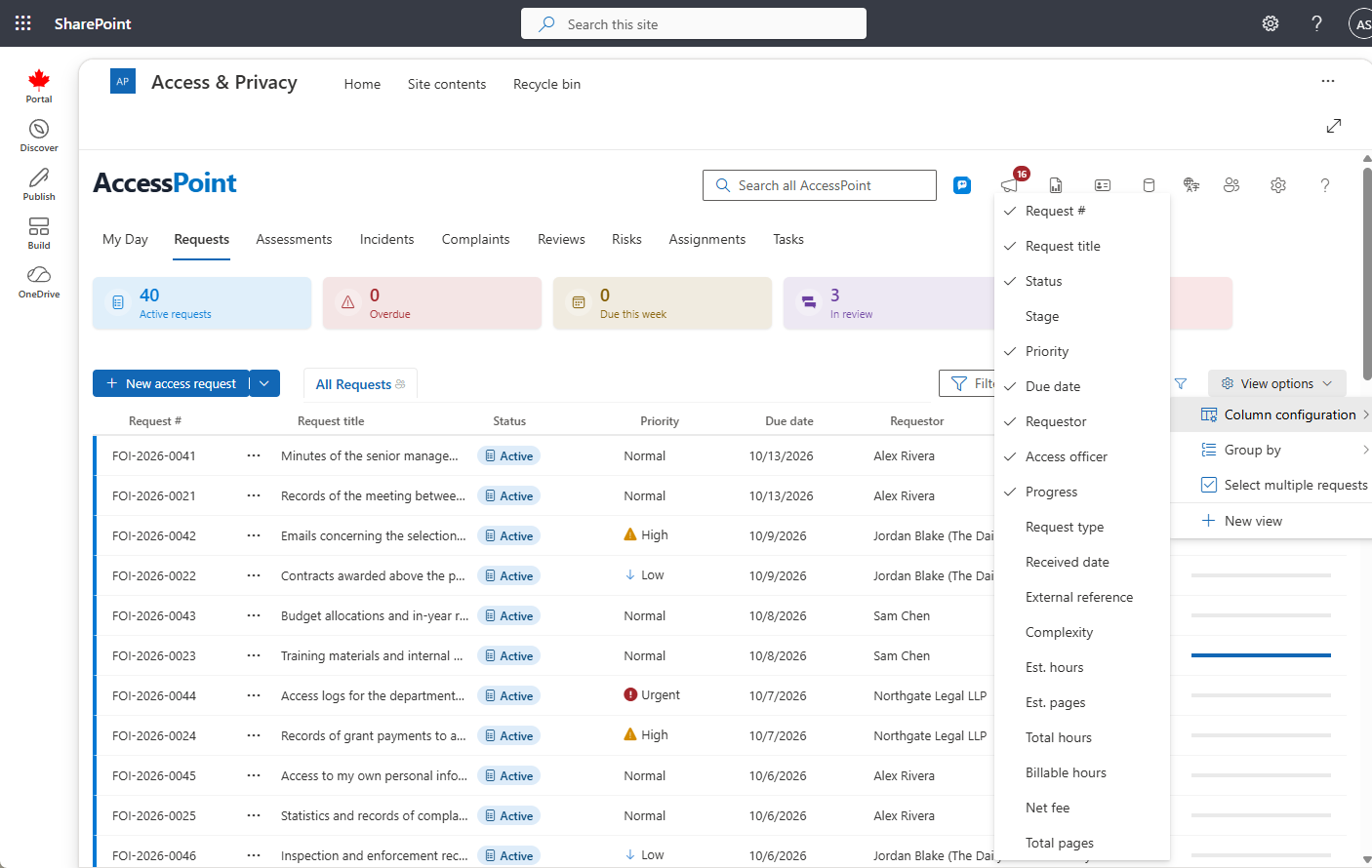
What a View Saves
A view captures the full state of the grid:
- Filters — the selections made in the filter panel (status, priority, request type, assigned to, program area, custom fields). A view saves the filters you have set, so it reopens exactly what you were looking at; a shared view with your name (me) in Assigned to shows each colleague their own cases
- Columns — which columns are shown and their order
- Sort — the sort order applied to the grid
- Grouping — the group-by column chosen in the View options (⋯) menu
Creating a View
- Set up the grid the way you want it — apply filters, choose and order columns, pick a group-by and sort.
- Open the View options (⋯) menu and choose New view.
- Name the view.
- Decide whether it is personal (only you) or shared (everyone in the tenant).
- Save. The view appears as a new tab on the toolbar.

Switching Between Views
Click a view tab to apply its filters, columns, sort, and grouping in one click.
Editing and Deleting Views
Use a tab's edit and delete affordances to rename or remove a view. Deleting the active view returns you to the default view.
Personal and Shared Views
- Personal views are visible only to you.
- Shared views are visible to everyone in the tenant. Administrators can manage shared views for the whole office.
Views on Other Screens
The Documents workspace supports saved views too: its filter, sort, and column state can be captured as a view — private to you or shared with the tenant — and reopened from the Views dropdown.