
Requestor contact detail — identity, language, fee category/verification, flow control, the Conduct (F&V) workspace, merge
Last updated: October 20, 2026 by Steve
Requestor Contact
A contact is the reusable record for one person who files requests. It holds their identity and language, their fee category and verification, their active-request limits, and any frivolous-or-vexatious determination — all of which follow the person across every request they file. Open a contact from the Requestors tab of the Contacts workspace, or from a report deep link; the Requestor details panel layers over whatever you were doing and is organised into tabs: Details (identity, institution and history, activity counts), Conduct (F&V) (the conduct-management workspace described below), Chronology (every request, letter and conduct entry in date order, for people allowed to see it), and Requests (the paged list of the contact's requests).

Adding or Editing a Contact
- On the Requestors tab, click Add requestor (or the pencil icon on a row to edit).
- Fill in the Identity section: display name (required), given and surname, salutation, contact category, primary email, alternate emails (one per line), phone, mailing address, and preferred language.
- In Requestor category, set the fee/verification category; if you have confirmed it, turn on Category verified and record verification notes.
- In Affiliation, pick the institution the person belongs to and their role there, plus any notes.
- Configure Flow control and the Conduct (F&V) workspace as described below.
- Click Save.
Fee Category and Verification
The Requestor category sets the fee/verification category used in volume reporting. Turn on Category verified only once you have confirmed the requestor's category, and record why in the verification notes.
Active-Request Limits (Flow Control)
The Flow control section caps how many requests this contact may have active at once:
- Limit mode is a tri-state: Inherit (use the tenant default from Settings), Custom (set your own number), or None (no cap).
- When you choose Custom, enter the limit value and a hold reason — the clock-pause extension reason that provides the legal basis for pausing over-cap requests.
- Choose an activation policy: Immediate (the system auto-activates the next held request when a slot frees up) or Manual (a coordinator releases them from the Intake queue).
A request must also clear the institution's cap before it activates. When you raise a limit on save, any held requests that now fit are auto-released and a confirmation tells you how many.
Conduct Management and Frivolous & Vexatious
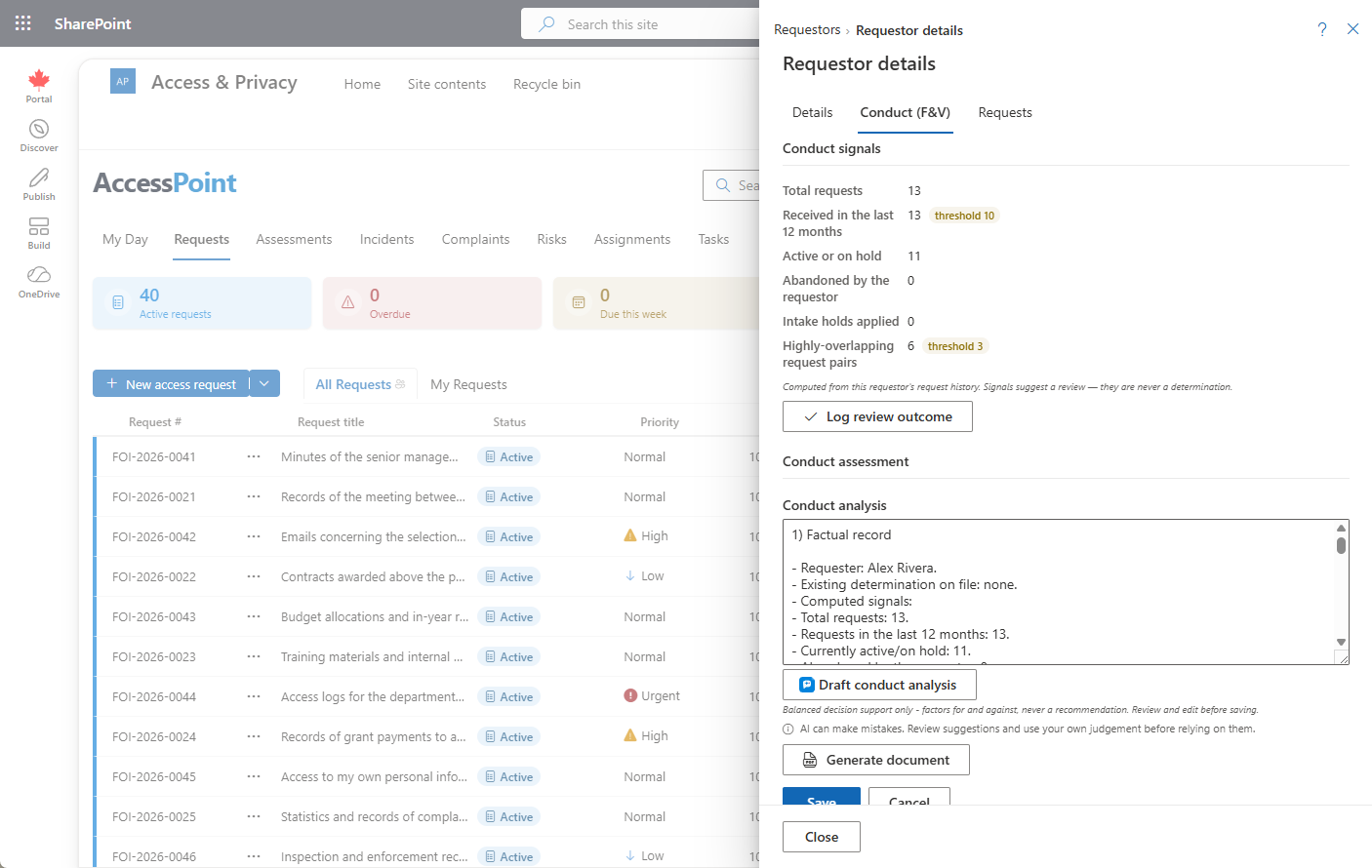
The Conduct (F&V) tab builds the defensible, contemporaneous record behind a frivolous-or-vexatious determination — exactly the decision most likely to be challenged before a commissioner. It is organised top to bottom in the order you would actually work:
- Conduct signals — computed from the last 12 months of the requestor's requests, conduct log and merged records. Besides the total and what is active or on hold, each signal shows its count, its threshold and its points: conduct observations logged, requests abandoned, intake holds applied and other identities merged into this requestor (2 points each by default), then requests received, highly-overlapping request pairs and the most requests within 30 days (1 point each). A signal that reaches its threshold adds its points, and the card states the score against the score needed for a review suggestion (3 by default); a signal your organization switched off reads not counted. Signals suggest a review — they are never a determination. My Day uses the same score to suggest Review request pattern for ; administrators tune it under Request pattern review. A Log review outcome quick action records that you looked and decided no action was warranted; doing so also pauses the My Day F&V review nudge for this requestor for a configurable cool-down (default 180 days).
- Conduct assessment — the written analysis memo. Draft it yourself, or use the AI draft described below. Generate document renders the memo as a formal-record PDF filed on the contact (and, where anchored, the request). The PDF opens with a table of the same signals as the Conduct signals card — for each, the count over the last 12 months and over the requestor's whole history, the count at which it counts and the points it adds now — then the score against the score needed. It records facts, never a recommendation. When you may read the requestor's chronology, the PDF ends with it; because the memo is filed on one request, everyone who can read that request's documents would then see the requestor's other requests, so AccessPoint asks you to confirm first (File with the chronology) and files nothing until you do, or choose File without the chronology. All of this works before any determination is made.
- Conduct log — an append-only log of dated, attributed entries: manual observations, warnings and review outcomes, plus system-written determination and rescission entries when the flag is raised or cleared — so the log doubles as the F&V history timeline. Entries are never edited; deletion is Administrator-only and audited (mistake correction).
- F&V determination — the flag itself: turn it on and record the legal basis (a Legal Authority choice), one or more configurable grounds, the determination date, and who determined it.
The flag is a determination about the requestor, so it surfaces on the contact card and can be filtered in the list; it does not by itself block requests. When a contact is flagged, the detail panel shows a severe-warning banner with the legal basis, determination date, and notes.
Conduct Warnings and the Requestor Chronology
A correspondence template of the type Conduct warning records a Warning in the requestor's conduct log when the letter is sent or generated. A Chronology tab on the requestor shows, oldest first, every request received and closed, every letter and contact on them and every conduct entry, marking what came after the first warning: the history an application to disregard requests rests on. The F&V conduct memo can include it. The chronology is shown only to people who hold Manage requestors together with organization-wide request viewing and permission to see requestors' personal information.
AI Draft Conduct Analysis
When AI Assist is enabled, the conduct assessment offers an AI draft. It assembles the factual record for this requestor — request counts, filing cadence, abandoned requests, and overlapping asks — into the memo editor as a deliberately balanced memo: factors that support a determination set alongside factors against it, with the relevant legal threshold restated and no recommendation. It asks "Replace current draft?" before overwriting anything, and the determination itself always remains the officer's; the draft is a structured starting point for your reasoning, not a verdict.
The memo is an editable draft grounded on the contact's own record — a person reviews, edits, and decides. AI Assist runs on an Azure OpenAI resource in your organization's own Azure subscription and region: contact and request data never leaves your tenant, Microsoft does not train its models on it, and prompts and responses are not stored (only usage metadata is kept). The AI draft appears only when your administrator has deployed AI Assist and enabled it under Settings → Features, and only to people who may read the requestor chronology. Once an AI conduct analysis has been drafted for a requestor, every memo filed for them asks the same confirmation until their F&V notes are cleared.
Institution and History
The Details tab's Institution & history section shows the current institution (with an Open institution button) plus a timeline of past affiliations. Managers get a Change institution control that closes the prior period and opens a new one. The Activity section rolls up total, active, held, and closed request counts and the effective active-request limit (noting when it comes from the tenant default), and the Requests tab pages through the contact's requests — click one to open it.

Merging a Duplicate Contact
When you open a contact whose email or name matches another, a possible duplicate banner appears at the top of the card as a shortcut into merge. Merging moves all requests and history onto the survivor and leaves a tombstone so old links still resolve. You can also scan for duplicates in bulk from the Contacts workspace.