
My Reviews dashboard — acting on your review step, approving or requesting changes, and the review stepper
Last updated: August 06, 2026 by Steve
Reviews Dashboard
The Reviews tab in the top navigation is your personal review queue — the My Reviews dashboard. It gathers every review step across all record types where you are the assigned approver, so you never have to hunt through individual records to find what is waiting on you.
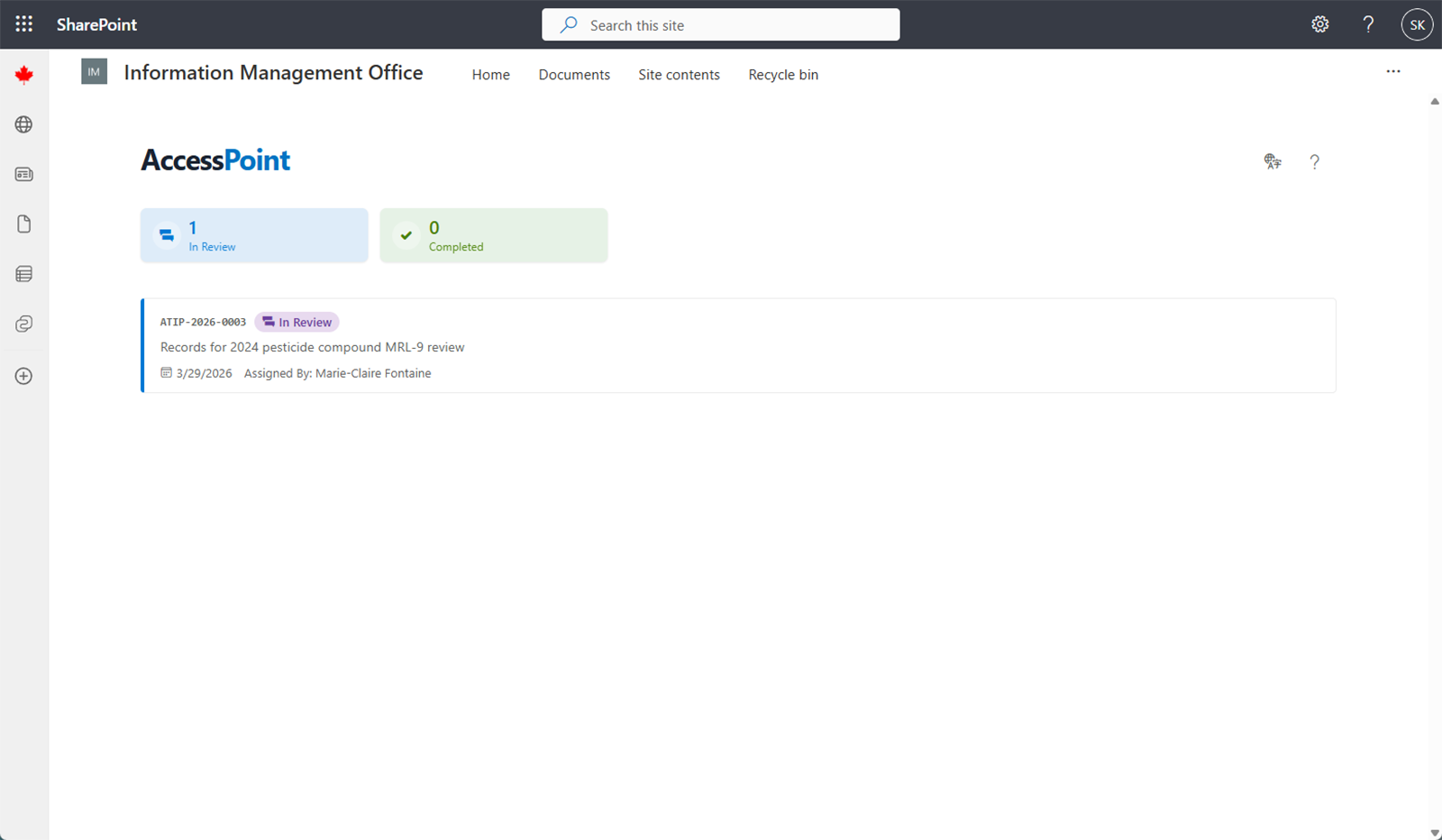
Review Cards
Cards are split into two groups:
| Group | Meaning |
|---|---|
| Active (My turn) | The step is live and it is your turn to decide — approve or request changes now. |
| Awaiting turn | You are on an upcoming step, shown for awareness. An earlier step must finish before yours becomes actionable. |
Each card shows the review type (for example "Legal Review" or "Senior Official Sign-off"), the anchor record it belongs to (its number and title, such as a request number or an incident reference), and the step's sequence position. Click a card to open the underlying record:
- A request review opens the Request details panel directly in review mode, with the stepper and your action buttons ready. A What changed card at the top summarizes case activity since the review landed with you — or, on a step returned to you after you requested changes, since your own request-changes decision — documents added, redactions changed, correspondence, extensions, and consultations, and status changes. It is computed from the record (no AI involved), shows counts and labels only, and "no recorded changes since then" is itself a useful answer for a re-reviewer.
- A case review — an assessment, incident, or complaint — navigates you to that record in its own area so you can review it in context.
If nothing is assigned to you, the dashboard shows an empty state — you have no pending sign-offs.
Acting on Your Step
- Open the record from the dashboard (or from the record's Review section).
- Find your Active step and read any instructions the coordinator attached to it.
- Choose your decision:
- Approve to sign off, which advances the flow to the next step (or completes the review).
- Request changes — enter a required comment explaining what needs to change, then submit. This returns the record to the coordinator.
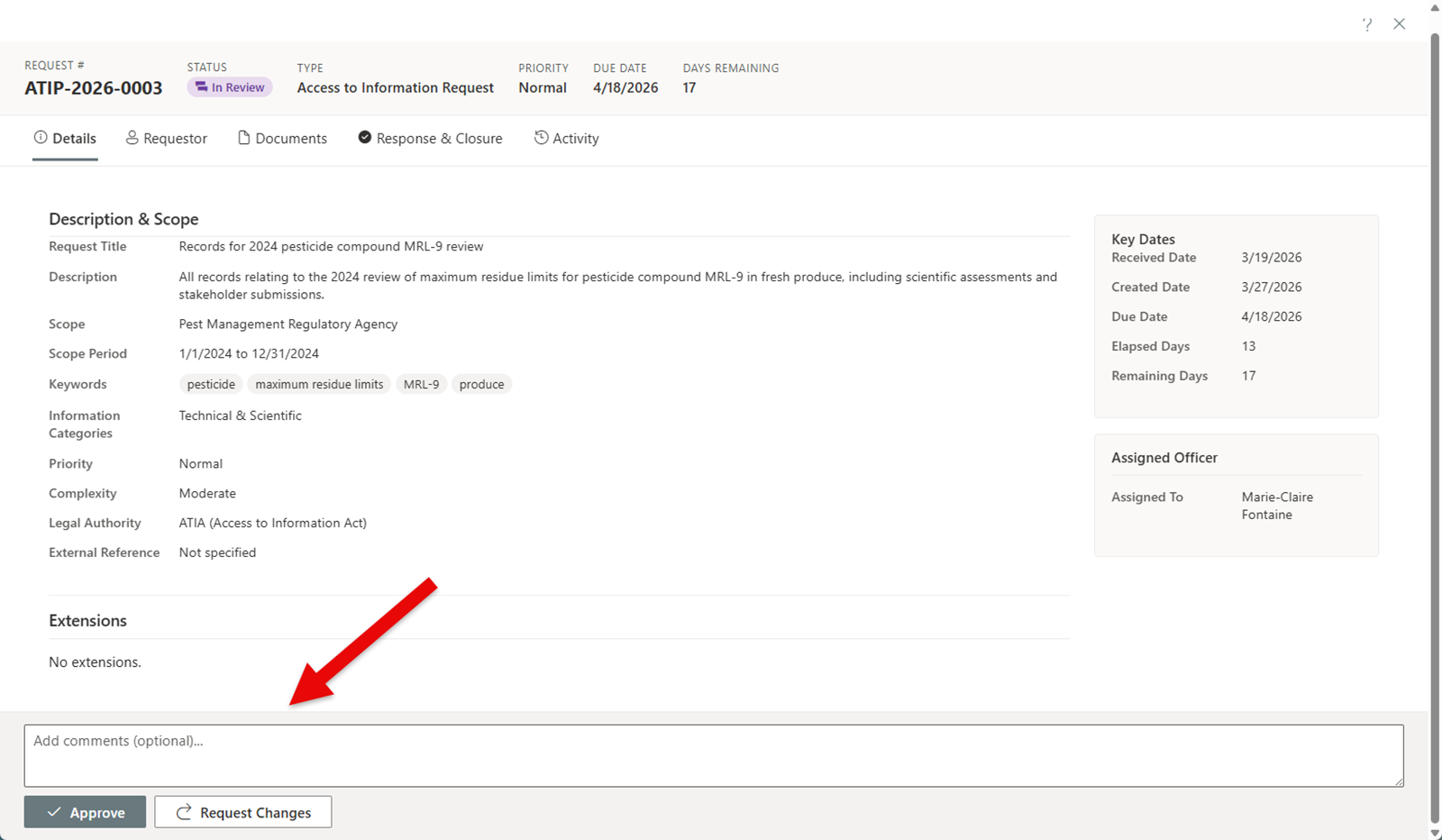
You only ever see and act on your own step; the coordinator's orchestration controls (assign, reassign, nudge, cancel) are hidden in the reviewer view. Every decision is timestamped and attributed for the audit trail.
The Review Stepper
Inside a record, the Review section renders the current review as a vertical timeline. The same stepper appears on records across requests, assessments, incidents, and complaints. Each node is one step, marked with its state:
| Step state | What it means |
|---|---|
| Pending | Waiting for an earlier step to finish. |
| Active | Live now; the assigned approver can decide. May show a due badge — "Due today", "Due in 2d", or a red "Overdue 1d". |
| Approved | The approver signed off, with who decided and when. |
| Changes requested | The approver sent it back with a comment. |
| No longer required | Skipped because the review resolved without needing this step. |

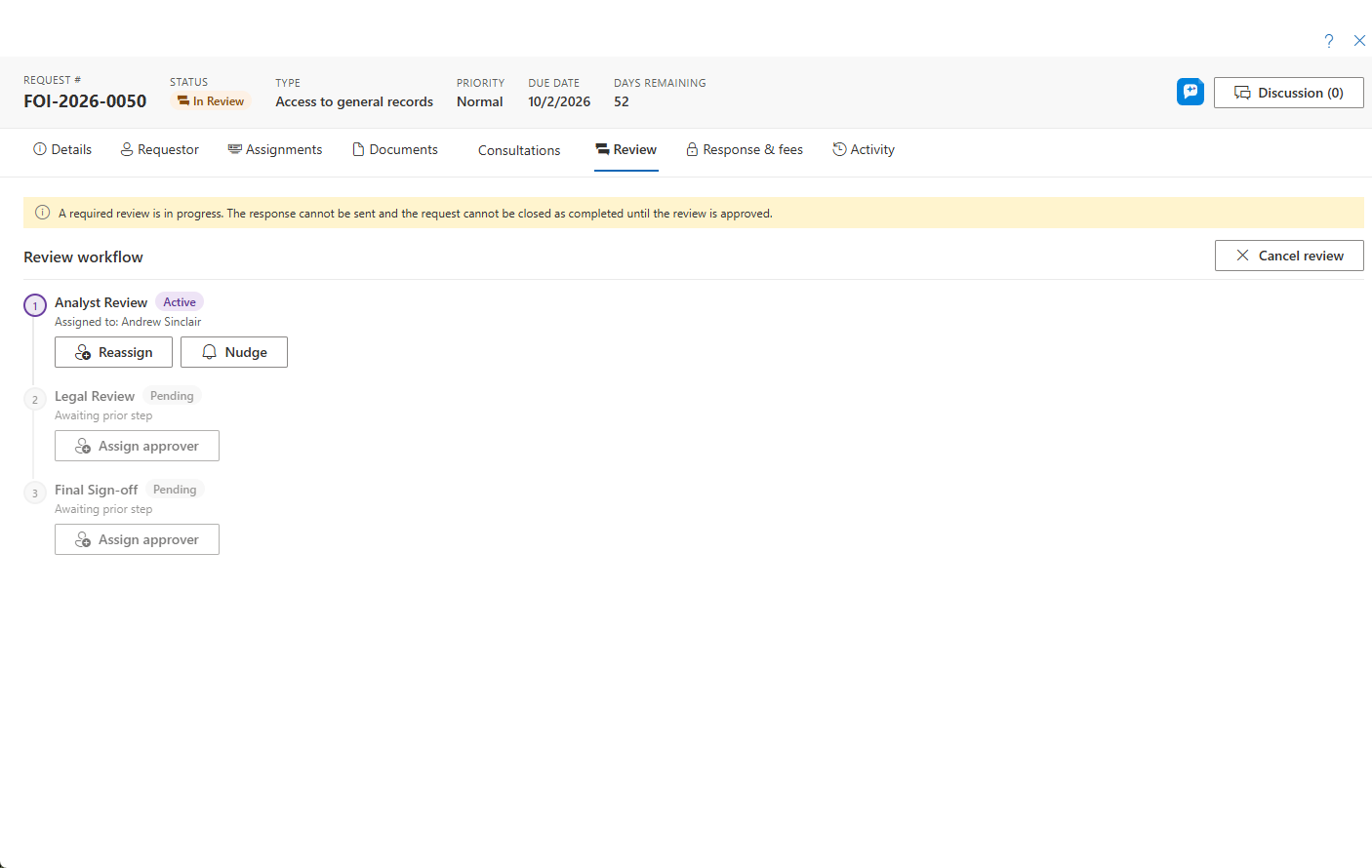
Parallel steps that share a position are grouped into a Stage node showing the join rule — All must approve or Any one approves. Completed, cancelled, or superseded reviews are preserved below the active one under Review history, so the full sign-off trail is always visible.