
Document types — classifying documents within a request
Last updated: October 20, 2026 by Steve
Document Types
Document Types define the categories used to classify documents within a request.
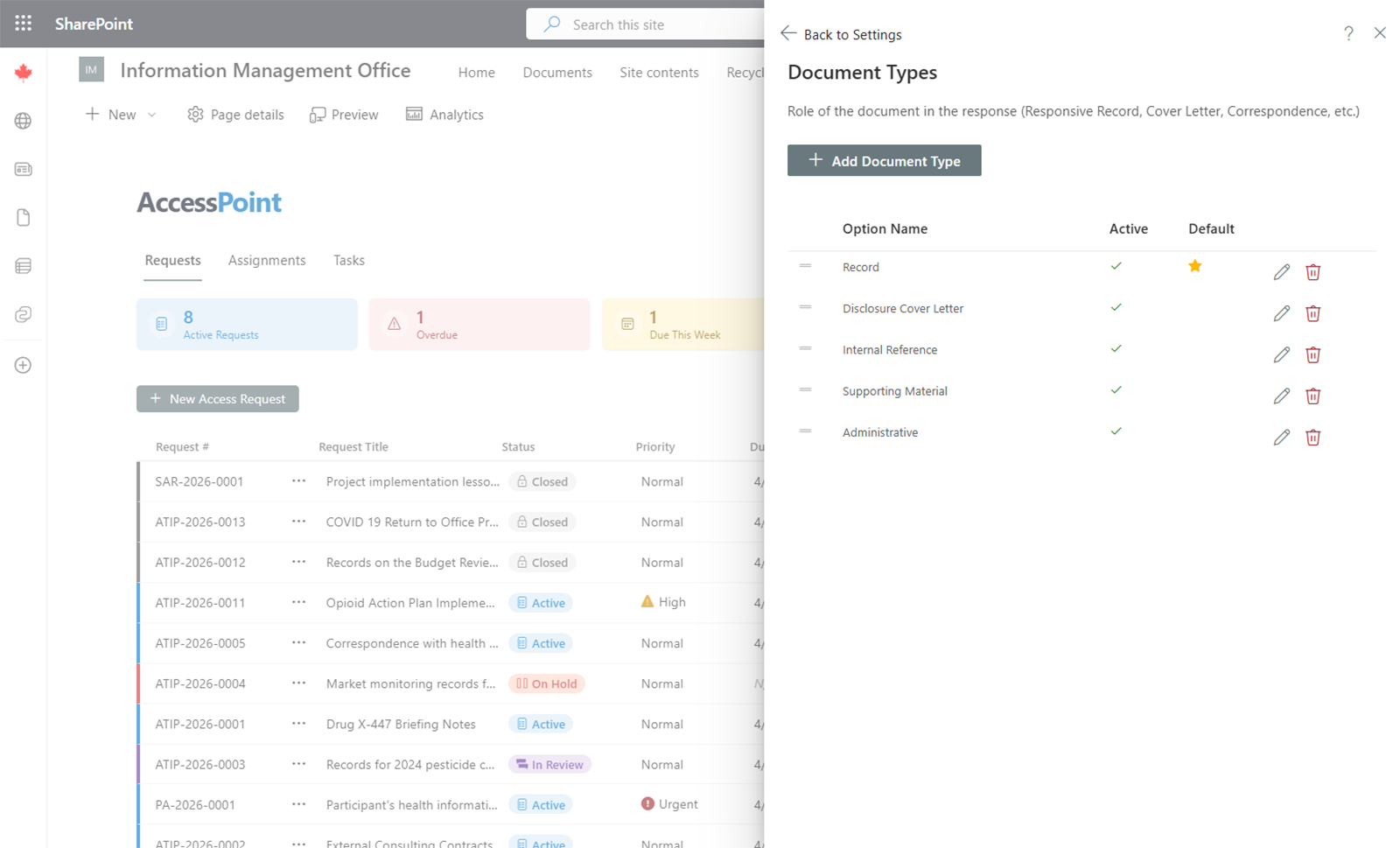
Common Document Types
- Correspondence (emails, letters)
- Briefing note
- Report
- Memo / memorandum
- Spreadsheet / data
- Presentation
- Policy document
- Form
Where to Find It
Open the Settings hub and choose Document types, in the Documents & review group.
Managing Document Types
- Add — Click Add Type, enter the name (and translations if multiple languages are enabled), and save.
- Edit — Click on an existing type to update it.
- Remove — Delete types that are no longer needed.
Code and Name
Every option in the list separates the Code from the Name. The code is the stable identifier that other settings, detection rules and jurisdiction packs refer to, so it can be edited only when you add the option and is read-only afterwards. The name is the label people read and can be changed at any time, including in each language through the globe icon. Editing just the name and saving is enough; you do not need to open the language tabs.
Usage
During document review, reviewers can classify each document by type. This classification helps organize large document sets and provides useful metadata for reporting on the composition of responsive records.
In the Documents workspace the document type is a facet you can filter on and a group-by option. A type can also be given for each file when you import documents from another system.
Related Pages
- Document Conversion — how Office records, hidden content and spreadsheets are converted and shown for review.
- Document Tags — the colour-coded labels applied alongside a type.
- Relevance Options — the responsiveness classifications used during review.