
The privacy program's Discovery area — domain catalogues, signals from your own records, and surveys that ask the people who run each program what they hold.
Last updated: October 20, 2026 by Steve
Discovery and Discovery Surveys
The Discovery area of the privacy program helps you find what your inventory of privacy subjects is missing. It has two views: Catalogues and signals, and Surveys. Reading Discovery needs View the privacy program; every action needs Manage the privacy program.
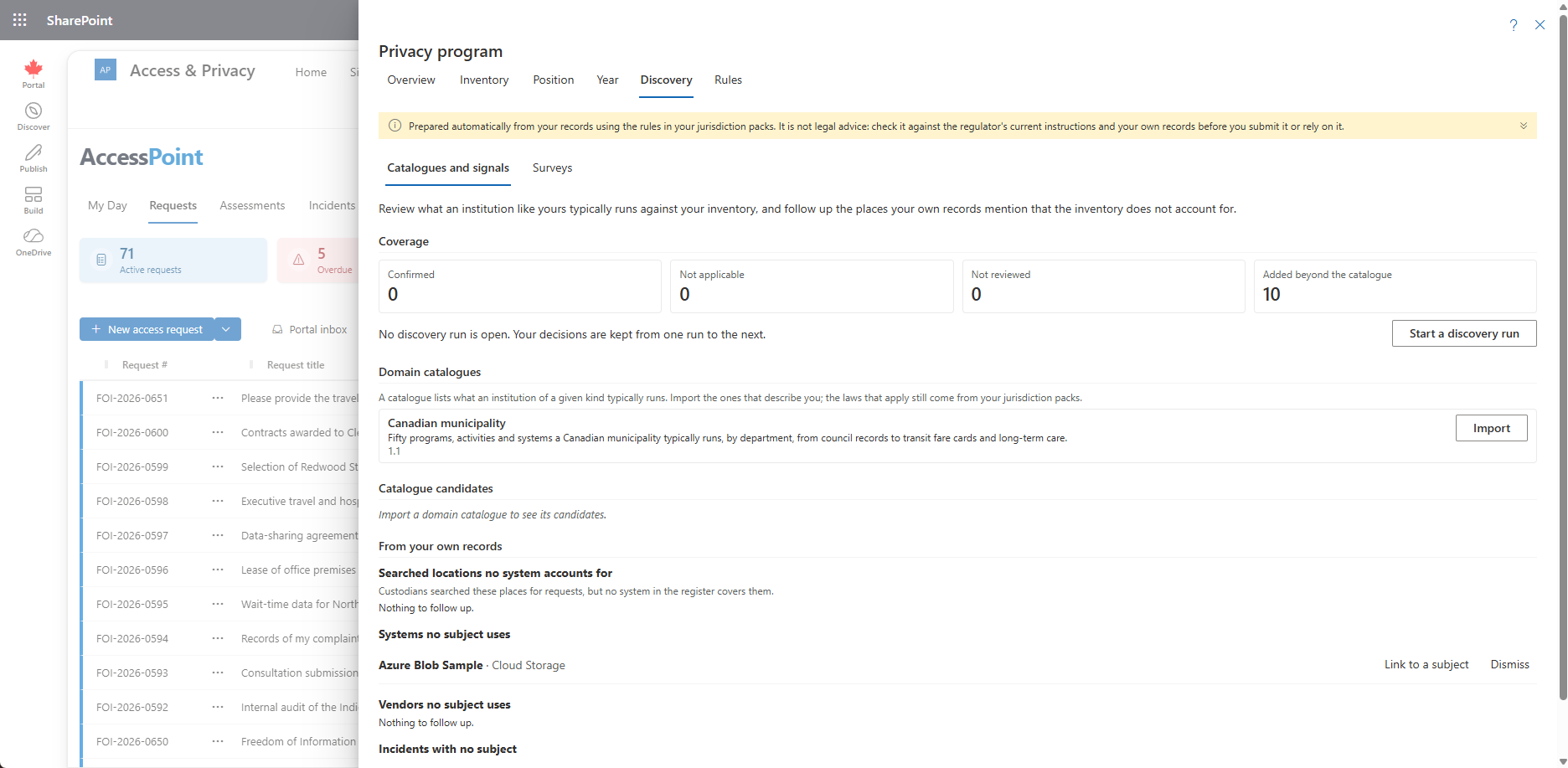
Catalogues and Signals
Discovery helps from two directions.
- Domain catalogues list what an institution of a given kind typically runs. The first, Canadian municipality, names fifty programs, activities and systems across twenty-six departments, from council records and building permits to transit fare cards and long-term care, each with its usual department, where its records usually live and default purpose text. A program manager imports the catalogues that describe the institution here. They are not listed under Settings → Jurisdiction packs, which carries the law; the laws that apply still come from the jurisdiction packs.
- Catalogue candidates, grouped by department, are reviewed one by one:
- Create subject adds the privacy subject with the candidate's name, department, purpose and data-subject text in your organization's default language (you need the right to create subjects).
- Link to a subject records that an existing subject already covers it. A subject with the same name is suggested.
- Not applicable sets it aside.
- Undo returns a candidate to Not reviewed. Decisions carry over from one run to the next.
- From your own records lists what your records mention but the inventory does not account for: places custodians searched for requests that no system in the register covers (Add to the systems register creates the system and points every search of that place at it), systems and vendors no subject uses (Link to a subject), and incidents from the last year with no subject (listed only for people who can view incidents; link the subject on the incident). Anything that needs no action can be dismissed.
Coverage counts the candidates confirmed, not applicable and not reviewed, and the subjects added beyond the catalogue, meaning things you run that no catalogue names. A discovery run opens with your first decision. Close the run and record coverage records those counts and the catalogue versions reviewed, as of that day, and the closed runs are listed below it. When the inventory is empty, a program manager also finds Find candidates in Discovery on Inventory › Subjects.
Discovery Surveys
A catalogue says what an institution like yours typically runs; the people who run it know what it actually runs. Discovery › Surveys asks them.
A program manager chooses New survey, names it, adds optional instructions and a due date, and picks the people to ask, each with the unit or program they answer for (the same person can answer for two units). Each person is notified by e-mail and in their notices, and finds the survey on My Day (Answer the discovery survey …). They need no role in AccessPoint: being asked is what lets them open it. One reminder is sent when the answers are due within two days, or overdue.
Answering a Survey
The person asked lists each activity in their area that collects personal information (a program, a service or a process). For each they say what it does, where its records are kept (the kind of place and its name: an application, a SharePoint site, a file share, paper files…), who is responsible for it, and whether it is still running, has stopped or has moved.
Save keeps a draft. Submit answers sends it and cannot be undone. Submitting with no activities tells the office that nothing in that area collects personal information. Program viewers see the survey read-only.
Asking More
Left as it is, a new survey asks exactly the short questionnaire above. Under What to ask you can add more:
- Sections that fill a subject's record. Tick any of Purpose, Categories of people, Kinds of personal information, Who it is shared with, How long it is kept, Hosting and transfers abroad, Security measures and Legal basis or authority, and each activity is asked about them. Where your subjects use a list (the categories of people, of personal information and of recipients you keep under Settings → Privacy subject choice fields), the person asked picks from that same list, in their own language, and can describe anything else under Other. They never add to your lists. Who it is shared with also asks for the organizations by name (suppliers, service providers, partners).
- Questions of your own. Add a question writes a question as you would in an assessment template: the question and optional help, whether it must be answered, and its answer type. The types are short or long text, yes or no, a choice or several choices from options you list, a date, a number, a table with the columns you define, a diagram drawn in the diagram editor, a finding on a scale, or files. Choose whether it is asked for each activity or once, about their whole area. A survey can ask up to 50. Write them in the language you work in; the survey records it. When AI Assist translation is on, the question and its help are machine-translated into your organization's other languages, so each person reads them in their own language and can choose Show original to see your words. Without it, everyone reads the question as you wrote it. Options and table columns are not translated.
- Start from a previous survey copies an earlier survey's name, instructions, sections and questions (never its people), so a yearly refresh asks the same thing.
A survey's questions are fixed once it is sent: everyone asked, including people you add later with Ask more people, answers the same questions, so their answers line up. To ask something different, close the survey and start a new one from it.
Files
When a question asks for files, the person asked uploads them with their answer (they can remove one while the survey is open). Every file goes through the same checks as any document: size limits, a check of the file's real type, Microsoft Defender's virus scan where your installation has it, and conversion for viewing. Nobody opens a file until the virus check has cleared it. A file still being checked shows being checked for viruses, one found infected is blocked, and one the scanner could not cover stays closed.
Only the person asked and people who can view the privacy program can open survey files; permissions on cases and documents never reach them. Survey files are not attached to subjects (a subject holds no documents); they stay with the survey and are deleted with it.
Following a Survey
Back on Surveys, each survey shows how many people have answered. Show people lists each person's status and opens their answers. Ask more people extends an open survey, Stop asking withdraws one person, and Close survey ends it. People who have not submitted can no longer answer, and what they saved is kept.
Applying the Answers
Every activity someone submits arrives under Answers to apply, with who sent it, for which unit, and where its records are kept (places already in the systems register are marked). When the survey asked more, Show the answers opens the section answers and the answers to your own questions for that activity, and the person's answers about their whole area, with tables shown as tables, diagrams drawn and files ready to open.
- Create subject adds a privacy subject named as the answer names it. The person named as responsible (or the unit) becomes its business owner. It fills the fields the sections asked about (purpose, categories, recipients, the organizations it is shared with, retention, hosting, transfers, security, legal basis) and adds each place to the systems register, linked to the subject. You need the right to create subjects; organizations not yet in the vendor register are added to it.
- Link to a subject records that an existing subject covers it, and can also register and link the places (you need the rights to create and modify subjects). When the survey asked sections, Link shows each answer beside what the subject already says, and you tick what to copy. An empty field is filled and categories and organizations are added, but nothing the subject already says is changed unless you also tick Replace what the subject says. Copying needs the right to modify subjects, and copying organizations the right to create them too. If the answer is in another language than the subject's own text, a replaced answer is kept as that language's version and the subject's text stays as it is.
- Dismiss sets it aside; Undo reopens it.
An activity the unit says has stopped or moved is linked to its subject or dismissed, never created. As with catalogue candidates, a decision carries over from one discovery run to the next. Answers to your own questions are shown and exported; they are never copied into a subject.
Exporting and Deleting
Export to Excel on a survey downloads its responses: one row per activity per person (unit, person, status, the activity, the sections and the per-activity answers), the answers about each area on their own sheet, and each table question on its own sheet with every row pointing back to the row it belongs to. Files are listed by name and diagrams appear as Diagram — open in AccessPoint, both linked to the answers in AccessPoint; the workbook never contains a file's contents. Headers come in your language, including your own questions when a translation into your language exists. Every answer is written as text exactly as it was given (a value that starts like a formula is shown, never run), and each export is recorded in the audit log.
A closed survey can be deleted. The survey, everyone's answers and their files go; answers you already applied, linked or dismissed stay as decisions of the discovery run.
How Long Files Are Kept
The files people attached are deleted 12 months after a survey closes unless you change it. At the top of Surveys, Keep a closed survey's files for (months) takes 1 to 120 months, and left blank keeps them until the survey is deleted (you need Manage the privacy program; everyone who can view the program sees the setting). A daily check removes the files of every survey past that time and records each removal in the audit log. The answers, the decisions and the Excel export stay: they still name the files, marked removed after the retention period, and the survey shows the date the files were removed. A survey is not a case, so a case's preservation hold does not keep its files.
Permissions
Reading the surveys, opening their files and exporting them need View the privacy program. Sending, closing, deleting and deciding need Manage the privacy program. When someone leaves, their unanswered survey is listed with their open work under Manage users, where it can be reassigned or closed.
Related Pages
- Privacy Program — the hub this area belongs to.
- Privacy Subjects — the subjects discovery creates and links.
- Systems Register — where places found in discovery are registered.
- Vendor Register — where organizations named in surveys are added.
- Privacy Subject Choice Fields — the lists a survey offers its answers from.
- My Day — where a person asked finds the survey.