
Triage requests submitted through the public intake portal — review each submission, then promote it to a request, merge it into an existing one, or reject it.
Last updated: October 20, 2026 by Steve
Portal Inbox
The Portal inbox is where staff triage what the public intake portal receives. A portal submission never becomes a request on its own: it waits here, staged, until someone with the portal.triage permission looks at it and decides what to do. The inbox is for access officers and intake coordinators; requestors never see it.
The portal is a separate, internet-facing web app that your administrator deploys beside AccessPoint. It is off by default and opt-in for each tenant. Requestors need no account: each step is protected by a one-time code e-mailed to them. See Public Portal for how an administrator sets it up, and Public intake portal for the overview.
Opening the Inbox
If you hold portal.triage, the Requests dashboard toolbar shows a Portal inbox button with a count of submissions awaiting triage. My Day also carries an action, "N portal submission(s) waiting to be triaged", that shows how long the oldest has waited. Selecting it opens the inbox.
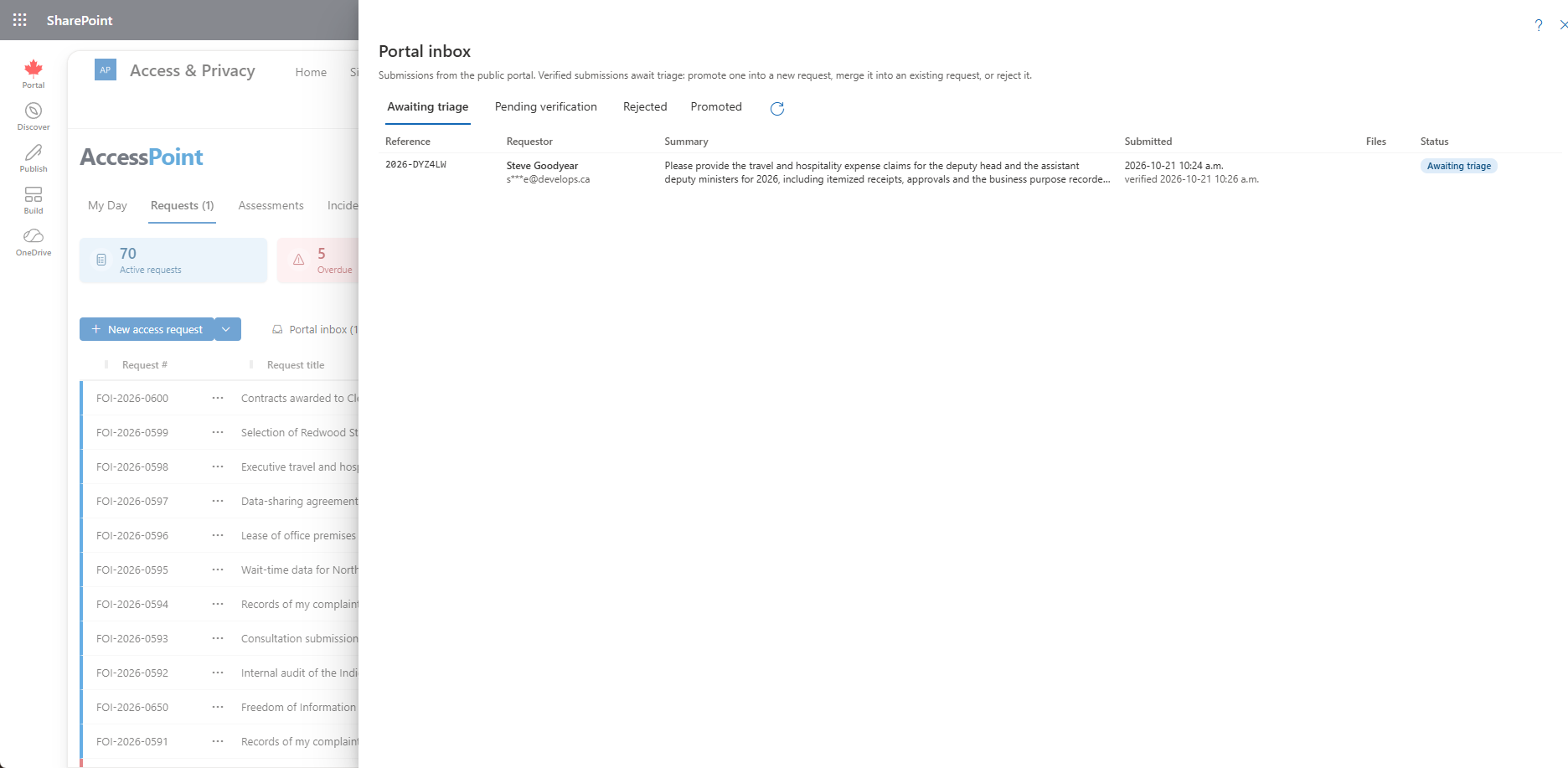
The queue has four filters:
- Awaiting triage — verified submissions, shown by default.
- Pending verification — the requestor has not yet entered the e-mailed code.
- Rejected
- Promoted
Each row shows the reference, the requestor (with a masked e-mail address), a summary, when the submission was sent and verified, and the number of files. A Known requestor chip appears when the address matches an existing contact. A submission whose code was never entered lapses by itself after a week.
Reading a Submission
Open a row to see everything the requestor sent:
- Every answer, in words. Periods, record types and program areas appear by name, never as codes.
- The Scope card — when the form is the guided request, the answers are summarized as the time period, the kinds of records, the people or offices involved, what to leave out and the keywords. The card also names the program areas the requestor chose and lists what they did not give, exactly as their own checklist did (for example "No time period given").
- The files, each with its malware-scan verdict.
- Client details — the address, browser, time taken to submit and the outcome of the bot challenge.
- What the requestor added while waiting. A message sent through the portal while the submission still sits in the inbox appears under Added by the requestor, and is delivered with the request when you register it.
- What the portal asked. If the clarity assistant is on, the inbox shows the questions it put to the requestor, so nobody repeats them.
Translating
When the requestor wrote in another language and AI translation is on, Translate to translates the text answers in place. A link above them, for example Machine translation (original: Français) — Show original, switches between the translation and the requestor's own words. The submission itself is not changed. Submissions still pending verification cannot be translated, and the page explains when the AI budget is spent, the content filter declined the text, or AI Assist is unavailable.
Promote
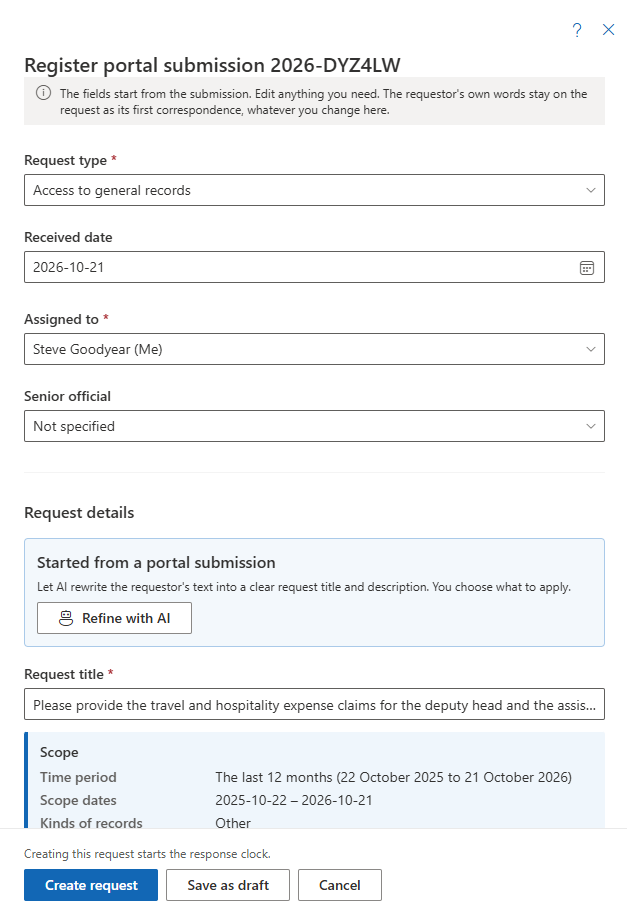
Promote opens the same Create request panel as New request, filled in from the submission:
- the request type and access officer, from your portal defaults;
- the received date — the day the requestor confirmed the submission with their code, which starts the statutory clock;
- a title from the first sentence of the request text (shortened at a word to 120 characters, or the form's title when the text is empty);
- the request text as the description;
- the matching requestor contact and their preferred language;
- the requestor's Program areas and the Information categories their record types map to, both editable.
Edit anything before you continue. With AI Assist on, Refine with AI proposes a clean title and description from the requestor's text, and you choose what to apply. You can link a different existing contact, change the preferred language, and name a senior official or a sub-type. When no contact matches the verified address, the panel says a new requestor will be created from the submission.
Choose Create request to activate it, or Save as draft to finish intake later. If activation is refused (you do not hold the permission, or the request type needs a verified identity), the request stays a Draft and the inbox says why.
What happens to the submission:
- The answers map onto the request: date range, request type, custom fields and on-behalf-of. A preferred-format answer sets the response method when it matches one of your options.
- The files are copied into the request's Documents workspace through the normal upload pipeline. A file Defender flagged is discarded instead.
- The submission reference is kept as the request's external reference, shown in the header as Requestor's reference.
- Whatever you change, the requestor's own words are kept. The request's first correspondence is an inbound entry, Request received through the public portal, with a PDF of every answer and the attached files.
- Promotion runs the same steps as New request: the Created history entry, the access officer's notification and, when you activate, the activation history entry and the requestor intake limits.
A request that arrived through the portal shows Origin in the Key dates card on the Details tab, with the submission reference.
Merge Into Request
Merge into request attaches the submission to a request already on the register. The answers are logged on it as an inbound communication, in the language the requestor used, and the files land in its workspace. The request's contact gains the requestor's language only if it has none recorded.
Email the requestor is on by default and sends the "added to an existing request" notice. The notice names the request number only when that request belongs to the same e-mail address. On the portal, the submission's reference opens that request only for the same address. Otherwise the requestor sees Added to another request and nothing of the other request.
Reject
Reject requires a reason, which is for staff and the audit record only. The Explanation for the requestor is optional, and is the only staff text the requestor ever sees. It appears word for word in the e-mail and on the portal's status page under Message from the organization. Email the requestor is on by default and sends the "not accepted" notice. A submission whose code was never entered cannot be e-mailed, and the dialog says so.
Rejected submissions and their files are purged after the retention period set in Settings → Public portal (30 days by default).
Complaints and Privacy Concerns
A portal form registers in one register, chosen when the form is created: Requests, Complaints or Incidents. In the inbox, a complaint or a concern carries a pill. Instead of Promote, the action reads Register complaint or Register incident. It asks only for the type and an assignee. The details, the narrative and the attachments come from the submission, and the original is filed as the case's first document. Registering needs the register's own intake permission as well as portal triage. Merge is for request forms only.
What the Requestor Sees
A few things on the portal side are worth knowing when you answer a call:
- Before you register a submission, Check a request shows Received, with a line explaining that the access team is reviewing it.
- A rejected submission shows Not accepted. One merged into a request opens that request when the e-mail address matches.
- Once registered, the page shows one of seven public phases: Received, Under review, We need more information from you, On hold, Records are being gathered, Ready and Closed. Internal status names never appear.
- The portal e-mails the requestor in their language when they confirm a request, when you do not accept a submission, and when you add one to an existing request. The wording is yours to edit under Settings → Correspondence templates.
- Once a submission is promoted or merged, the portal's copy is cleared after the period set under Keep the portal copy after registration (days), 30 by default. The inbox then says the copy was cleared.
- If your administrator turned on auto-promote, matching submissions arrive as Draft requests assigned to the default access officer, without waiting here.
Records you release can also be handed over through a secure delivery from the portal, and fees can be paid there. Staff set those up from the request: see Request Response. An administrator registers the payment providers under Payment Providers.
Related Pages
- Requests Dashboard — the dashboard the Portal inbox button sits on.
- Creating Requests — the Create request panel Promote opens.
- Request Response — secure deliveries and fees for portal requestors.
- Public Portal — administrator settings for the portal and its intake forms.
- Intake Quality Report — whether guided intake is working.