
Assessment detail — overview, sections and risk tables, diagrams, risks, assignments, validation, review, closure, security tabs, activity
Last updated: October 20, 2026 by Steve
Assessment Details
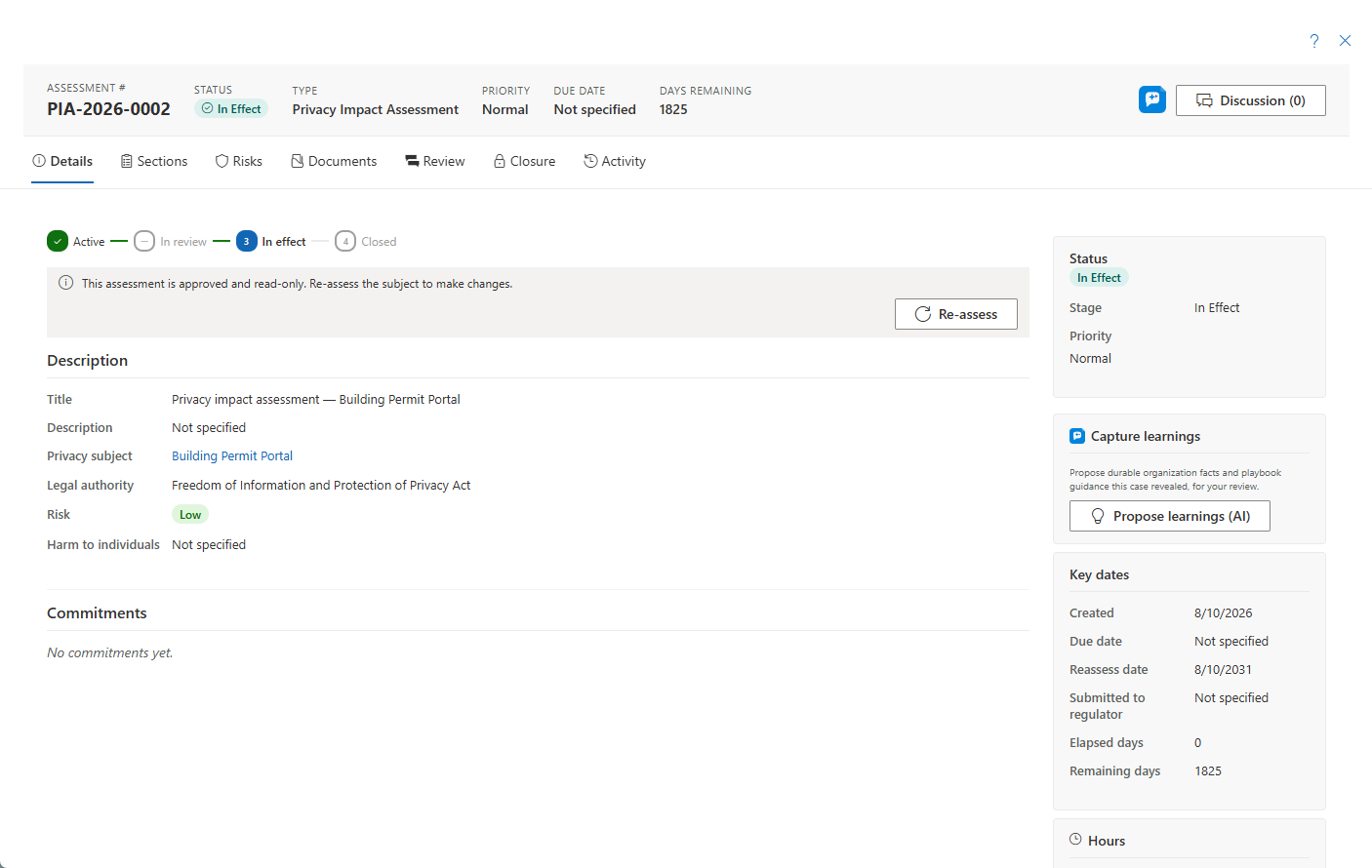
Opening an assessment shows a full-width panel where privacy analysts, security assessors, and the coordinators who own the assessment do the detailed work. The header carries the assessment number, status chip (point at it to see the lifecycle stage), type, priority, due date, Days remaining (or Days overdue once it has passed), and a Discussion button; the content is organized into tabs. Like every case panel, it shares one header and one … menu with Help and Close. The … menu offers Add reminder, Place preservation hold… (when your organization uses case archiving — see Preservation Holds) and, while the assessment is in progress or in review and you hold Delete assessments, Delete assessment.
Overview Tab
The main column carries:
- The compact lifecycle rail — Active → In Review → In Effect → Closed. In Review is skipped when no review workflow ran.
- The editable Description section — title and description, with optional per-language translations.
- The Screening record beneath it — the screener determination, if one ran. It is excluded from the exported report.
- Custom fields configured for assessments.
- The Commitments card — the "privacy promises" register of measures, conditions, and undertakings tracked to completion, grouped as Recommendations, Commitments and Resolved. Recommendations from a reviewer, the privacy officer, a regulator or an auditor wait there for your decision to accept or decline. See Commitments.
- The case's follow-ups card — open, upcoming and recently finished follow-ups. See Case Follow-ups.
The sidebar holds:
- Status — change to another status within the current stage. Cross-stage moves happen through actions like starting a review, not a manual button. Priority is set here too.
- Key dates — created, due date (editable), next review, and the optional submitted to regulator date. Elapsed and remaining days are computed; once In Effect the countdown targets the next review date.
- Hours — log and track effort against estimate.
- Assigned owners — coordinator and senior official.
- AI Assist — when AI Assist is enabled, one card offers the suggested next step, the case check and, once the assessment is closed, capturing what was learned; each part appears only when it has something to say.
- Related — linked assessments and reference links. It starts folded; open it with its title, and AccessPoint remembers your choice.
Click the subject name to open its detail — read-only from here, because subjects are managed in the inventory of the Privacy program (see Privacy Subjects).

Sections Tab
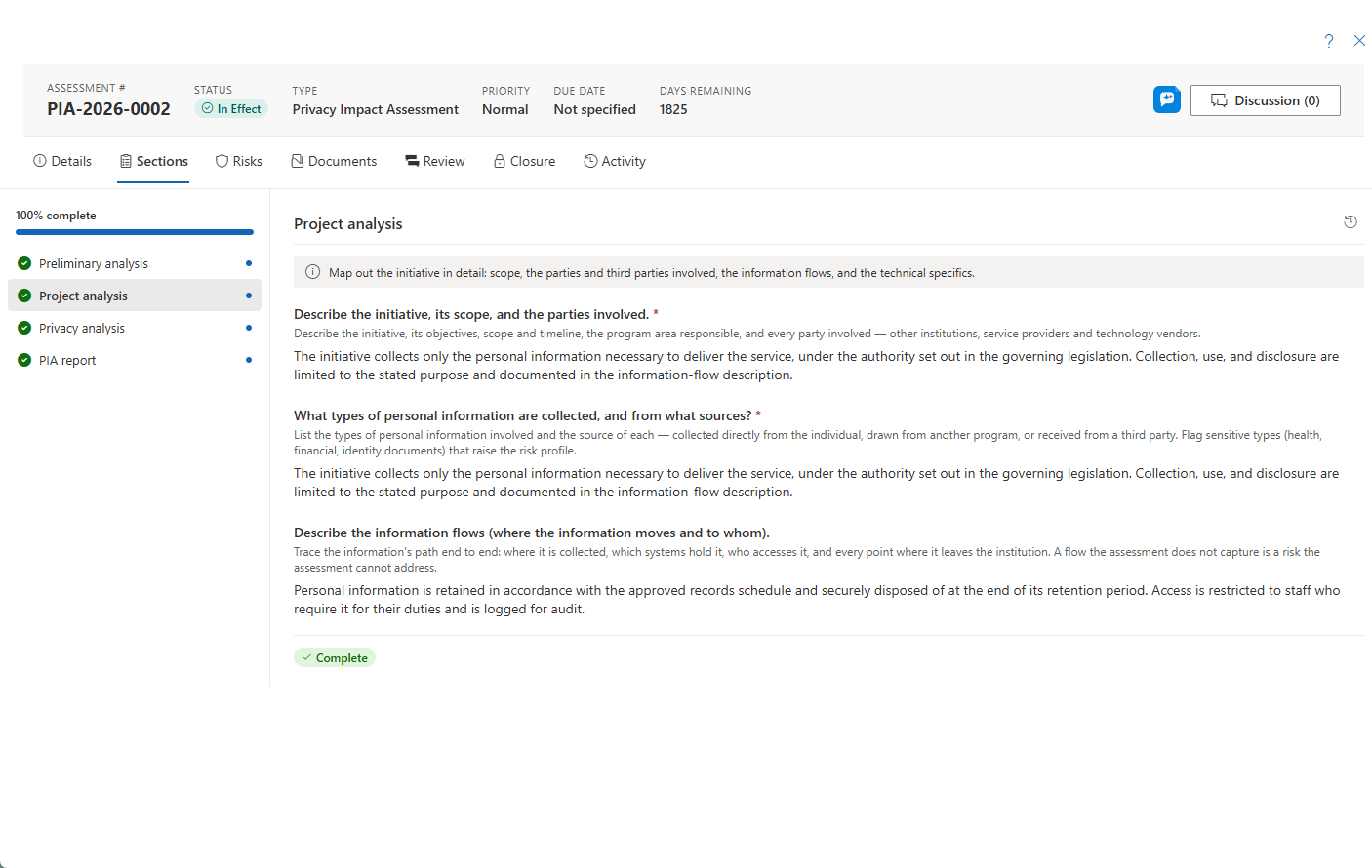
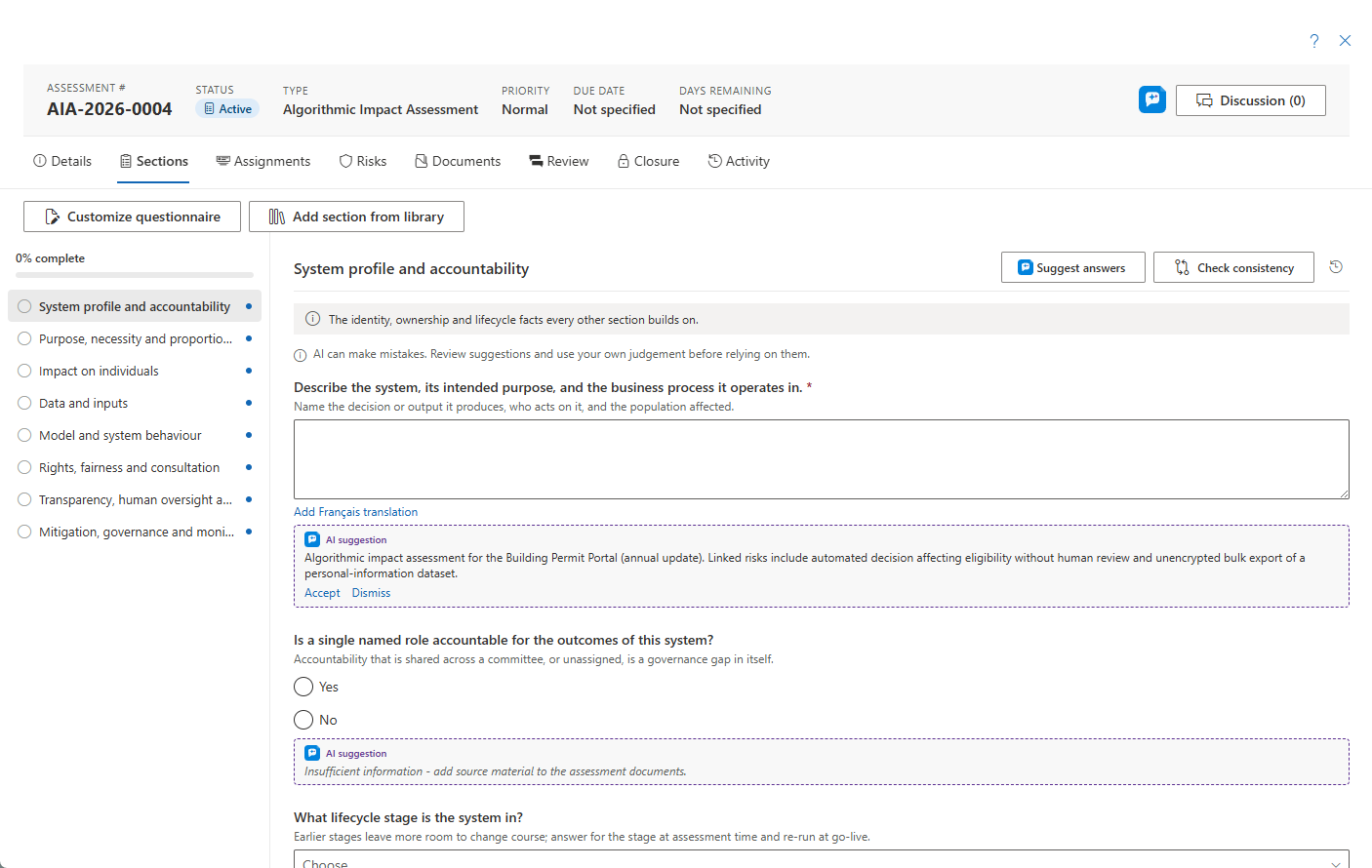
The Sections tab is the questionnaire filler — a left rail of sections with typed questions. If the questionnaire was customized, a provenance banner names the source template and version. Holders of the right permission get an Edit questionnaire entry point — or Customize while the assessment is still in the Active stage — that opens the template builder on the assessment's own copy without touching the shared template. From there, Add section from library appends optional add-on section modules onto the assessment's own copy of the questionnaire — these are never offered as a standalone questionnaire on their own. A customized questionnaire can be changed only while the assessment is Active; once it goes to review it is locked, so reviewers never see the questions change under them. Answers already recorded survive customizing.

Risk Tables in the Questionnaire
Many regulators' PIA forms ask for a table of risks. In AccessPoint such a table is linked to the assessment's risk register: each row is one of the assessment's risks, shown in the form's own columns, so a risk is recorded once and appears in the table, on the Risks tab and in reports.
- Add risk opens the risk panel with the risk already placed in this table; Add existing risks puts risks you created on the Risks tab into the table.
- Click a row (or its Open risk button) to open the risk. Its rating, mitigation, owner and dates are edited there, and the row follows. Columns the register has no field for are filled with Edit table details on the row.
- Remove from this table takes the row out of the table; the risk stays on the Risks tab.
- A table with no risks can record No risks identified — that is what completes a required risk table.
- Rows typed into the table before it was linked are kept read-only; Move these rows to the risk register turns each into a risk in one step.
- Once the assessment is approved, the questionnaire shows the table as approved; the risks themselves stay live on the Risks tab.
Some forms list the same risks twice — a risk table, then a second table that reassesses or treats each risk (a residual-risk table, an actions table). The second table is a view of the first table's risks, one for one, in its own columns. Open a row to change the risk itself; the view's other columns are filled with Edit table details. Risks are added, linked and removed in the first table only.
Diagrams in the Questionnaire
A Diagram question (and a diagram working document) is drawn on a canvas: click or drag a shape from the palette (process, data store, person, external party, decision, note), drag from one of a shape's four ports onto another shape to draw a connector, double-click to rename, and right-click for more.
- Shapes snap to the grid as you move, resize or drop them. The grid button in the toolbar turns it off, and holding Alt while you drag places a shape freely.
- Select several shapes with Shift+click, a drag box or Ctrl+A, then use Align horizontally, Align vertically or More alignment (left, right, top, bottom, Space evenly). Selected shapes move together.
- A dashed guide appears while you drag when a shape's edge or center lines up with another's.
- Connectors can run in right angles (right-click, Line route) and stay attached to the sides you chose.
- Ctrl+C, Ctrl+V and Ctrl+D copy, paste and duplicate shapes with the connectors between them. Ctrl+Z / Ctrl+Y undo and redo.
- Zoom from 25 % to 200 % with the buttons or Ctrl+mouse wheel; Fit shows the whole diagram. Arrange lays the diagram out, and one Undo puts it back.
- Check diagram lists what to look at — connectors without a label, shapes connected to nothing, data stores nothing flows into and labels used twice — and each item takes you to it.
- Export saves the diagram as a PNG or SVG; the List view edits the same diagram as tables.
Diagrams kept by the privacy subject. The main data-flow diagram of a privacy impact assessment, and the boundary diagram of a security assessment, belong to the assessment's privacy subject as well. When you start an assessment on a subject that already has a current diagram, the question starts with a copy of it and says so, with the subject's current diagram one click away. Nothing you do on the assessment touches the subject until the assessment is approved: then a diagram that differs from the subject's current one becomes its new current version, recorded in the activity. See Privacy Subject Details.
AI Assist in the Questionnaire
When AI Assist is enabled, the questionnaire adds optional helpers:
- Suggest answers drafts answers for a section's unanswered questions, grounded on the assessment's own documents, its record, and your Organization profile. Where the material doesn't support an answer, the question stays blank with an "insufficient information" hint rather than plausible filler. You accept or dismiss each suggestion per question — nothing is applied on its own.
- Check consistency reviews the whole answer set for contradictions across sections.
- Draft with AI (on a diagram question) asks Ask AccessPoint to draft a data-flow diagram from the assessment's description, subject and answers; you see the draft first and choose to use it, add it beside what you have, or discard it.
Every suggestion is an editable draft that a person decides on. AI Assist runs on an Azure OpenAI resource in your organization's own Azure tenant, Microsoft does not train its models on your data, and prompt and response content is not stored — only usage metadata. AI Assist and its individual features are toggled under Settings → Features; see the Features administrator page.
Risks Tab
The assessment's risk register, scored on 5-point Likelihood × Impact (or the questionnaire's own scale), with the effective overall-risk override and, for types that enable it, the harm-to-individuals (RROSH) determination. Risks can carry mitigation tasks and discussions. The same risks fill the questionnaire's risk tables. See Risk Details.
Under the list, the Risk map places each risk before and after its corrective measures, and Risk overview draws their sources, threats, impacts and measures — see Risk Map and Risk Overview. From the systems this subject runs on lists each system in use, the state of its security assessment and the risks recorded on the system; Take into this assessment adds one as this assessment's own risk, and the list flags a rating that differs from the system's.
When AI Assist is enabled, Suggest risks (AI) drafts up to five risk candidates grounded in the assessment, the subject's prior incidents and assessments, its disclosure and vendor register, and similar risks elsewhere in your register — each candidate cites what motivated it. Add as risk opens the normal risk form pre-filled for your review; nothing is recorded until you save it.
Assignments Tab
Section assignments — handing a questionnaire section to a subject-matter expert. The tab is shown to users who can assign, and Help on it opens the section-assignments page. See Section Assignments.
Documents Tab
A reference-document workspace for every assessment. For security assessments (a type with the security tabs turned on), generate-SSP/SAR actions appear, alongside extra tabs: Categorization, Controls, POA&M, and Authorization — see Security Assessments below.
Review Tab
The configurable review/approval stepper on the assessment. Starting a review moves the assessment to In Review; a reviewer holding the review-act permission can approve here even without modify rights. The approver a step is assigned to can act on it as long as they can open the assessment.
When a review is set up to put the assessment in effect (or close it) on completion, approving its last step is that approval. It is checked exactly as Mark in effect is — what still blocks is listed under The assessment cannot be approved yet and nothing is recorded — and an open waiting period asks you to confirm first. The person approving the last step therefore needs the same right as Mark in effect (Activate / transition assessments); without it the approval is refused and nothing is recorded. Earlier steps need no more than before. Where the questionnaire switches on section evaluation, the approver rates the sections first — see Section Evaluation.
Validation Tab
Shown after Review when the questionnaire (or the assessment type) configures validation: a card for each opinion to seek (for example the data protection officer's advice and the views of the people concerned), the decision card for the senior official, and Ready to approve?, which lists the same checks Mark in effect will run. An assessment whose questionnaire configures none of this has no Validation tab. See DPIA Validation.
Closure Tab
Guides the In Effect / Closure lifecycle, collaborators, the regulator summary, and document export. View in Documents jumps to the generated report's preview. The Regulator consultation card records what was submitted to the regulator and its answer, above the regulator log, and Mark in effect runs every approval check — see Regulator Consultation. When the system or program changes, open an update assessment from this tab: the answers carry over and the questionnaire's reassessment triggers say what to look at. The three summary narratives (regulator, executive, publication) support optional per-language translations, and the regulator summary document renders the chosen language's text.
When AI Assist is enabled, the closure tab's Draft with AI button offers three summary styles, each written into the same editor for you to review, edit, and save:
- Regulator summary — the regulator-facing summary.
- Decision-maker executive summary — a concise summary for the person signing off.
- Public-publication summary — a version that deliberately excludes personal data and flags borderline passages with
[REVIEW: …]markers for human confirmation.
Each style is a starting draft, never a finished document — a person always reviews and decides. The same responsible-AI handling applies: processing runs in your own Azure tenant, Microsoft does not train on your data, and prompt and response content is not stored.
Activity Tab
The full assessment timeline.
Security Assessments
A security assessment decides whether an information system may operate. The questionnaire for your pack's framework works with these tabs:
- Categorization — enter the confidentiality, integrity and availability impact; the highest is the overall category. Choosing the control profile (or leaving the questionnaire's default) brings that profile's controls onto the Controls tab.
- Controls — each control from the Controls library carries its implementation status and narrative and, once assessed, its result (satisfied or other than satisfied).
- POA&M — a control assessed other than satisfied becomes a plan of action and milestones item with its residual risk, recommendation, milestones, target date and status.
- Authorization — the authorizing official's decision (authorize, authorize with conditions, or deny), with the date, any expiry and the conditions; the authorization letter can be generated here.
- Documents — Generate SSP and Generate SAR produce the system security plan and the security assessment report.
The Risk register table in the security questionnaire is the assessment's risk register, and the boundary diagram stays with the privacy subject of the system. See Creating Assessments for the questionnaire each pack ships.
Frozen Records and Re-assess
Once an assessment is In Effect (approved) or Closed, its content is read-only, and a bar above the tabs says so on every tab, with Re-assess beside it. Changes go forward through Re-assess, which starts a fresh assessment on the same subject — see Creating Assessments. Status advancement (for example In Effect → Closed) stays available to holders of that permission.