
Request overview tab — request status, key dates, scope, extensions, clock pauses, and timeline summary
Last updated: August 06, 2026 by Steve
Request Overview
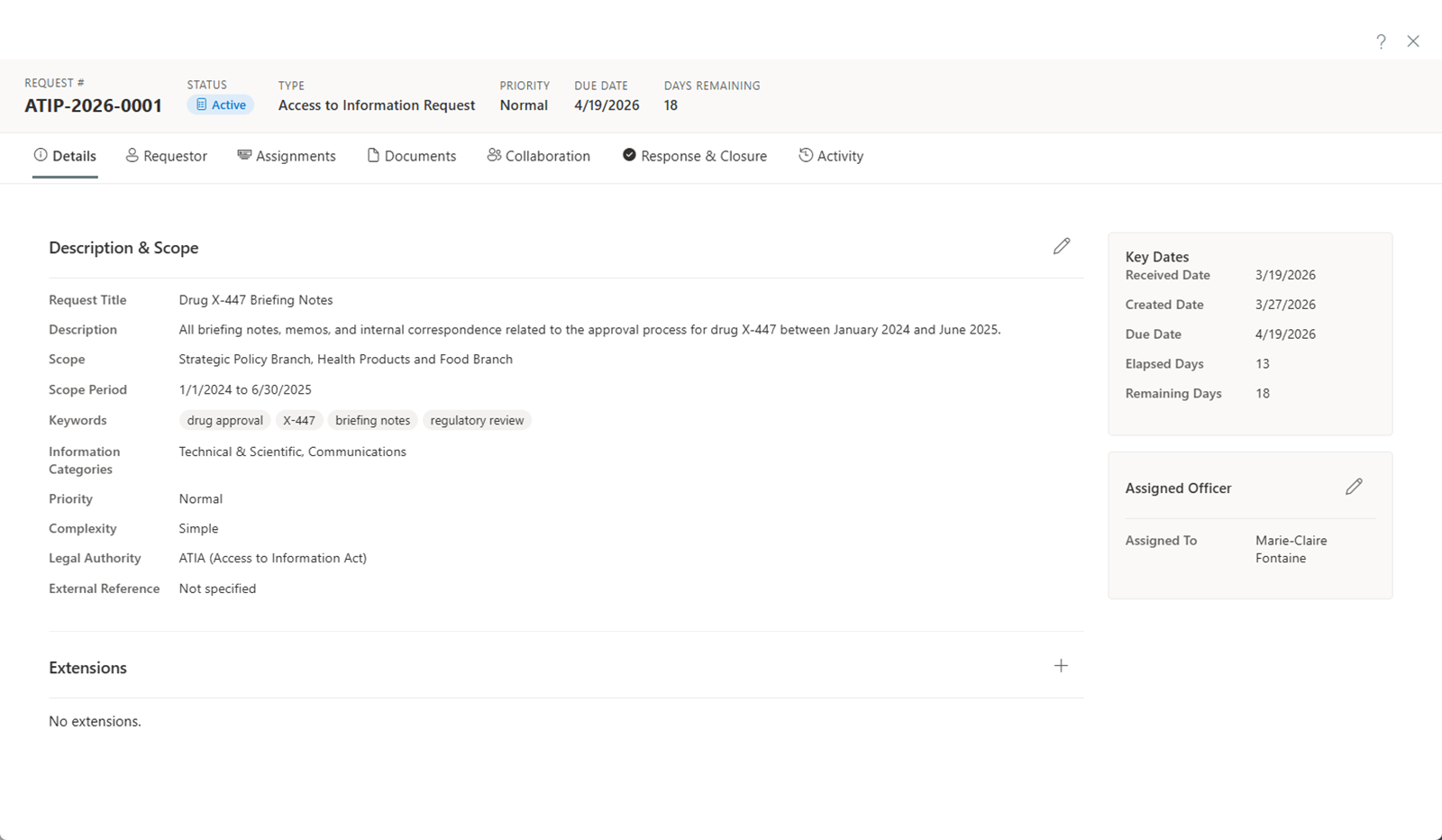
The Overview tab is the main information screen when you open a request. It provides a summary of the request's current state, key dates, and scope.
Editable Fields
The following fields can be updated on the Overview tab:
| Field | Description |
|---|---|
| Title | A descriptive title for the request. |
| Description | Summary of what information is being requested. |
| Scope | Date range and subject matter that define the boundaries of the request. |
| Keywords | Terms to help categorize and search for the request. |
| Information Categories | The types of information relevant to this request. |
| Priority | Low, Normal, High, or Urgent. |
| Complexity | Simple, Moderate, or Complex. |
| Status | The current lifecycle status of the request. |
AI Intake Triage
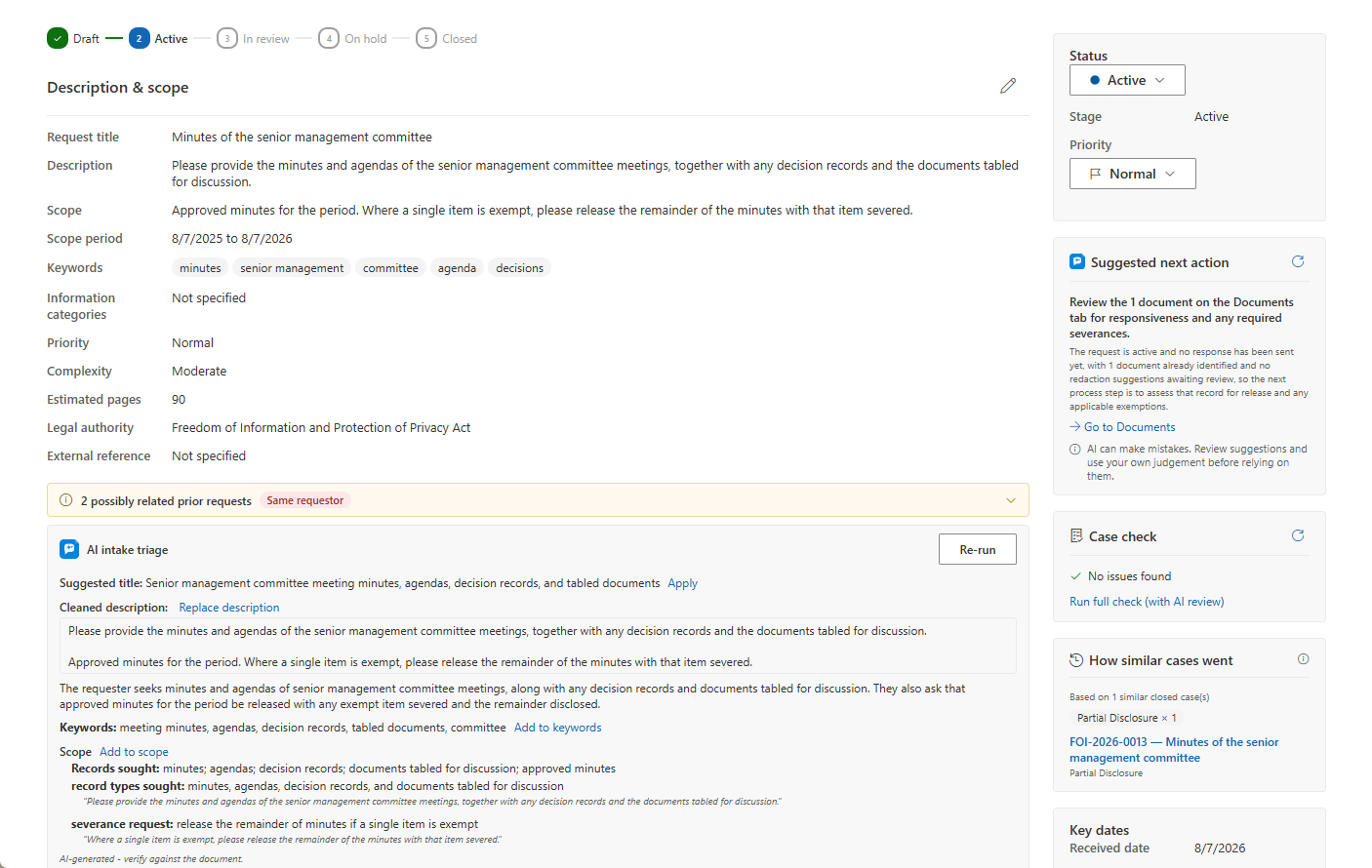
When AI Assist is enabled, an AI intake triage card appears on the Overview tab. It reads the intake text already on the request — the description and details captured when the request came in — and offers suggestions to help you set the request up:
- A suggested title, which you can apply with one click.
- A plain-language summary of what is being asked.
- Key topics, applied as keywords with one click.
- A Scope section — the records sought and any explicit exclusions, appendable to the request's scope in one click.
- A third-party callout flagging organizations or individuals whose interests may need consulting.
- Structured findings, each shown with the verbatim passage it was drawn from.
- Clarification questions worth putting to the requestor.
Everything the card produces is a suggestion — nothing is applied to the request until you click to accept it. The card deliberately does not suggest a request type: type changes recalculate deadlines, so that stays a human decision on the form.
AI intake triage is part of AI Assist, an optional capability. The card only appears when your organization has deployed AI Assist. AI Assist runs on an Azure OpenAI resource in your organization's own Azure subscription and region: request content never leaves your tenant, Microsoft does not train its models on it, and prompts and responses are not stored — only usage metadata is kept.
Suggested Next Action, Case Check, and How Similar Cases Went
Three more cards can appear in the sidebar, alongside status, key dates, and owners:
- Suggested next action — a small card suggesting the single most useful next step, with a one-sentence rationale grounded in the request's own facts and a link to the tab where the step happens. Results are cached per request, so an unchanged request doesn't re-run the AI — use the refresh icon to regenerate. Advisory only; nothing is ever done for you.
- Case check — sits under Suggested next action and lists what a quality reviewer would flag: overdue actions, missing approvals, redactions citing no exemption, unreviewed suggestions, and the like. Its compliance-relevant findings come from deterministic rules that run on every tenant; when AI Assist is deployed, an AI pass may add consistency observations — as warnings and suggestions only, never blockers. The same rules feed the tenant-wide Case hygiene report.
- How similar cases went — a display-only card showing computed outcome facts from similar closed requests (outcomes, extensions taken, exemptions cited). It works with or without the semantic index — matching by meaning when available, by text overlap otherwise — and matches are always security-trimmed to requests you can open. It reports what happened; it never recommends.
Suggested next action and How similar cases went are part of AI Assist, an optional capability, and only appear when your organization has deployed it. Case check's deterministic findings appear on every tenant regardless; its AI-assisted observations require AI Assist.
Request Lifecycle
Requests move through the following statuses:
Draft → Active → In Review → Closed
A request can also move between Active and On Hold as needed.
Status Transitions
| From | To | When |
|---|---|---|
| Draft | Active | The request is ready to begin processing. |
| Active | In Review | Documents have been collected and the request is ready for review. |
| Active | On Hold | Processing is paused, e.g., waiting for the requestor to clarify their request or pay fees. |
| On Hold | Active | The hold reason is resolved and processing resumes. |
| In Review | Closed | Review is complete and the response has been sent. |
| Closed | Active | The request is reopened — see Reopening a Closed Request. |
Closed Requests Are Read-Only
Once a request is closed, a banner appears at the top of the details panel confirming the lock. Assignments, tasks, documents, and collaboration records can be viewed but not edited. Post-closure correspondence (acknowledgments, appeals, follow-up letters) remains available under the Requestor tab so you can continue to log legitimate activity without reopening.
Reopening a Closed Request
If you need to make substantive changes after closure — for example, an appeal has been filed, a clerical correction is required, or new responsive documents have surfaced — click Reopen request in the closed-request banner. A dialog asks for a reason; the reason is recorded in the activity log alongside the state change, together with the original close date for reference. Reopening sets the status back to Active. Only Administrators and Subject Access Officers can reopen a request.
Extensions and Clock Pauses
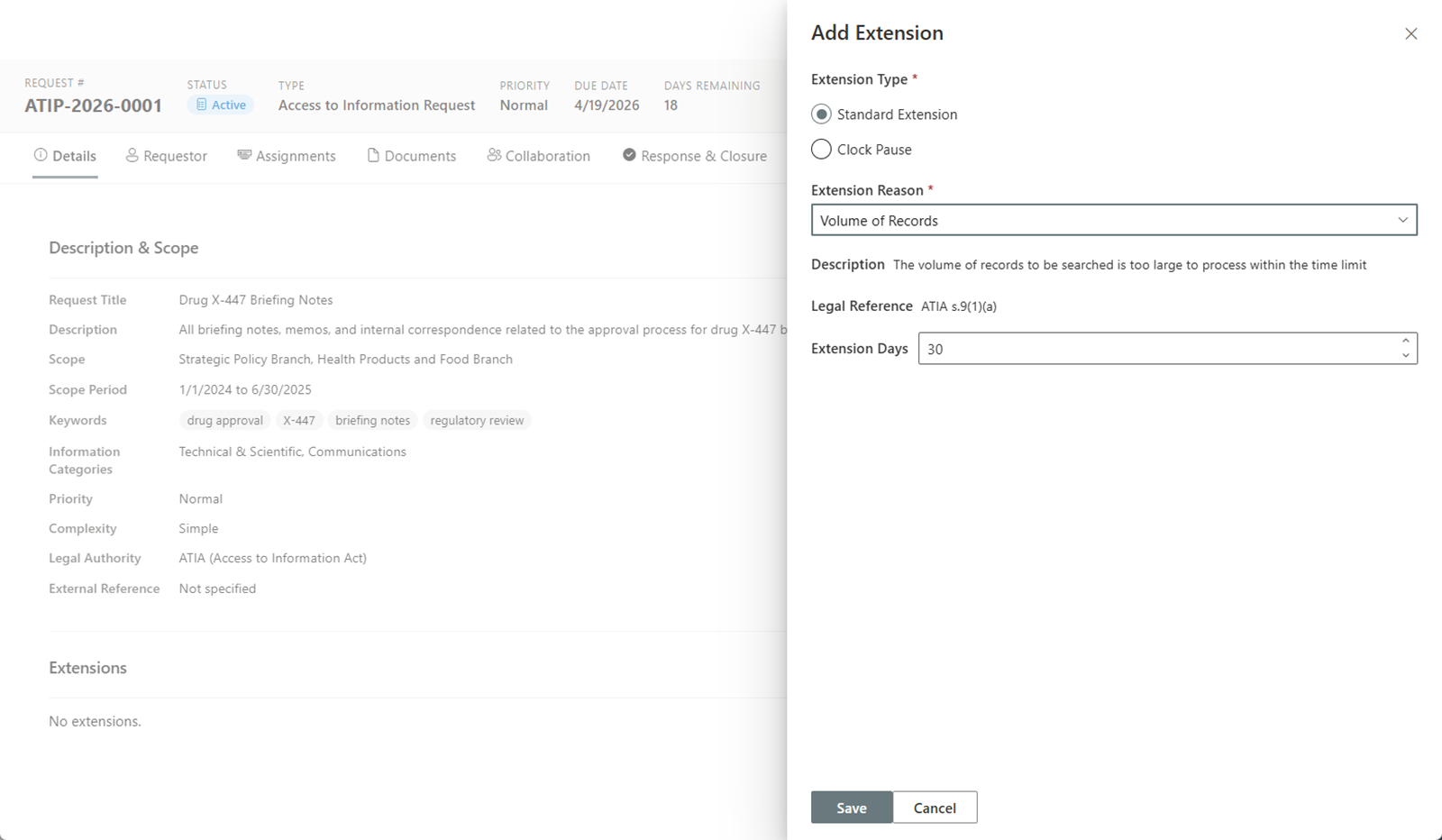
The Extensions section allows you to adjust the statutory deadline when legislation permits.
Adding a Deadline Extension
To add an extension:
- Click Add Extension in the Extensions section.
- Select an extension reason from the configured list.
- Enter the new deadline or the number of additional days.
- Save the extension.
Adding a Clock Pause
A clock pause temporarily stops the statutory deadline clock, for example during a fee negotiation or while waiting for the requestor to narrow their request.
- Click Add Clock Pause.
- Set the start date for the pause.
- When the pause reason is resolved, return and set the end date to resume the clock.
All extensions and clock pauses are recorded in the request's activity history, providing a complete audit trail.
Identity-Verification Hold
One clock pause can open on its own. On request types that require identity verification and opt into the stop-the-clock (Settings → Request Types → Legal), an identity-verification hold opens automatically the moment the request is created and is released the moment identity is marked verified — no one has to add or remove it by hand. The received date stays the statutory anchor: days spent waiting for proof of identity never burn the clock (this mirrors GDPR Art. 12(6) / ICO stop-the-clock guidance, and several jurisdiction packs pre-wire the hold with the right statutory citation). If verification is later cleared, the hold re-arms itself.
Deemed Refusal (Automatic Overdue Status)
If your request type's status vocabulary includes an overdue status — jurisdiction packs ship one, "Deemed refusal" in Canadian regimes or "Constructive denial" in US FOIA — AccessPoint applies it automatically when the statutory due date passes without a response. Processing continues as normal; the record simply shows the statutory consequence, and the transition is written to the Activity feed.
Abandonment
When a requestor stops responding, send the pack-shipped abandonment-notice letter from the correspondence composer — its template type drives the workflow, so there is no special button. Sending or generating it stamps a response deadline on the request (30 days by default, tenant-configurable). If the deadline passes unanswered, My Day raises a dismissible nudge and the Close dialog pre-selects the Abandoned outcome. Closing always remains a human decision.