
Settings → Training — allow train mode and who may enter, copy your setup into the training copy, reset it, and control guided help, uploads, exercises and assigned training.
Last updated: October 20, 2026 by Steve
Training
Settings → Training controls train mode, guided learning and training for teams. Administrators (Manage configuration) find it in the Getting started group. It is available in your real work only, not in train mode.
Train mode is on by default. A person who holds Manage training but is not an administrator sees only the Training row in Settings, with the lead's part: roles in train mode only, the progress table, training paths, team exercises and the summary.
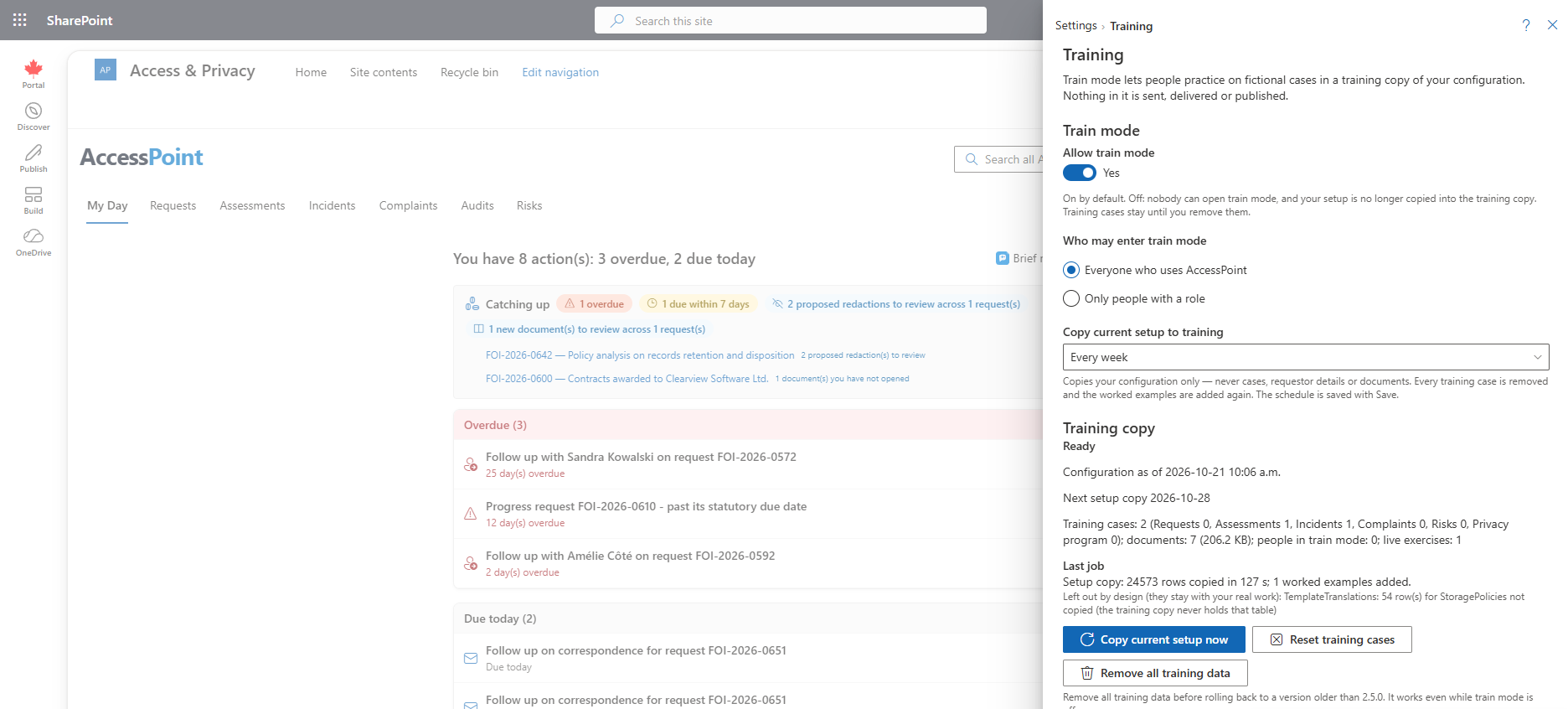
Train Mode
- Allow train mode — on by default.
- Who may enter train mode — everyone, or only people with a role you choose.
- Copy current setup to training — Never, Every week or Every month. Each copy copies your current configuration into the training copy and removes every training case, so choose Never if people keep long-running practice cases.
- Copy current setup now — runs the copy at once. It copies configuration only — request types, statuses, templates, letters, languages and settings. It never copies cases, requestor details, privacy subjects, vendors, documents, audit history, secrets or your portal setup.
- Reset training cases — removes every training case and keeps the configuration.
- Remove all training data — removes every row and file of the training copy and switches train mode off. Run it before rolling back to a version older than 2.5.0.
After a setup copy or a reset, the worked examples are added again and everyone in train mode is returned to their real work with a message.
The panel also shows the status of the training copy (Being prepared, Ready, Copying your current setup…, The last setup copy failed and so on), the date of its configuration, its counts and storage, the exercise clock, and a Last job report of what was copied and any worked example that could not be added.
After an upgrade to 2.5.0, AccessPoint prepares the training copy about ten minutes after the service first starts and then copies your setup into it on the schedule above. To keep train mode off entirely, switch off Allow train mode, or set the App Service setting Training__ServerDisabled to true. Re-apply the jurisdiction packs that carry training content before you announce train mode; until then it has no scenarios, paths or exercises.
Guided Help
Offer guided help covers Get started, Guide me and the first-time tips. Switching it off hides all three.
Documents in Train Mode
Allow uploads in train mode is off by default. When it is on, people may upload their own files to training cases after confirming, once per train-mode session, that the files hold no real personal information. Uploaded files are scanned for malware like any upload. The Training library of fictional records is available either way.
Team
- Allow team exercises
- Assigned training
- Show progress to the person who assigned it — on by default. Off, a lead sees only whether each path was assigned and finished; administrators always see the detail. Consider this setting if a works council or staff representatives must agree to how staff training is followed.
- Keep training progress for days — 90 by default, from 30 to 365. Records are kept longer while an open assignment still needs them.
Each switch hides its own part. Progress records only whether an item is done and the date.
Roles in Train Mode Only
Grant someone a role that applies only in train mode, with an optional end date. This lets, for example, a coordinator practise a privacy officer's work. Administrator, roles a person holds on one case, and dynamic roles cannot be granted this way. Dynamic roles do not apply in train mode, so someone whose access comes only from one cannot practise that work until a lead grants a role. Granting, changing and revoking these roles is written to the audit log.
Progress, Paths, Exercises and Summary
The panel holds the assignment progress table with Export CSV, the training paths, the team exercises, and a Summary: for each kind of work, the median number of days from someone's first sign-in to their first real action, plus totals.
Manage Training
Manage training is a sensitive permission you add to a role under Roles & Permissions. It lets a lead assign paths, see progress, run team exercises and grant roles that apply only in train mode. Administrators have it. Add it to the role your training leads hold.
A Completely Separate Environment
The training copy shares your database and storage, kept apart by AccessPoint. If your policy requires training on separate infrastructure, deploy a second AccessPoint in a test Microsoft 365 tenant of your own. It needs its own deployment and its own licence.
Related Pages
- Training Hub — what your staff see.
- Train Mode — what is simulated and refused.
- Training Paths — assigning training.
- Team Exercises — planning and running exercises.
- Roles & Permissions — granting Manage training.
- Notification Templates — the Training assigned and Training exercise invited e-mails.