
Video and audio records: uploads up to 50 GB, the accessible media viewer, audio description, marking and tracking, face detection, and releasing recordings
Last updated: October 20, 2026 by Steve
Video & Audio Records
Recordings — body-worn camera and CCTV exports, dispatch and 911 audio, interview recordings, voicemail, Teams meeting recordings — are documents like any other on a request. They sit in the same Documents workspace with a Video or Audio facet, a Duration column, and processing chips on the row. Nothing about the original is ever modified: playback copies, thumbnails, transcripts, and released copies are derived files kept beside it.
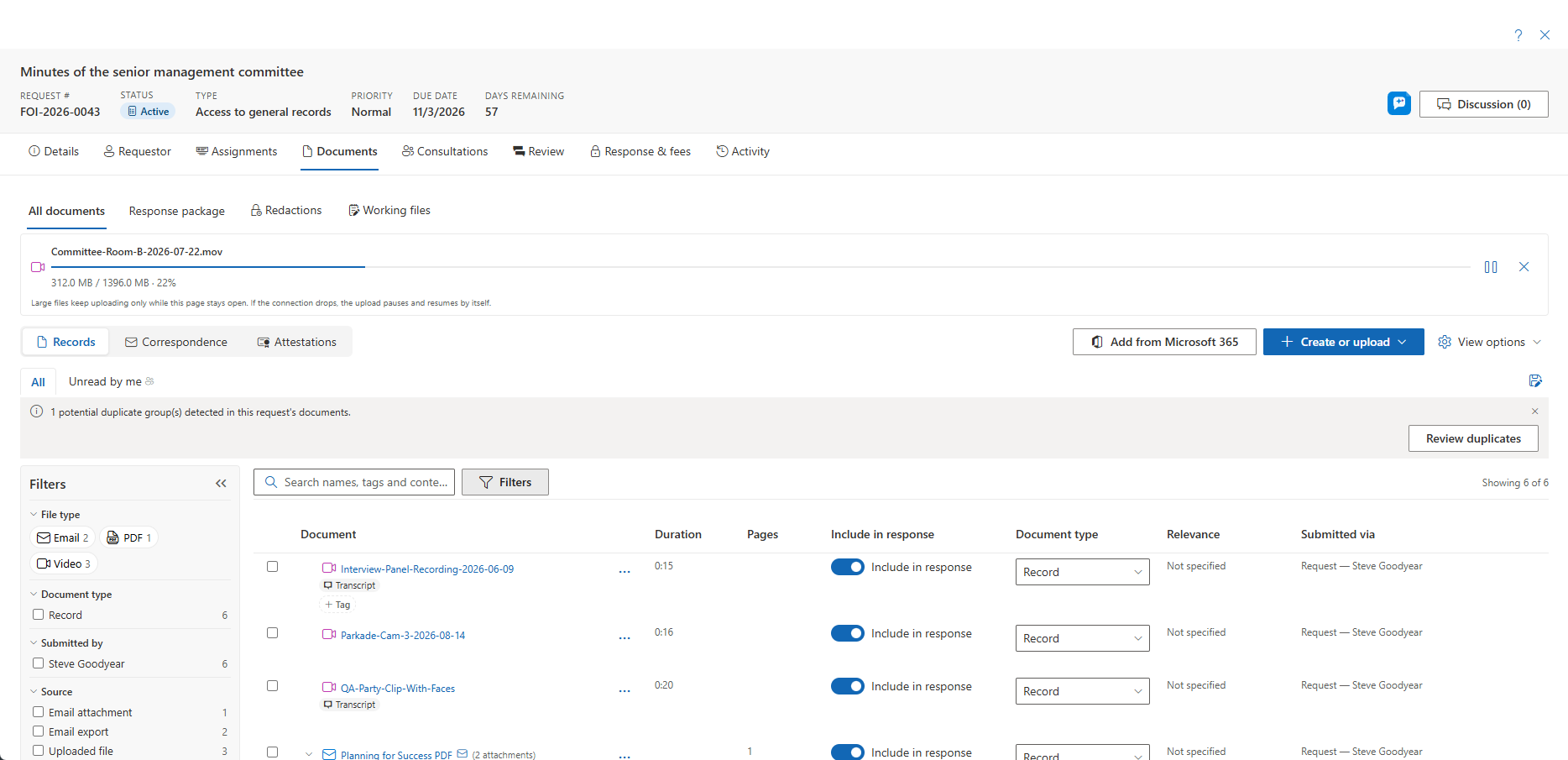
Everything on this page applies wherever you see a Documents tab — privacy assessments, incidents, and complaints carry the same workspace as requests.
Getting Recordings In
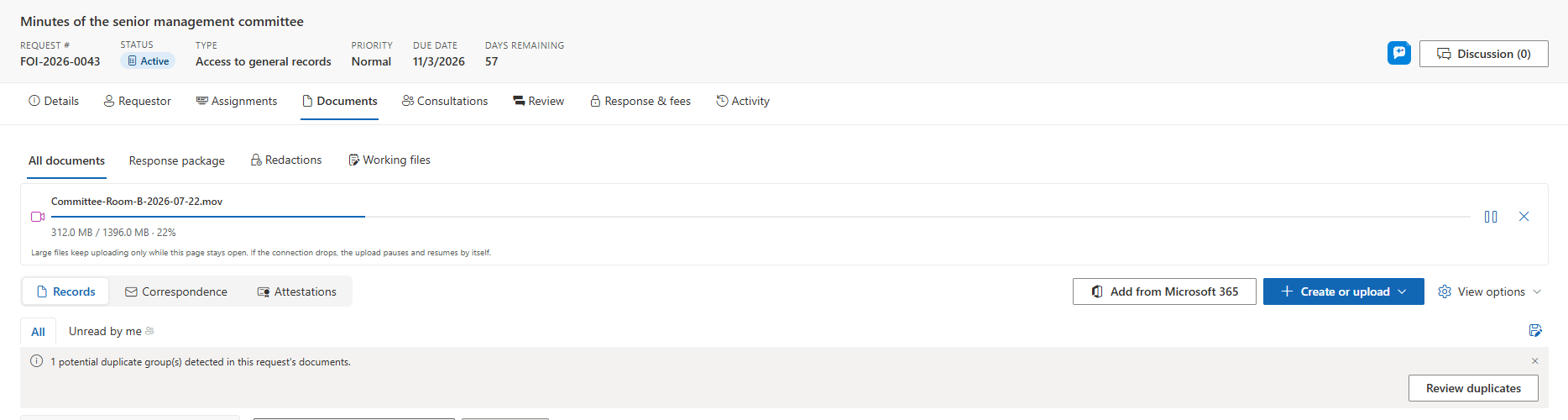
- Upload. Drop the file on the Documents tab or use Create or upload. Recordings up to 50 GB are accepted by default (an operator can raise or remove the ceiling); documents have their own, lower limit. Files over 100 MB upload in resumable blocks: the Upload queue panel shows progress per file and survives a dropped connection (pause, resume, cancel). Keep the page open until it finishes. Above 2 GB, AccessPoint asks you to confirm first, stating the size and an estimated time, and such a recording is prepared only by the media processing job in your Azure subscription; without it the record is marked Failed with a message naming the setting. See Documents for how large records, malware scanning and acknowledgement work.
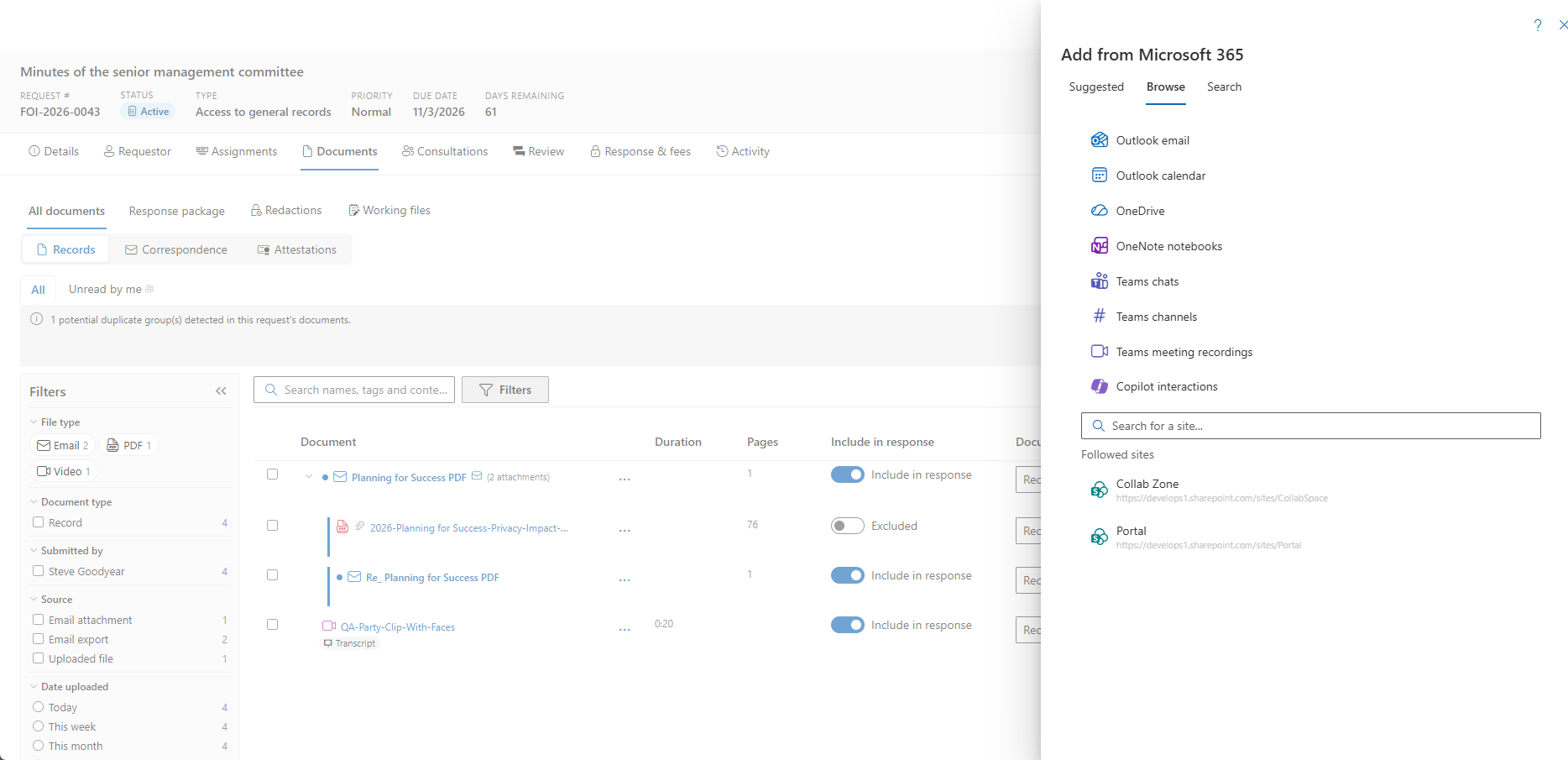
- Teams meeting recordings. Open Add from Microsoft 365 and choose Teams meeting recordings to capture a recording of a meeting you organized. Your OneDrive Recordings folder is listed first, including meetings that only have a transcript (marked Transcript only). A recording shared with you as view-only cannot be downloaded; the picker says so and names the organizer. The recording downloads through your browser into the upload queue, and the Teams-generated transcript comes along with it when one exists, so the recording is never transcribed a second time.
Processing
After upload the record shows Processing while a browser-playable copy, a poster frame, hover thumbnails, and (for audio) a waveform are prepared. When transcription is enabled, a Transcribing… chip follows. A deployment without a media processor parks the record as Needs media processor until one is available — it never fails — and Retry is on the row for a failed preparation. You do not have to wait: while the preview is prepared, the viewer plays the original straight away when your browser can play it (most MP4 and MP3 files), and switches to the full viewer, with timeline, marks and captions, when the preview is ready.
Transcription, face and on-screen-text scans and other long jobs keep running if you close the viewer; the activity tray in the corner of the page follows them (see Documents). If your deployment scans uploads with Microsoft Defender for Storage, a record flagged as malicious cannot be played, downloaded, or released.
Watching and Listening
Open the row to the media viewer: native controls, Space to play and pause, arrow keys and J / K / L to step and shuttle, F for full screen, playback speed, and hover-scrub over the timeline. Audio records add a waveform lane. When you have opened the record before, the viewer offers Resume at hh:mm:ss.
The viewer is built to be used from the keyboard and with assistive technology:
- Every mark can be made and corrected without a mouse. Edit mark… opens a mark with typed in and out points and a region typed as left, top, width and height; R focuses the selected box, the arrow keys move it and Shift+arrow keys resize it. A region can also be drawn by clicking two corners, with a mouse, pen or touch.
- The viewer reflows at 320 px and 400 % zoom: the side panel stacks under the player and can be hidden. Full screen takes the whole viewer, so a dialog opened there is visible. The keyboard-shortcuts list can be read and closed without closing the viewer, and single-key shortcuts can be turned off for speech input.
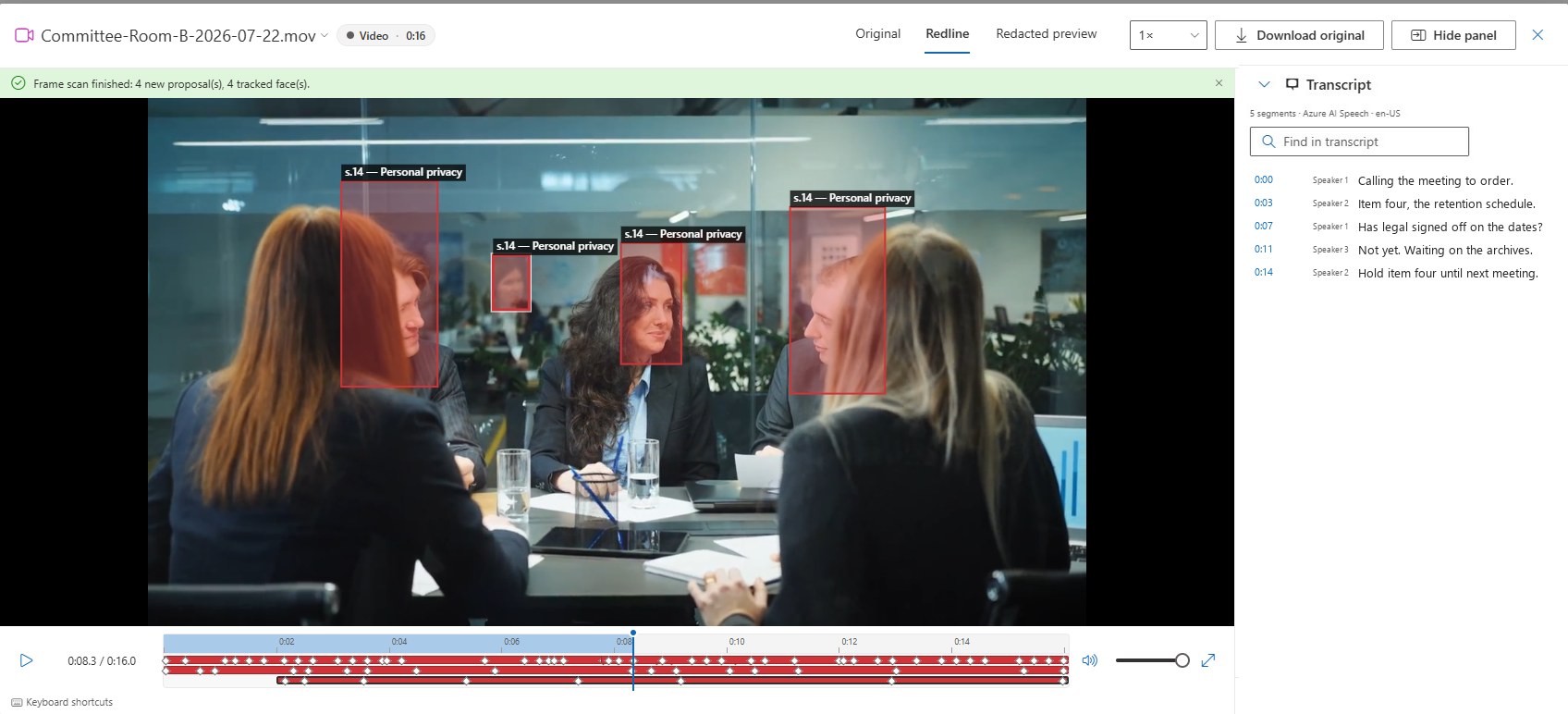
- The transcript also lists the text the frame scan read on screen, the only text alternative a silent video has.
- In Windows high contrast (forced colours) the timeline, marks, grips, region outlines and waveform use your system colours with visible borders. Esc first hides the timeline's hover preview, then does what it did before.
Transcripts and Captions
With Azure AI Speech deployed, every new recording is transcribed after it is prepared (an administrator can turn this off under Settings → Features). The Transcript drawer beside the player shows a time-coded, speaker-labelled transcript: click a segment to jump to the moment it is spoken, use Find in transcript to locate a word, and turn on captions in the player. Transcript text flows into content search, duplicate detection, AI summaries, and Ask AccessPoint like any other document text, and it carries the same requestor-PII gate as the document — users who cannot see requestor PII see counts and timings only.
Audio Description
A recording can carry timed text descriptions of what is on screen, the text a narrator would read in a described version.
- Write the descriptions as a WebVTT file (kind
descriptions). Add a line such asLanguage: frunderWEBVTTso screen readers switch to the right voice. - As the person who uploaded the recording, or anyone with Manage documents on it, open the recording, choose the file name to see its details, then select Import descriptions (.vtt)…. A new import replaces the previous track; Delete descriptions asks first.
AccessPoint never writes descriptions itself. Anyone who may play the recording can turn on Descriptions in the control bar, beside Captions (or press D): each description appears under the picture as it comes up and a screen reader reads it once, in its own language, without interrupting it. The switch is remembered in your browser.
Read the descriptions before release. In a released copy, a description that falls in a muted or bleeped span is replaced by [Withheld — …] naming the provision, as the captions are. A description that names something you boxed or blurred is released as written, so correct the file and import it again.
Marking a Recording
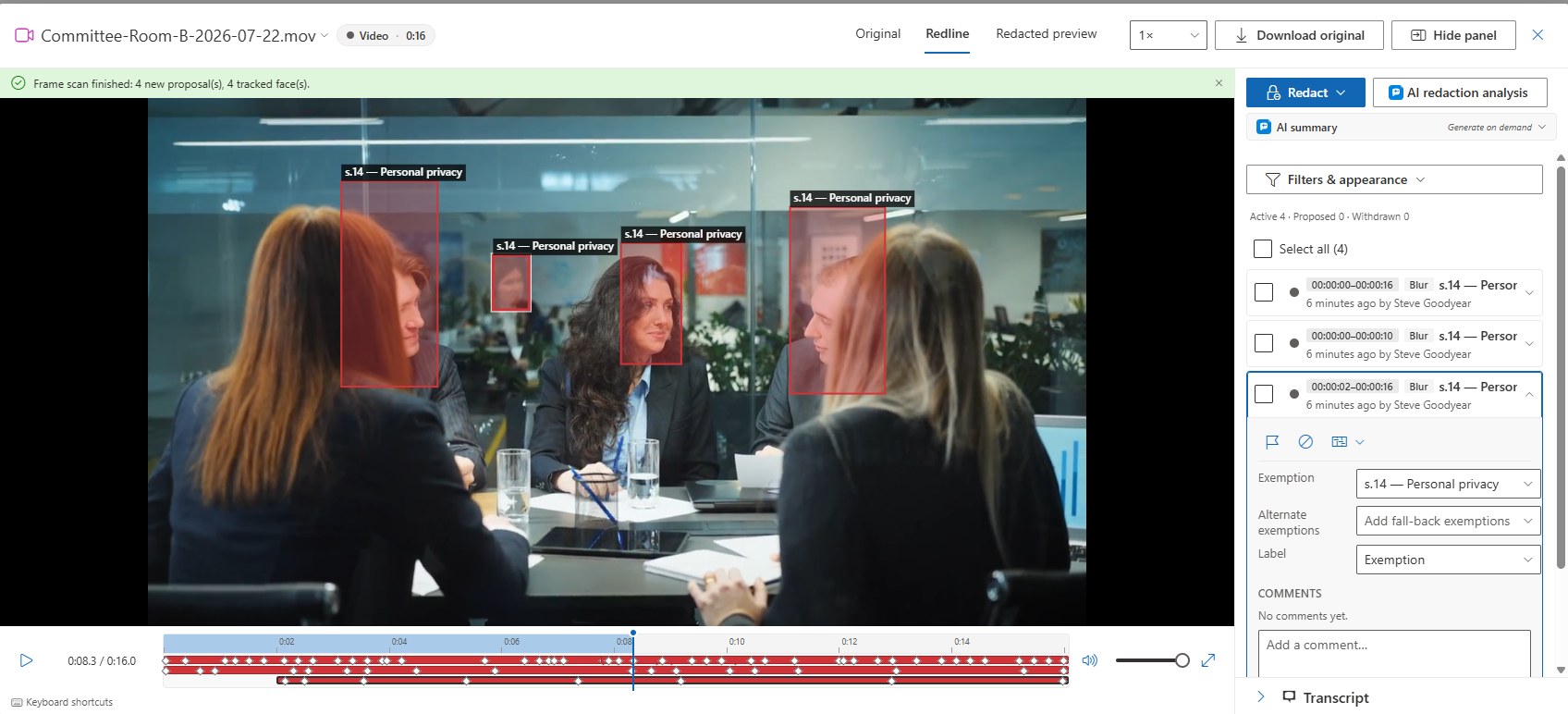
Redaction on a recording is time-based: every mark covers a span of the timeline, and for video it can also cover a region of the picture. Marks are made in the Redline view (keys 1, 2, and 3 switch between Original, Redline, and Redacted preview).
Open Redact ▾ in the side panel:
- Mark… (or M, or the Draw a box button / B on the frame) starts a mark over your timeline selection, or over five seconds from the playhead.
- Mute span, Distort voice in span, and Withhold recording are the audio and whole-record shortcuts.
- Detect faces and text on screen (video) and Find and redact (needs a transcript) are the detection tools described below.
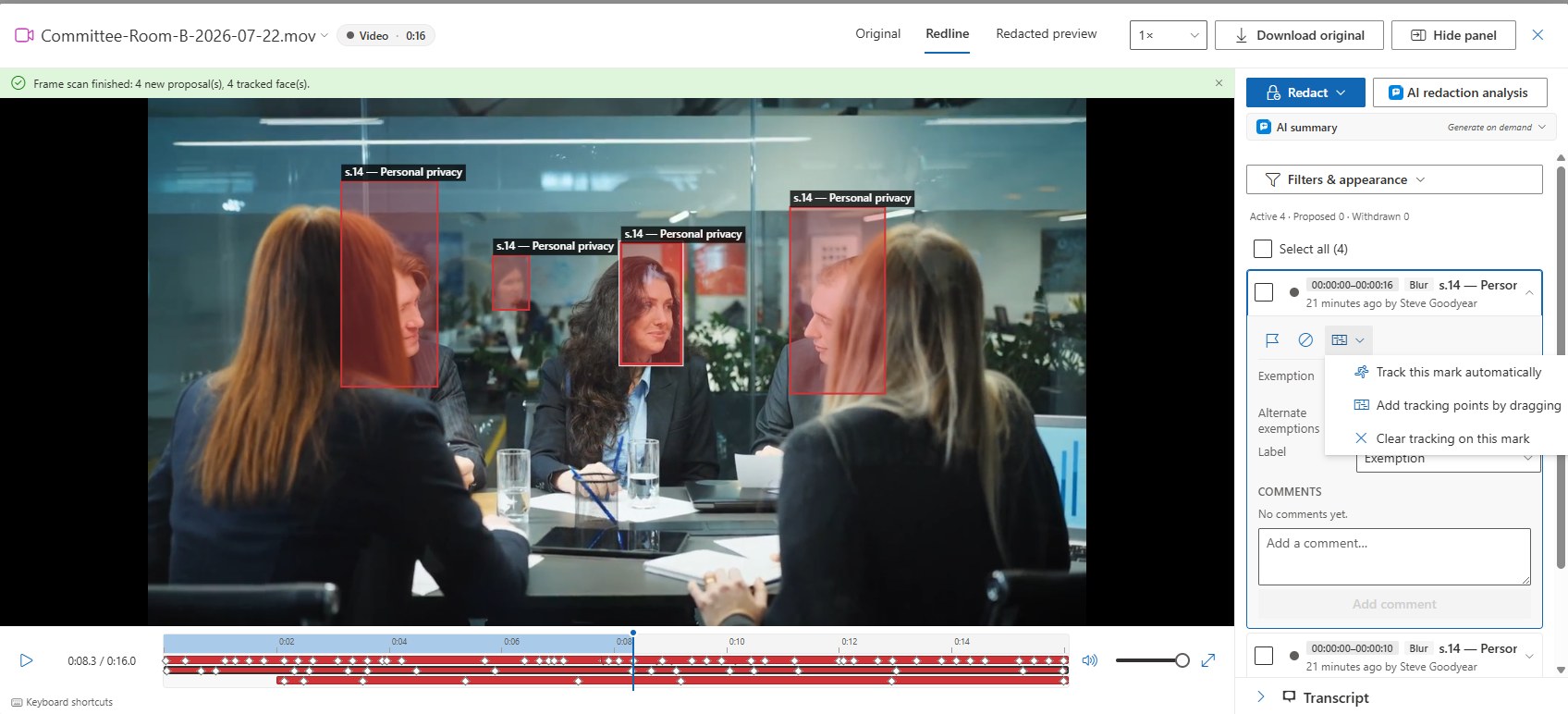
On video the region comes first: the frame pauses and asks you to drag a box over what to redact (or click one corner, then the opposite one). A mark never covers the whole picture unless you say so: Use whole frame is an explicit button, and such a mark carries a Whole frame chip on its list row, its timeline bar and the frame. The same instruction bar offers Same box as last mark and, when a face or text proposal is on screen, Use a detected region, which selects that proposal instead of drawing a duplicate over it.
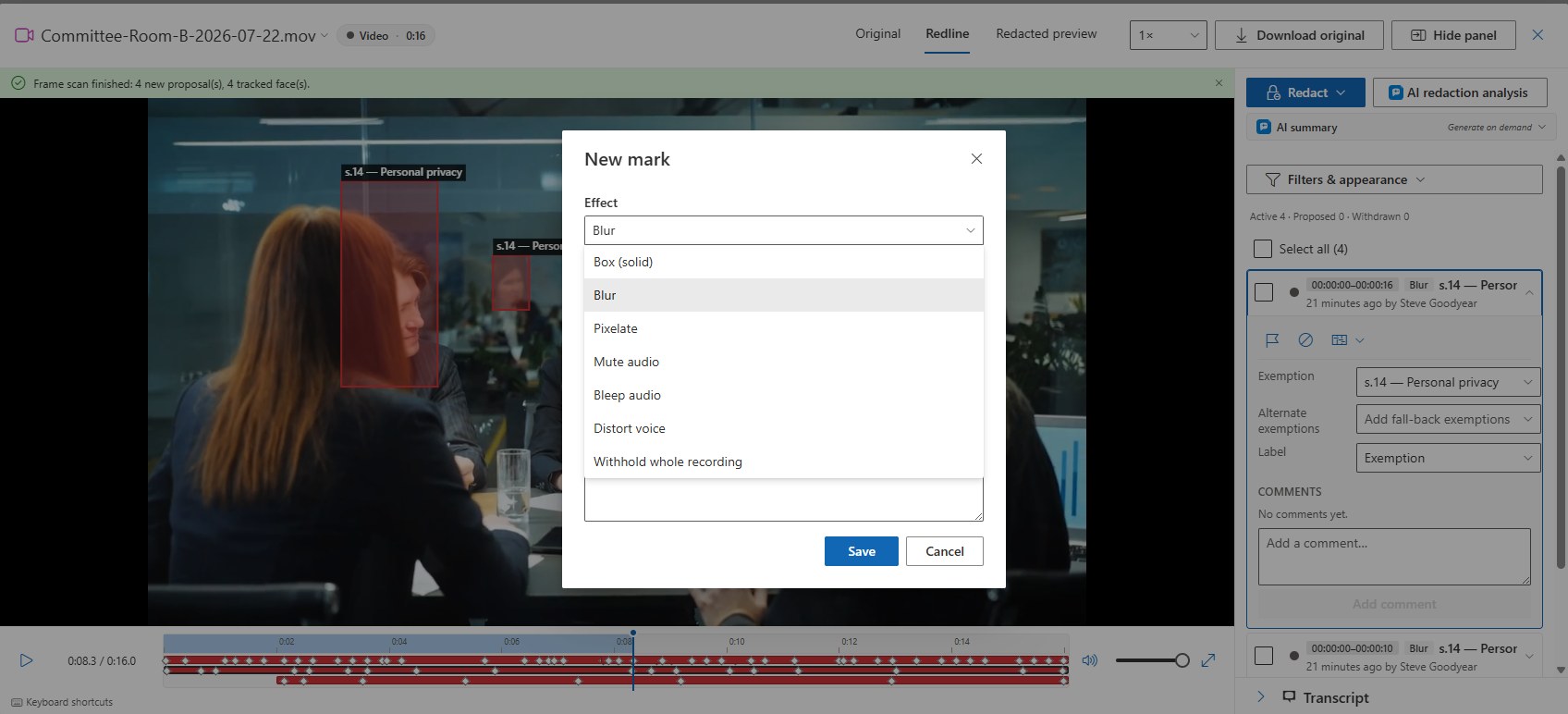
The new mark is a draft in the mark bar under the picture: the effect, In and Out (typed, or set to the playhead with the buttons beside them), the region's size, the exemption, notes and Follow subject (Static, or Track automatically after saving). Nothing is written until you choose Save mark (Enter); Discard (Esc) leaves no trace.
Every mark has an Effect: Box, Blur, or Pixelate for the picture; Mute audio, Bleep audio, or Distort voice for the sound; Withhold whole recording for the whole record. Like a page redaction, each mark carries an exemption with alternates, comments, flags, approval, and a display label — the exemption citation, custom text, or no label — that is painted into the frame on the released copy.
Correcting marks in place
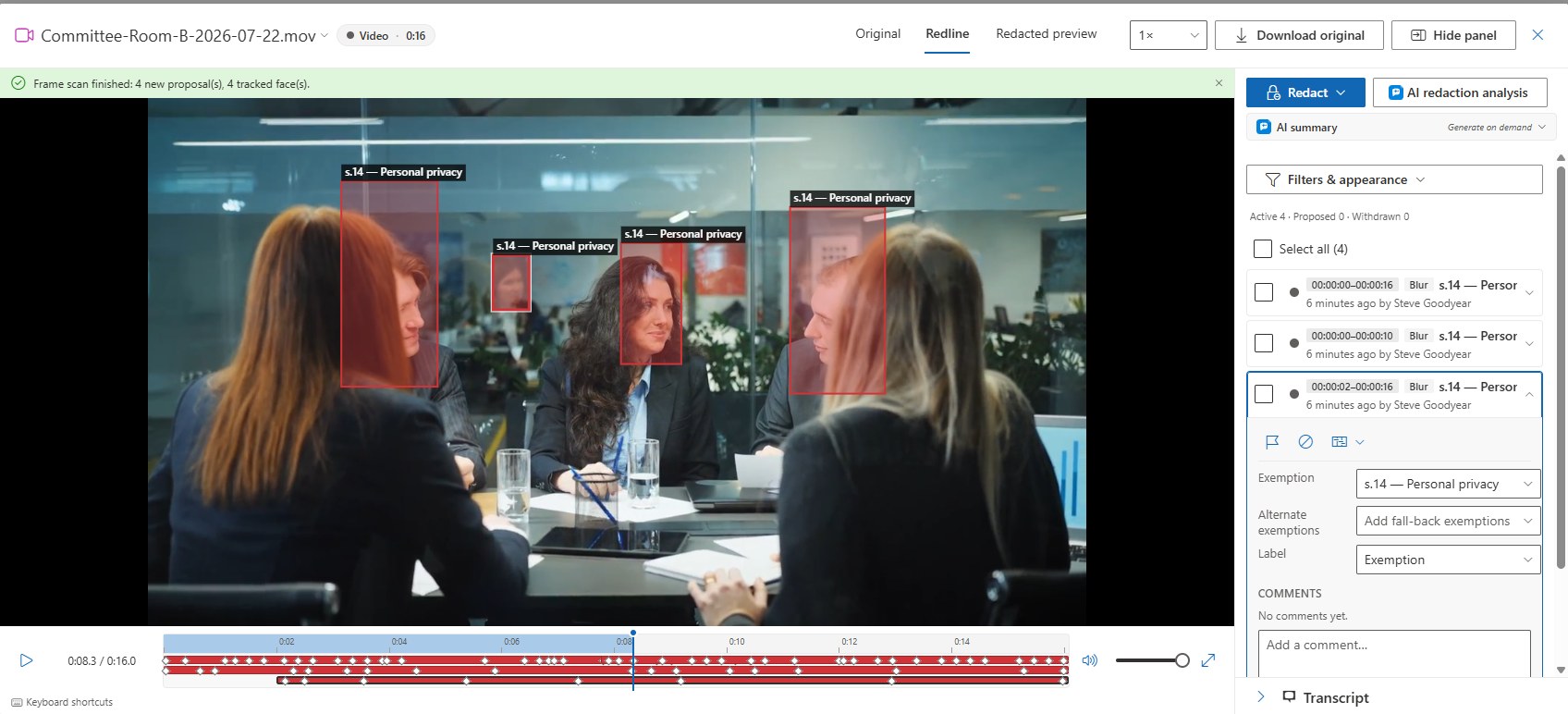
Select a mark on the frame, on the timeline or in the list and it opens in the mark bar. Edit mark… in the list and a double-click do the same.
- On the frame, the selected region has eight grips: drag the box to move it, drag a grip to resize it (Shift keeps proportions, Ctrl resizes about the centre). The mark bar's Region button holds typed Left, Top, Width and Height and Grow 5 % / Shrink 5 %, the quickest fix for a tight face box.
- The bar says what an edit will do. A static mark changes for its whole span. A tracked mark gets a tracking point at the playhead, or, with Applies to: Whole path, the whole path moves or resizes at once. An approved mark goes back for approval (you are asked once per mark). Adjusting a suggestion accepts it, through the same approval step as Accept, and keeps its origin.
- Check plays the mark with a second before and after in Redacted preview, even before it is saved or approved, then returns you to where you were.
- Undo and Redo. Use the buttons beside the marks area, Undo on the "saved" notice, or Ctrl+Z / Ctrl+Shift+Z (Cmd on a Mac) in the player or timeline. Undoing a mark you just made withdraws it, and Redo restores it. Undoing an edit restores the geometry but never an approval; an approver can Re-approve from the notice.
- Mark actions in a list row adds Start at the playhead and End at the playhead (also Shift+I / Shift+O).
The marks area
Under the player, Marks · N opens a full-width area for the recording's marks. Zoom with the slider, = / - (**** fits the whole recording), Ctrl+wheel, or Zoom to the selected mark; an overview strip shows where you are. Lanes lays marks out Packed, By kind (Picture, Audio, Whole record) or One row per mark, the natural view of a face scan. The filter chips (Suggested, Awaiting approval, Active, Picture, Audio, origin and exemption) also filter the side-panel list. The pinned row at the top holds the selected mark with a grip at each end; drag it, or focus it and use the arrow keys (one frame; Shift one second; Page Up / Page Down five seconds). With snapping on (N), a dragged edge snaps to the playhead, other marks' edges, the selected range, tracking points and, for sound marks, transcript segment boundaries.
Following a moving subject
A region mark can move with the person or object it covers.
- Track this mark automatically follows the subject you boxed through the clip in both directions. It usually extends the mark earlier, because you tend to box a face when you notice it, and it stops rather than drifting when it loses the subject. Choosing Static on a tracked mark clears its tracking.
- Follow subject on a static mark makes later corrections at other moments add tracking points: move the playhead, drag the box to where the subject is now, and the redaction travels between the points.
Re-tracking, tracking points, history, split and merge
- Re-track from here. When a tracked mark drifts, correct the box where it went wrong and choose Re-track from here in the mark bar: Forward from here, Backward from here or Both directions from here. The path changes only where the tracker finds the subject; where it loses the subject, the mark keeps its earlier path. Re-tracking runs in the background and is taken back from the History.
- Track to fill. If the mark's span runs past its last tracking point, or starts before its first, the mark bar says The box stops following after … and offers Track to fill.
- Tracking points. The selected mark's points are the ◆ buttons on its row. Click one (or press Enter) to go to it, Delete removes it, and dragging it or Alt+←/→ (Shift for a second) moves it in time. { and } step to the previous or next point, and the mark bar's tracked (n points) button lists them with Move this point to the playhead.
- History of this mark (the clock button in the mark bar) lists every change: who, when, and what changed. Revert to this version puts an earlier span, effect, region or path back through the same approval step as any edit. The history is deleted with the mark and is never released.
- Split at the playhead (S) turns a mark into two, the fix when a tracked face switches to someone else; both halves keep the exemption and the detection origin. Merge with the next mark (the row's Mark actions menu), or Merge with two marks selected, joins marks with the same effect and exemption that are at most a second apart; the other mark is withdrawn and where they overlap both boxes stay covered. A split or merge is one step on Undo.
- Selecting several marks. Shift- or Ctrl-click their bars, press Ctrl+Space on a focused bar, drag a rectangle with Shift held, or choose Select marks in the in / out range. The selection is the side panel's bulk selection, so its bulk actions apply.
Distorting a voice
Distort voice is a different kind of severance from Mute and Bleep: the span is pitch-shifted so the speaker can no longer be identified, while every word stays audible. Use it where muting would remove more than the exemption justifies — regulators have ordered exactly this rather than removal (for example Ontario IPC Orders MO-3961 and PO-4190), and some fee statutes name "distorting" among the chargeable obscuring methods. Choose Redact ▾ → Distort voice in span, or pick Distort voice in the Effect list of any mark dialog. The span shows on the timeline in its exemption colour with a Distort chip in the side panel. In Redacted preview the browser cannot pitch-shift live, so the span plays muted and a note reminds you that the release keeps the words audible with the voice altered. The distortion is applied when the release file is produced, and the redaction index and log record the effect and exemption per span. Distort, Mute, and Bleep spans can be combined on one recording.
Detecting Faces and On-Screen Text
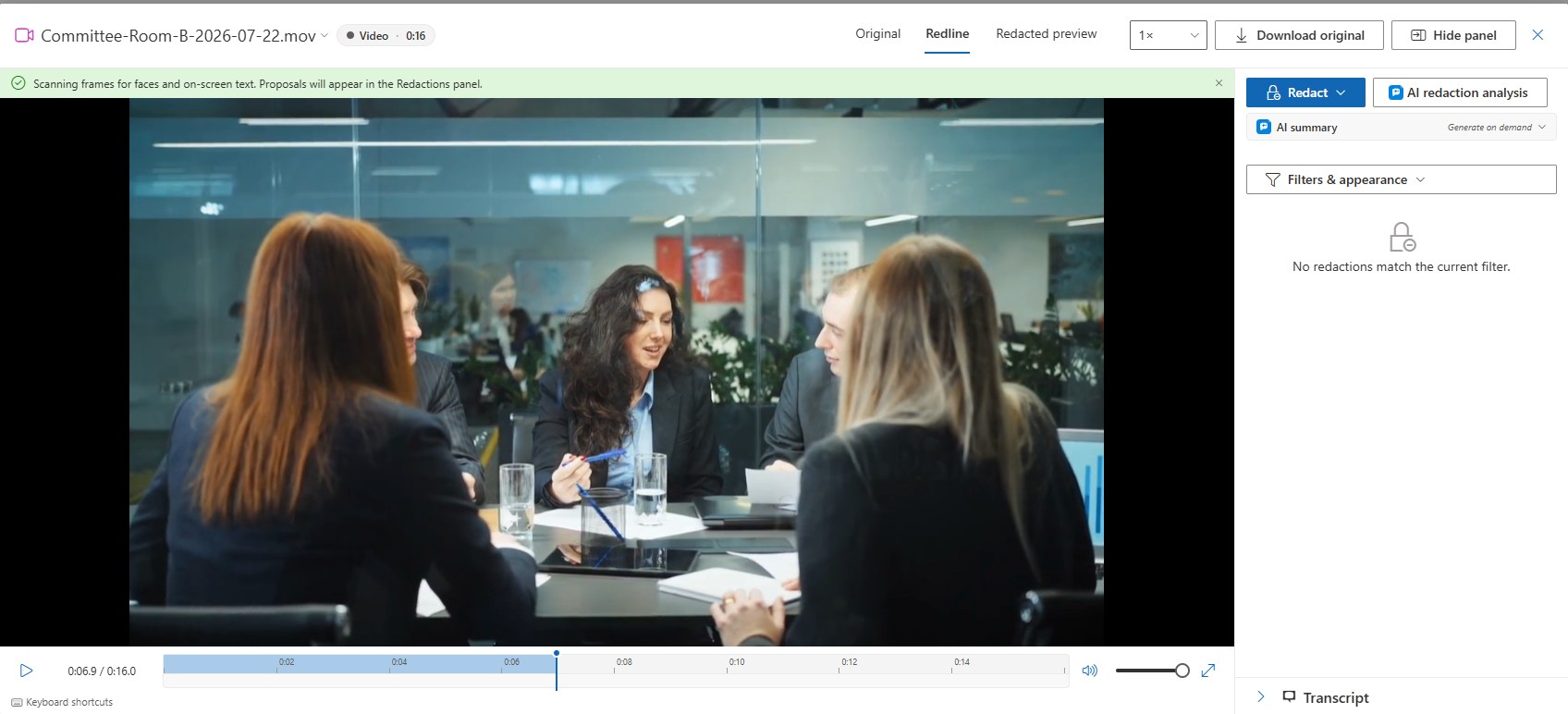
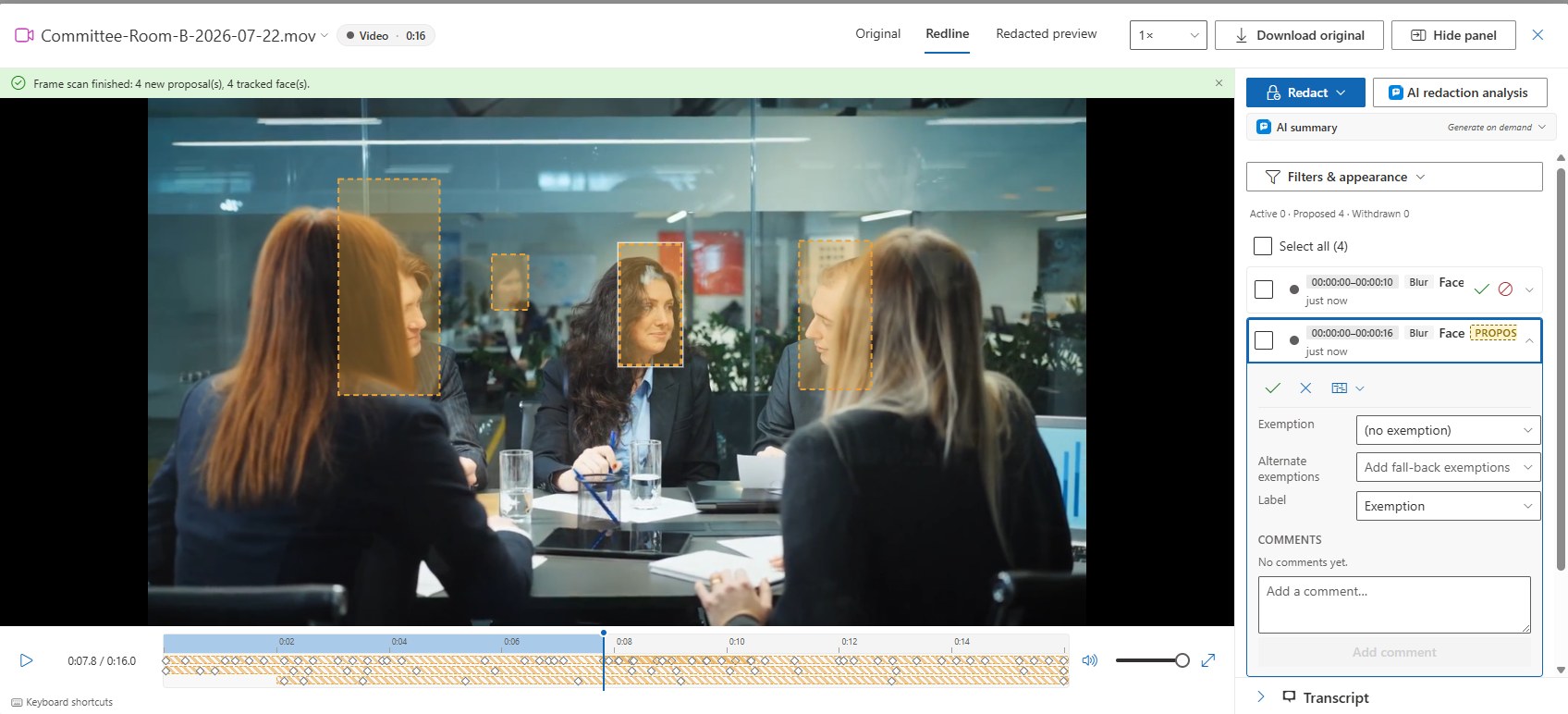
From the Redact menu, Detect faces and text on screen runs over the video's frames and proposes:
- One tracked region per face it finds. The face detector runs entirely on your App Service — nothing leaves the tenant, and there is no per-frame charge.
- A region wherever your organization's detection patterns appear on screen — a licence plate, a name badge, a case file on a monitor. The text pass reads sampled frames with Azure AI Document Intelligence and is billed per frame.
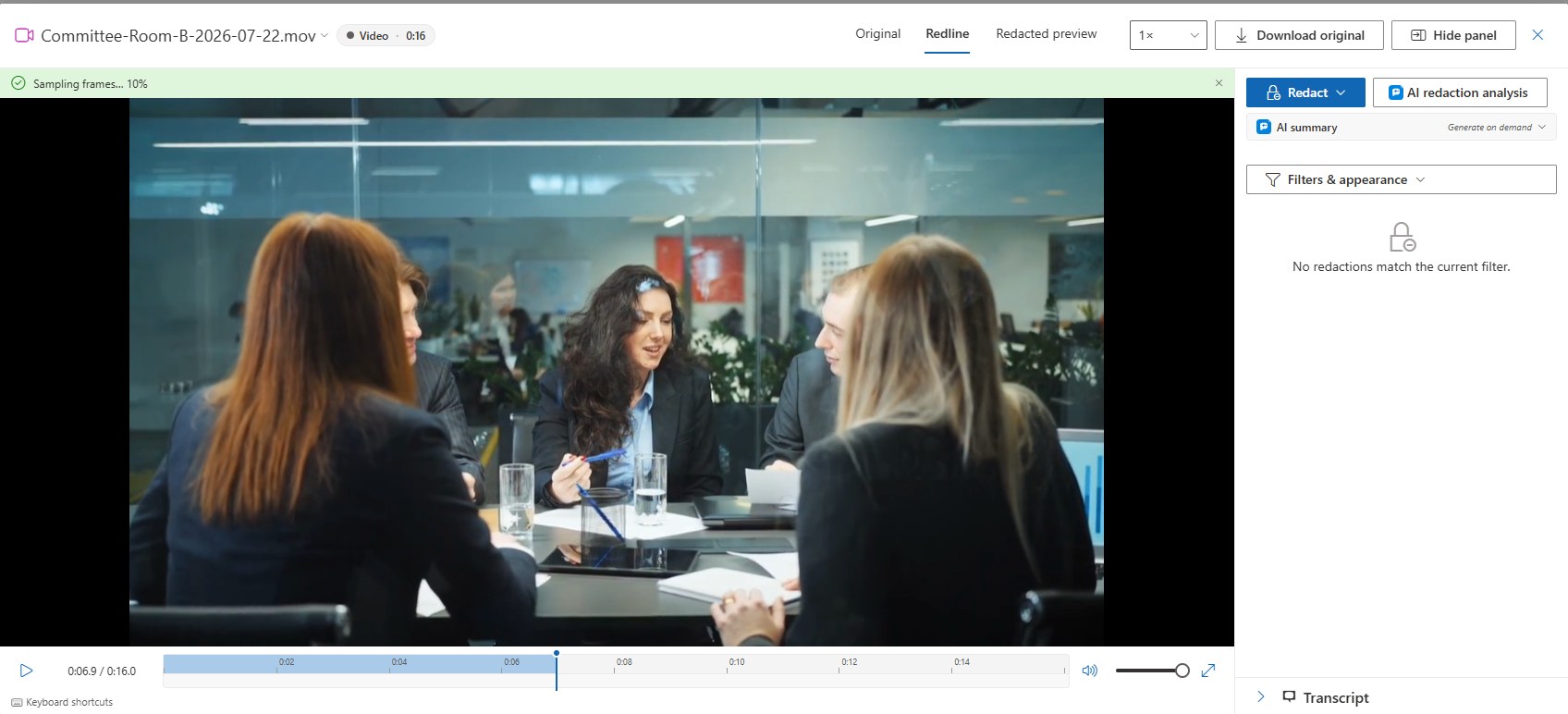
Proposals use your default region effect (Blur unless Settings → Redaction appearance says otherwise). The scan runs in the background with a live progress notice; you can close the viewer and come back, and a notice arrives when it finishes with the proposal count. A long recording's scan is divided among several media jobs that run side by side and joined afterwards, so a face that walks across the join is still one tracked proposal, and long recordings finish sooner. Every hit is a dashed-amber proposal for your accept or dismiss — nothing is applied silently. An administrator can also turn on a switch (Settings → Features & AI → Media) that scans every video as soon as its preview is ready, so the proposals are waiting when someone opens it; the person who uploaded the video is told when the scan finishes. Scanning again offers to replace the earlier unreviewed proposals so re-runs never pile up duplicates. Either detector can be switched off by an administrator under Settings → Features.
Find & redact, suggestion rules, and the AI redaction pass also work on the transcript: they propose Mute marks over the spoken span for you to accept or dismiss, exactly as they propose text redactions on a document.
Redacted Preview
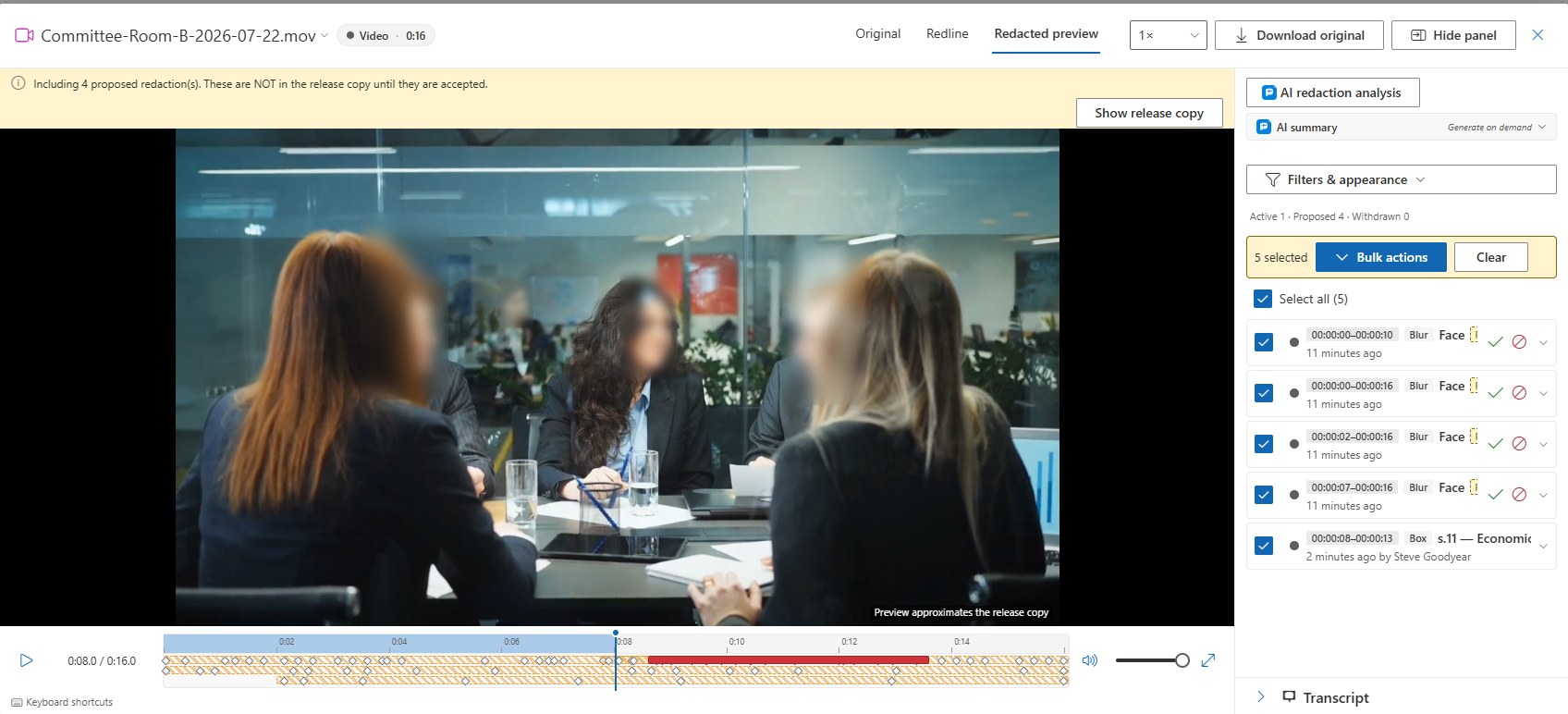
The Redacted preview view plays the record as the requestor will receive it — blurred, boxed, or pixelated regions, muted or bleeped spans, and the label caption burned into the frame. Marks left out because they are still proposals or awaiting approval are counted in a banner, which offers to include them in the preview; the release itself is unaffected.
Release Decision
Each recording's disposition — disclosed in full, disclosed in part, or withheld in full — is derived from its marks: no marks means disclosed in full, span marks mean disclosed in part, and a Withhold whole recording mark means withheld in full. The decision feeds the response package's contents page, the request's redaction log, and the disposition statistics.
Releasing a Recording
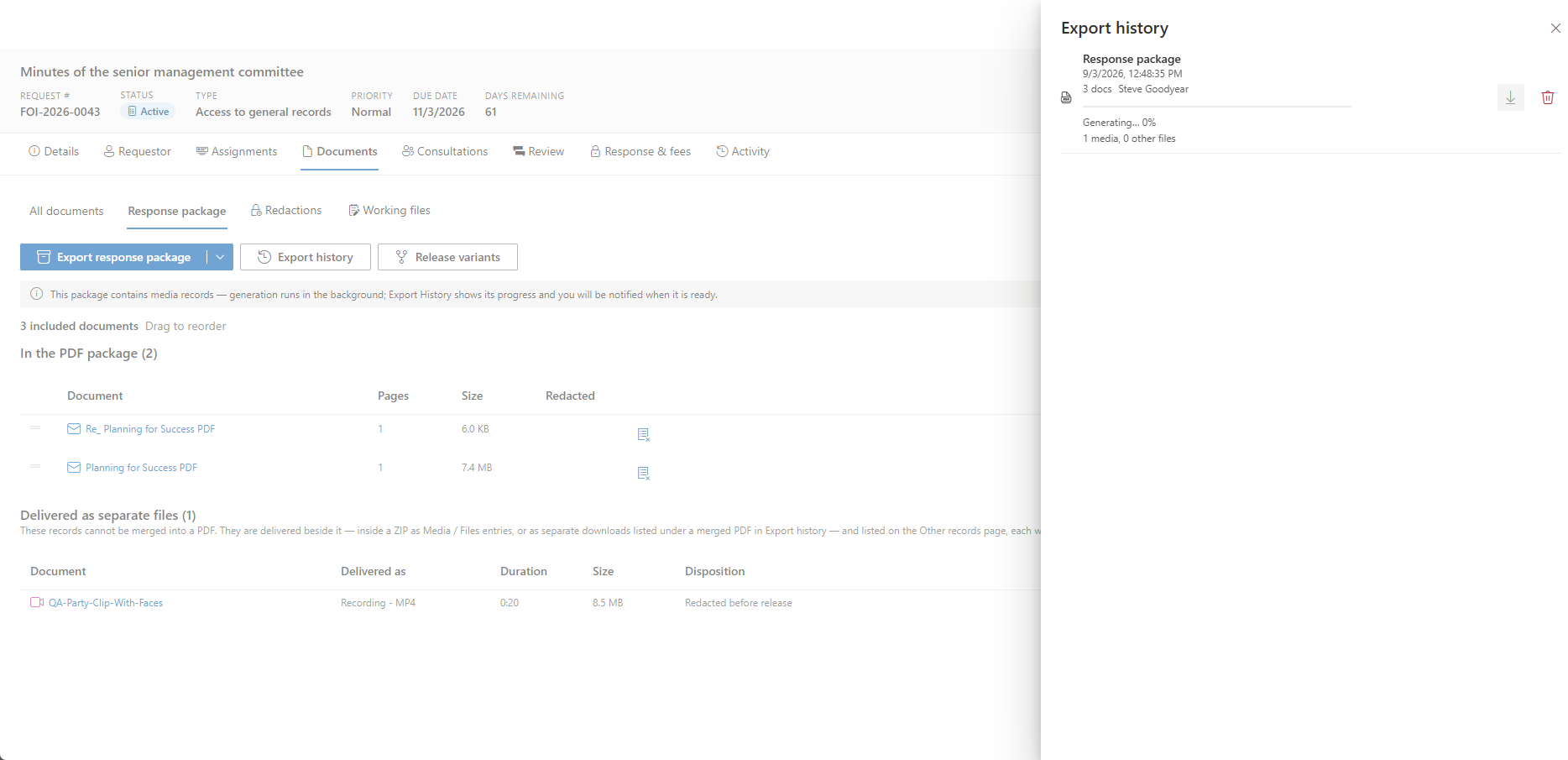
A response package that includes recordings generates in the background: the pre-flight tells you so, Export history shows its progress, and you are notified when it is ready. The package is a ZIP holding the PDFs, a Media/ folder with the rendered MP4 or MP3 files — marks burned in, with a record-label caption — a Files/ folder for native files released as-is, and a MANIFEST.sha256 listing every entry's hash: the office's proof of exactly what was released. A video longer than 15 minutes is rendered for release in segments side by side and the segments are joined without re-encoding, so the released file is the same one a single render produces, with a shorter wait.
Beside each released recording travel its text files, named like it: redacted captions (.vtt, also a caption track inside the MP4) and a redacted transcript (.txt) when it has a transcript, and its redacted description track (.descriptions.vtt) when one was imported. The cover letter's delivery note and the "Other records" page say which recordings have them. An administrator can turn all three off under Settings → Features & AI → Media recordings → Caption, transcript and description files with released recordings; packages generated afterwards carry the recording files alone.
Recordings with more than one audio track. A released MP4 carries every audio track, each with exactly the same muted, bleeped and distorted spans. An MP3 holds one track, so an audio-only release carries the first. The viewer plays only the first track, and the spans apply by time to every track. That is right for a described version of the same soundtrack, but a second track with different speech (a second microphone, an interpreter) can carry words at moments the first does not. Before releasing such an original, listen to its other tracks in a desktop player and mark those moments too.
See Response & Fees for the package pre-flight and the media review estimate.
Fees and Hours
The Fees panel on the Response & fees tab shows an Estimated media review line — the recordings' total duration multiplied by the tenant multiplier, four reviewer-hours per recorded hour by default — and offers Suggest media review line, which opens the Add-line dialog pre-filled with the basis and, where the fee schedule bills review time, the amount. The hours ledger carries a Media review category from the Universal baseline pack.
For Administrators
Settings → Features → Media recordings (video & audio) shows which media processor is active (in-process on the App Service, a Container Apps job, or none), the Transcribe recordings toggle, the two detection toggles, and the switch for caption, transcript and description files with released recordings. Transcription needs the Azure AI Speech resource, on-screen text detection needs Azure AI Document Intelligence, and production-scale processing uses the optional media processing job — all deployed into your own subscription by the deployment template. See Features and the Deployment Guide.
Related Pages
- Documents — the workspace recordings share with every other record, including label modes and the Download menu.
- Response & Fees — the response package pre-flight and the media review estimate.
- Redaction Appearance — the default region effect and the proposed-redaction enforcement that applies to detections.
- Features — the media processing, transcription, and detection toggles.