
Training cases are fictional cases you practise on in train mode — the gallery, the step-by-step guide, the Training library of records and removing your cases.
Last updated: October 20, 2026 by Steve
Training Cases
A training case is a fictional case — invented people, organizations and addresses — that you work in train mode. Training cases are numbered TR-…, and their documents are generated by AccessPoint. Nothing you do on one is sent, delivered or published.
The Gallery
Open the Training hub and select Training cases. The gallery lists the scenarios your jurisdiction packs provide, with the register, level, time needed and languages. Your training cases is at the top.
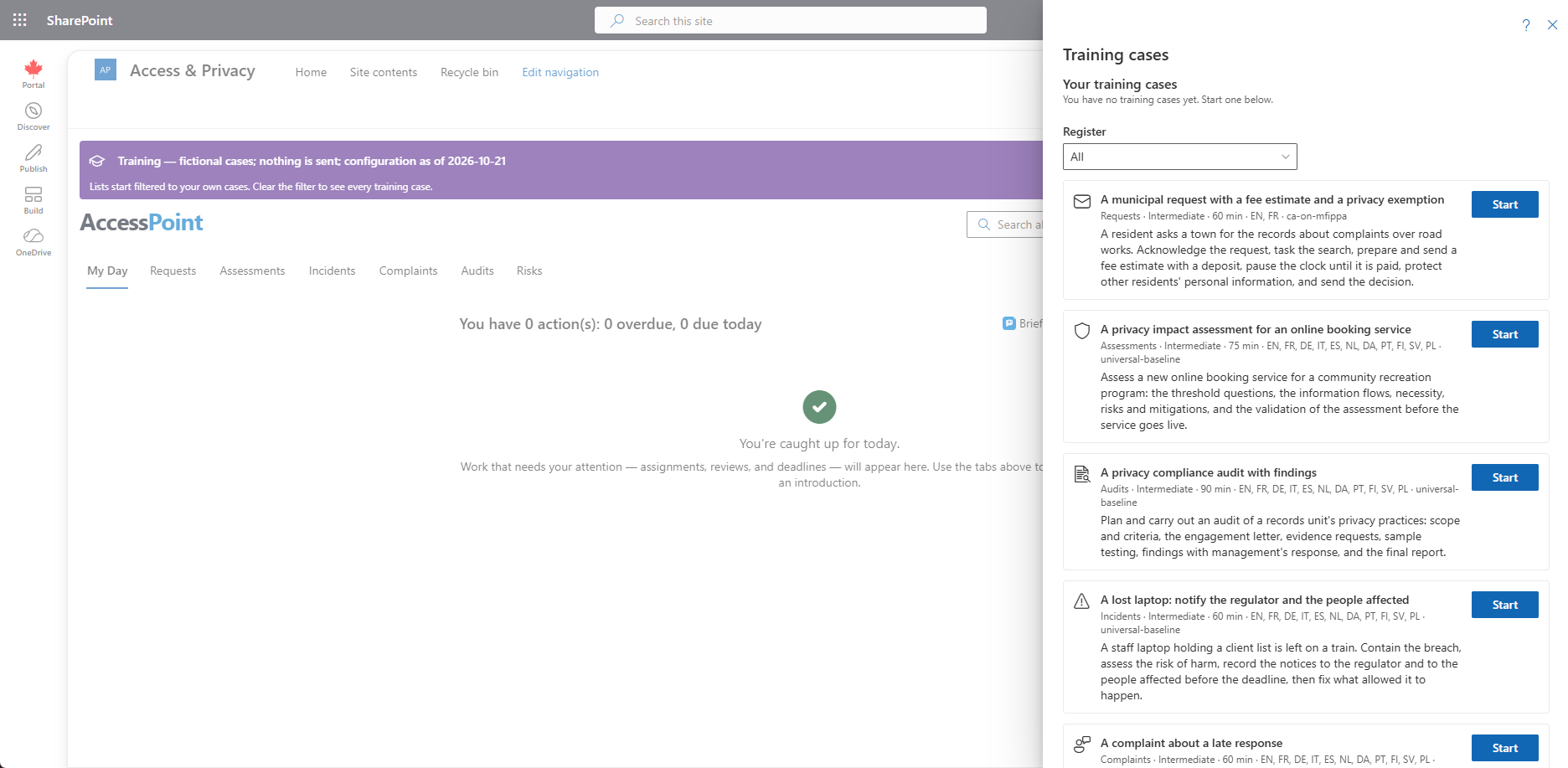
- Select Practise (or Start when you are already in train mode).
- If there is a choice, choose the language of the case.
- The case opens with you as its officer.
A scenario that needs configuration your organization does not have says so, and so does one your role cannot create.
The Guide
Each training case has a Guide: the steps to work through, in order. Each step has Help, Go to tab and, where there is one, Guide me. Each step names the tab and the button to use.
- Open guide shows three steps at a time: the step you just finished, then the next ones, moving on as you work. Previous steps and Next steps show the others.
- With the guide closed, the banner shows the next step, so the case stays in view.
- Go to tab closes the guide and brings that tab into view.
- Many steps tick themselves when you do the real thing (Done — checked automatically), within a few seconds and without reopening the case. A screen reader announces Step done. You can tick the others yourself.
- Add records adds the scenario's spare fictional records to the case, as if they had just arrived.
Documents in Train Mode
Training cases get their records from the Training library.
- In a training case's documents (or a task's or assignment's), select Add from….
- Open Training library. It works like a SharePoint site: one folder per training scenario your jurisdiction packs installed, with the scenario of the case you are working on first.
- Open a folder, or search by name, kind or text, tick the records you want and select Add.
Each record is a fictional PDF, marked as a training record on every page, and is filed on the case like any captured record, so you can practise reviewing, tagging and redacting. The Microsoft 365 sources stay in the picker but are greyed out: they are not available in train mode.
Uploading Your Own Files
Uploads are off in train mode unless an administrator switches on Allow uploads in train mode in Settings → Training. When they are on, the first time you upload in a train-mode session AccessPoint asks you to confirm that the file holds no real personal information. Training cases are visible to everyone training, are hidden from your reports, and are removed at the next reset or setup copy. You are asked again the next time you open train mode. Uploaded files are scanned for malware like any upload.
Removing Your Training Cases
When you are finished, select Remove my training cases (in train mode). It removes every training case you started — the confirmation says how many. It never touches your real work or anyone else's training cases.
Related Pages
- Train Mode — what train mode simulates and refuses.
- Training Hub — where the gallery opens from.
- Get Started — Practise steps that open a training case.
- Settings → Training — allowing uploads and the other training settings.