
Training paths are ordered lists of first tasks, training cases and help pages that a lead assigns, with a progress table, due dates and CSV export.
Last updated: October 20, 2026 by Steve
Training Paths
A training path is an ordered list of up to ten items — first tasks, training cases and help pages — for a kind of work. Your jurisdiction packs provide paths (for example New ATIP coordinator, New privacy officer and Breach team member). A training lead assigns a path to people and follows their progress.
Your Own Training
Open the Training hub and select My training. It shows your Get started list (even with Don't offer tips on), the paths assigned to you with each item's state, and the paths you have finished with the date. With nothing assigned, it offers Browse training cases. My Day shows Assigned to you by , due .
Making Paths (Training Leads)
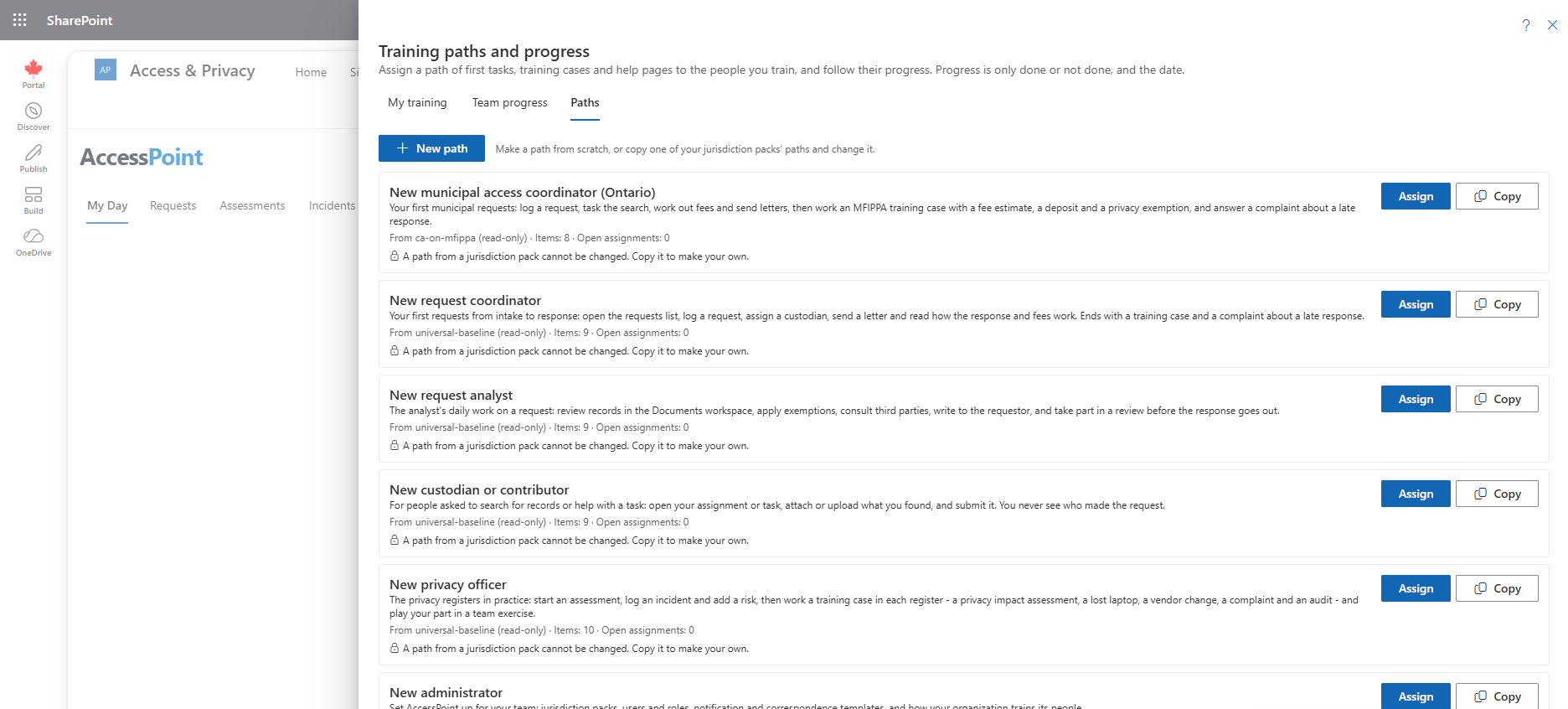
Training leads hold Manage training. Open Training paths and progress from the Training hub, which has the tabs My training, Team progress and Paths.
- New path on the Paths tab starts one from scratch: a title, an optional summary, and the items in the order people should do them. A path needs at least one item before it can be assigned.
- A pack's path is read-only, so that a pack update can refresh it without overwriting your changes. Copy turns it into a path you can change.
- Your own paths can be edited, switched off for assignment, and deleted once nobody has them open. A path that is still assigned to someone cannot be deleted.
- A path's title and summary are saved in the language you are working in. People using another language see that text until someone edits the path in theirs.
Assigning a Path
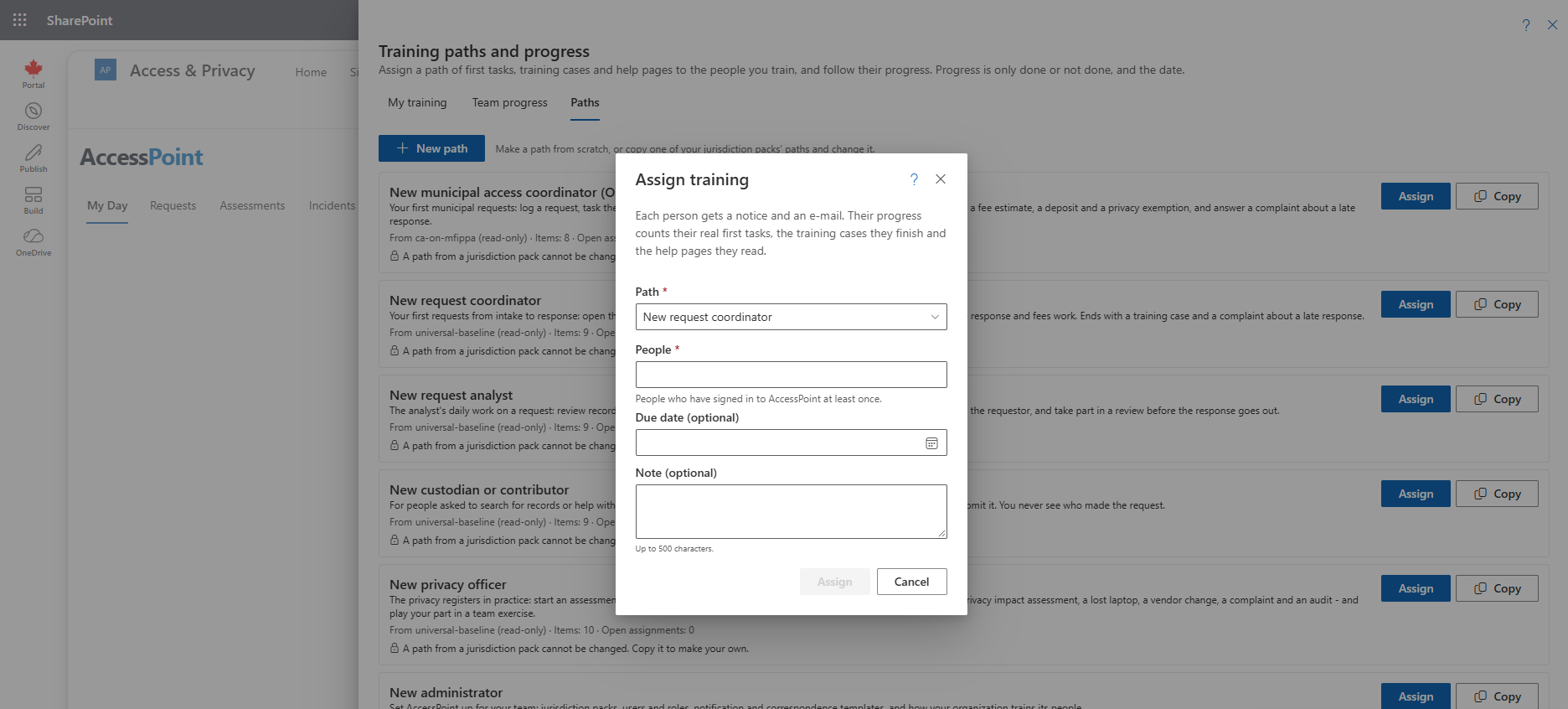
- Select Assign.
- Choose the path.
- Choose the people — anyone who has signed in to AccessPoint.
- Optionally set a due date and add a note of up to 500 characters.
Each person gets a notice and an e-mail (the Training assigned template, which can be changed under Settings → Notifications; never Teams). Progress counts the real first tasks they do, the training cases they finish and the help pages they read.
The Team Progress Table
The Team progress table shows each person against each item of the path: Not started, In progress, or Done with the date.
- Export CSV downloads the table.
- Withdraw (with a confirmation) removes a path from someone's My Day. What they have done stays done.
What Is Recorded
Progress records only whether an item is done and the date. There are no scores, timings or clicks. It is kept for 90 days by default (an administrator can set 30 to 365), longer while an open assignment still needs it, and it is removed when the person leaves your organization.
If an administrator switches off Show progress to the person who assigned it, a lead sees only whether each path was assigned and finished. Administrators always see the detail.
Related Pages
- Training Hub — where My training and Training paths and progress open.
- Training Readiness Report — completion and overdue totals across the team.
- Settings → Training — assigned training, progress visibility and retention.
- Notification Templates — the Training assigned e-mail.