
Register and look after repository connectors — the built-in and remote kinds, the Entra audience, identity modes, Test connection, health and where each connector runs.
Last updated: October 20, 2026 by Steve
Repository Connectors
Responsive records rarely live only in Microsoft 365. A repository connector brings another system, such as a network share, an enterprise content management system, a records database or an evidence system, into the same Add from… picker as the Microsoft 365 sources. Staff then browse, search and capture its records the way they already do, and every captured record carries its source, version and a verified hash.
Settings → Foundations → Repository connectors is where administrators register and look after connectors. You need the configuration.manage permission. The panel stays reachable even when the feature toggle is off, so the first connector can be added; it only warns. For the overview, see Repository connectors. For what staff see, see Request Documents.
Connectors are part of the Repository connectors module of your subscription. When the module is not included, the panel shows its switches locked, connectors cannot be browsed or collected from, and you can still see and remove their registrations. Nothing already captured is deleted. There is no per-connector fee.
How a Connector Works
A connector is a small service that speaks the AccessPoint Connector Protocol. Your browser never talks to the source. Every click goes to the AccessPoint API, which calls the connector with its own identity and tells the connector who is asking, for which case and why (browse, search, capture or collect). Records the API captures are stored in your tenant's own blob storage, and nothing about a connector passes through the publisher.
The Kinds
Built-in kinds run inside the AccessPoint API. There is nothing to host: you only configure them.
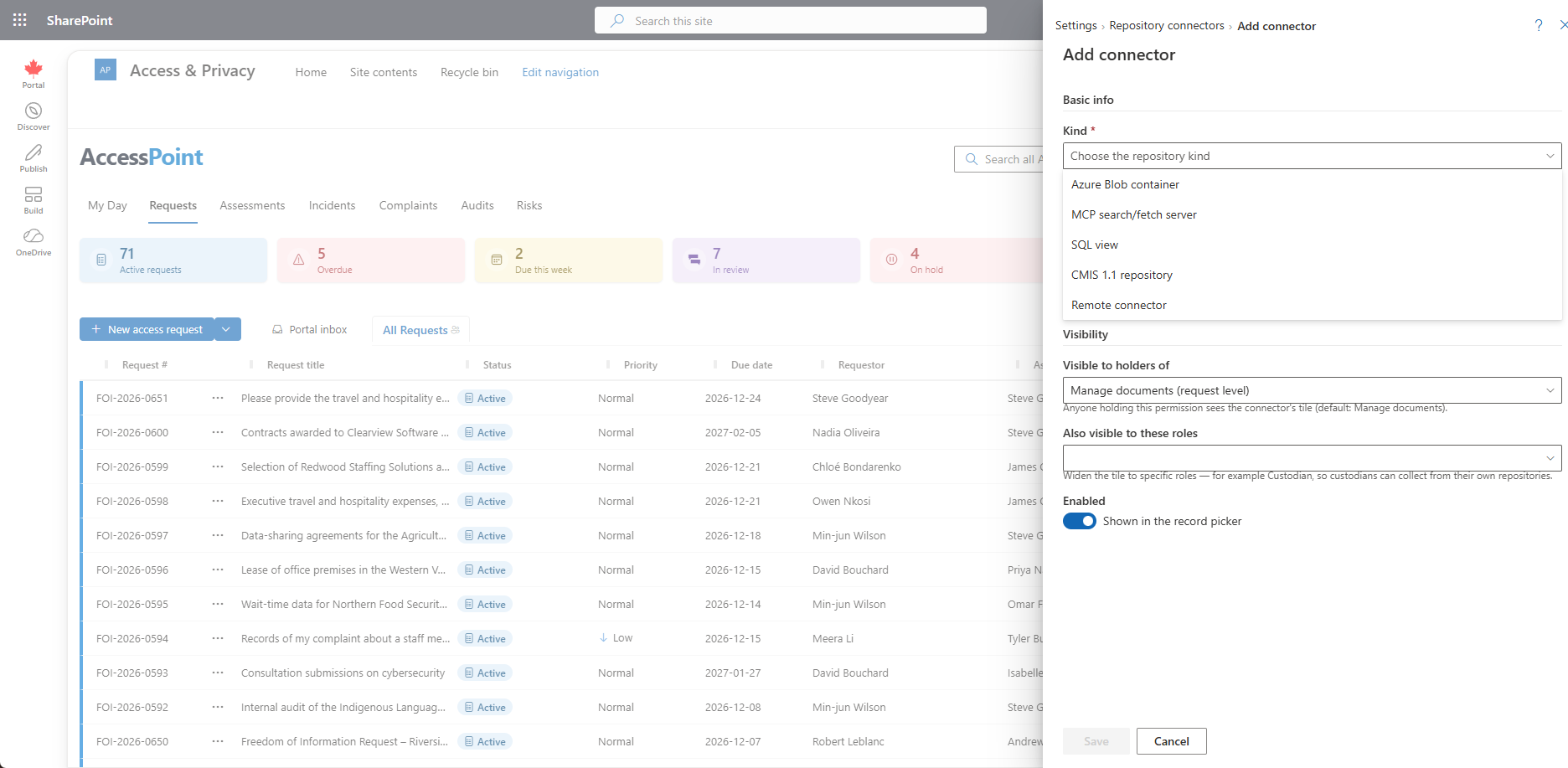
- Azure Blob container — a storage account URL, a container and an optional folder prefix. The API's managed identity needs Storage Blob Data Reader on the account.
- MCP search/fetch server — the server URL, authentication (none, a static bearer token, or an Entra token for an audience) and the tool names (default
searchandfetch). It is search-only, and results are captured as HTML records. - SQL view — a server, database, schema and view, with the id, name and modified columns and the body columns rendered into the captured HTML record. Authentication is by the managed identity (grant it
db_datareaderorSELECTon the view) or by a connection string held as a Key Vault reference. Column names are validated against the view, and every user value reaches the database as a parameter. A named modified column enables the date filter. - CMIS 1.1 repository — the browser-binding URL, the repository id (the first repository when empty), basic, bearer or Entra authentication, an optional root folder and a run-as header where the server accepts one. Capabilities follow what the repository itself declares.
Remote connectors are separate HTTPS services that run wherever they can see their source. The publisher ships these ready to run:
- Network file share — SMB shares or local folders.
- Hyland OnBase
- OpenText Content Server (GCdocs)
- Laserfiche
- Axon Evidence
You can also build your own on the connector SDK. A registration's kind is fixed once it is created.
Before the First Remote Connector: the Audience App Registration
The API authenticates to a remote connector with an Entra token from its managed identity, requested for an audience. That audience is an app registration in your own tenant. By convention it is named AccessPoint Connectors, with the Application ID URI api://accesspoint-connectors.<tenant>. AccessPoint does not create it: neither the deployment nor the Finish Setup page touches it.
- In the Entra admin center, choose App registrations → New registration.
- Under Expose an API, set the Application ID URI.
- In Repository connectors, enter that URI (or the application id) as the tenant default audience at the top of the panel.
A connector that needs an audience of its own can declare it on its registration. The built-in kinds need none.
Two values then go to whoever configures the connector: the audience (and the app's client id, which a version 2 token carries as its audience claim), and the object id of the API's managed identity. Find the object id on the App Service's Identity page in the Azure portal; this panel does not display it. The connector pins that object id as its only allowed caller. With no audience set anywhere, the API calls the connector without a token, and the connector's refusal shows as health Unauthorized.
Registering a Connector
- Choose Add connector and pick the kind.
- Enter a name (unique in the tenant) and a description.
- Fill in the kind's own configuration. For a remote connector, enter its base URL, which must be
https://. Anhttp://address is accepted only with Reached through a Hybrid Connection on, because the relay's legs are encrypted and the last hop is inside your network; the form warns you. - For a remote connector, optionally enter an Entra audience. Leave it empty to use the default audience.
- Set the visibility rule: a permission code (default document.manage) and/or a list of roles. Widen it to a role such as Custodian if custodians should collect their own records.
- Leave Enabled on.
- Save.
Secrets (bearer tokens, passwords, connection strings) are stored encrypted or as Key Vault references (@Microsoft.KeyVault(SecretUri=…)) and show as ***. Entering *** on save means unchanged. Saving a remote registration fetches the connector's manifest at once, and an unreachable manifest is refused with the connector's reason.
The remote connector must validate the token's issuer, its audience and the caller's object id. An unpinned connector would accept any principal in the tenant.
Identity Modes
Every connector declares how it treats the person behind a call. You do not choose the mode in AccessPoint.
- Application — the connector reads its source with a service identity, and AccessPoint's own gate is the only gate. Anyone who can add records to the case sees whatever the connector's account can see. The connector receives the caller's identity and the case number only for its own logs.
- Application with user check — the same service identity, but the connector trims per user. It hides what the person may not see, and AccessPoint asks it to confirm access immediately before each capture. A refused record is skipped as access denied.
- Delegated is reserved and not supported. Test connection fails it.
In every mode, AccessPoint first applies the case-level rule (who may add records to this case), then the connector's visibility rule, then the connector's own check.
Test Connection
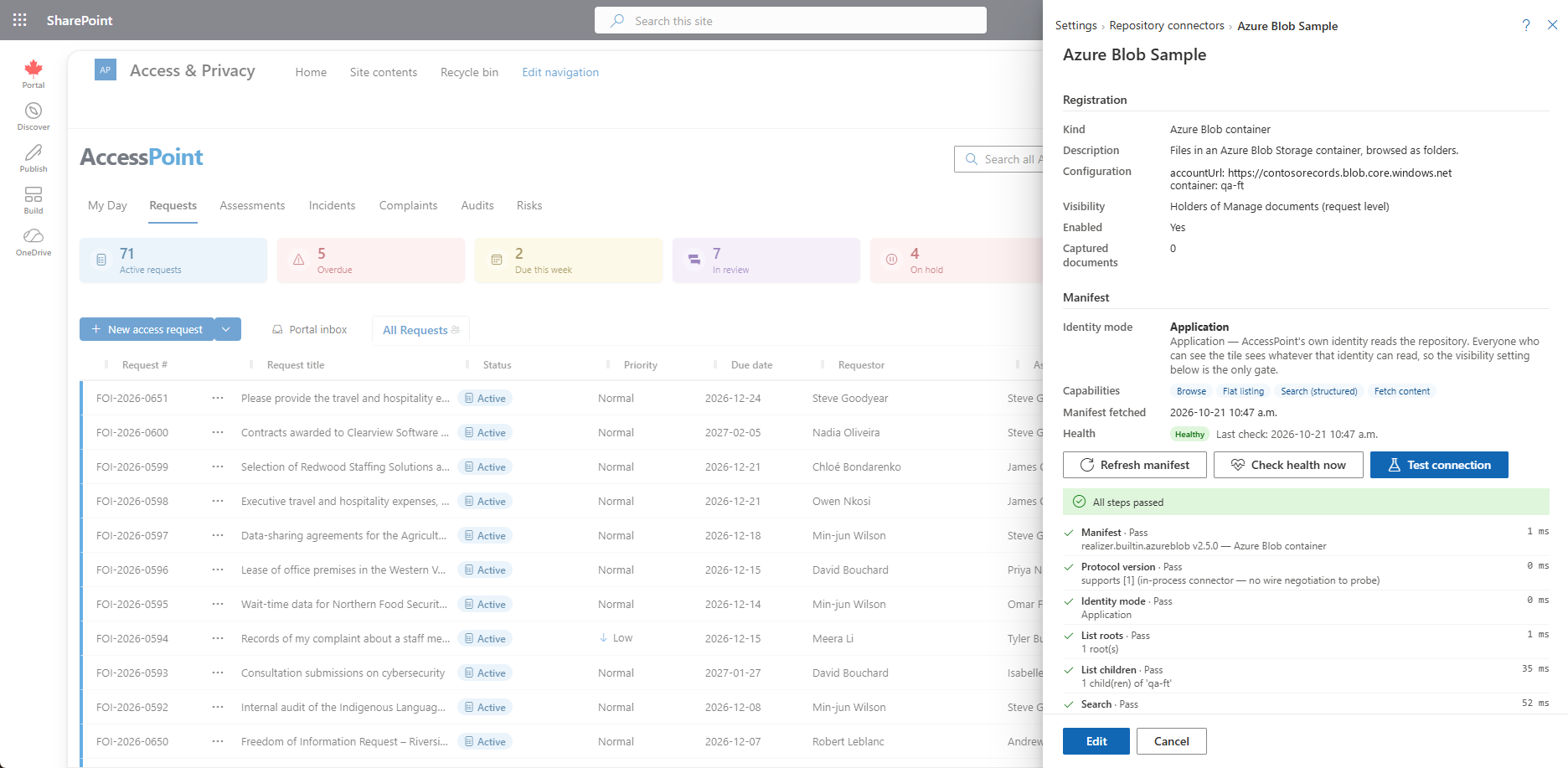
Test connection runs the protocol conformance sequence, and works on built-in kinds too. Each step reports Pass, Fail or Skip with detail and duration:
| Step | What it checks |
|---|---|
| manifest | The manifest is fetched and well-formed. A failure here stops the test. |
| protocolVersion | A request with an unsupported version is refused. Skipped for built-ins. |
| identityMode | The mode is valid. User check requires the access-check capability. |
| roots, children | The first root and its children, including a paging check. |
| search | When the connector declares search. |
| item | A real item resolves and an unknown one answers not found. |
| content | The first 64 KB streams, ranges are honored and the hash is verified when the whole item fits. |
| checkAccess | When the connector declares it. |
| health | The source behind the connector answers. |
What a failure usually means:
- manifest fails with
401— the connector refused the API's token, so the audience or the allowed caller does not match. - manifest fails with a timeout or connection error — the URL is wrong, a firewall is in the way, or the Hybrid Connection Manager is not connected.
- protocolVersion fails — the connector speaks a version this API does not.
- content reports a hash mismatch — the connector declares a hash that does not match its bytes. Fix the connector, because captures would be flagged.
- health fails or is degraded — the source behind the connector is unreachable.
The test also refreshes the stored manifest and health and resets the connector's circuit breaker.
Health
A background check probes every enabled connector every five minutes and refreshes its manifest hourly. Each connector shows one of:
- Healthy
- Degraded
- Unreachable
- Unauthorized — a 401 or 403. Check the audience and the allowed callers.
- Incompatible — a protocol version problem.
- Unknown — never probed.
The list shows the last check and any error. Check health now and Refresh manifest run either on demand. An unhealthy connector's tile is greyed for users but stays clickable, because the source may well answer when they try.
After five consecutive transport failures, a remote connector's circuit breaker opens for 60 seconds. Calls then fail fast with temporarily unavailable instead of every user waiting out a timeout, and Test connection resets it. A built-in has no wire and never trips one.
Delete or Disable
A connector that has captured documents cannot be deleted, because their provenance must keep resolving. The same applies to one with a collection job pending or running, or one bound to an assignment repository. The panel offers Disable instead, which keeps the registration and hides the tile. A connector with none of those can be deleted, and its finished jobs go with it.
The Feature Toggle
Settings → Features → Repository connectors is on by default (Features:ConnectorsEnabled). It is the tenant kill switch. Off, the tiles disappear, every connector call answers connectors disabled, and the health check skips the tenant. The connector tiles also need at least one enabled connector.
Where a Connector Runs
- A built-in kind runs inside the API. It reaches its source with the API's managed identity (Azure Blob, SQL view) or the credential you configure (MCP, CMIS).
- A remote connector is a separate HTTPS service. It can run beside AccessPoint in your Azure subscription on an App Service or a Container App, on Azure Functions, or on your premises as a Windows service next to a network share or a records-system host.
- Give an Azure-hosted connector its own managed identity for the source and keep source secrets as Key Vault references.
- A connector never needs inbound access to AccessPoint, because the API always calls it. The browser never calls it.
Reaching an On-Premises Connector
A connector on your premises usually has no public address, so AccessPoint reaches it through an App Service Hybrid Connection. An Azure Relay namespace in your subscription carries the tunnel, and a small agent on your side, the Hybrid Connection Manager, makes an outbound HTTPS connection to the relay. No VPN or inbound firewall rule is needed.
- Deploy, or redeploy in upgrade mode, with
deployHybridConnectionson and onehost:portentry for each connector host. The host must be a DNS name that the manager's machine can resolve, never an IP address orlocalhost, and it must be the name the connector's certificate covers. - Install the Hybrid Connection Manager on a machine that can reach the connector. It needs outbound TCP 443 to
*.servicebus.windows.netonly. The status on the App Service's Hybrid connections page changes to Connected. - Register the connector with
https://<that host name>:<port>/and Reached through a Hybrid Connection switched on. - Run Test connection. A manifest step that times out means the tunnel is not up.
Azure Relay bills per listener per month, with a small amount of traffic included. A connector hosted in Azure with an HTTPS address needs no relay. The deployment parameters are in Deployment.
Getting the Publisher's Connectors
Every release publishes the connector framework beside the app packages in a connectors/ folder under the release path:
https://get.realizer.io/public/accesspoint/latest/connectors/for the promoted release.https://get.realizer.io/public/accesspoint/{version}/connectors/to pin a version.https://get.realizer.io/public/accesspoint/dev/connectors/for the newest build, for evaluation only.
The folder holds the ready-to-run connectors as zip files, each with a .zip.sha256 file to verify before deploying, the command-line tool that runs the conformance test against any connector before you register it, the SDK packages, and a docs folder with the protocol specification and one guide for each connector. Deploy a zip to an App Service or Azure Functions app, or unzip it on a Windows server and run it as a Windows service.
The connector version is the API version, so an API upgrade is the cue to redeploy connectors from the same path.
Building Your Own
A connector is one .NET class behind the SDK, or any HTTPS service that implements the published protocol specification. The author's guide is in the docs folder of the connectors download.
Related Pages
- Request Documents — how staff browse, search and capture from a connector.
- Features — the Repository connectors toggle.
- Deployment — deploying and upgrading AccessPoint, including the optional Hybrid Connections parameters.
- Repository connectors — the capability overview.
- Building a Repository Connector — the developer guide to the protocol, the .NET SDK and registering your own connector.