
Dashboard display — configuring which columns appear on the requests grid and their default order
Last updated: March 29, 2026 by Steve
Dashboard Display
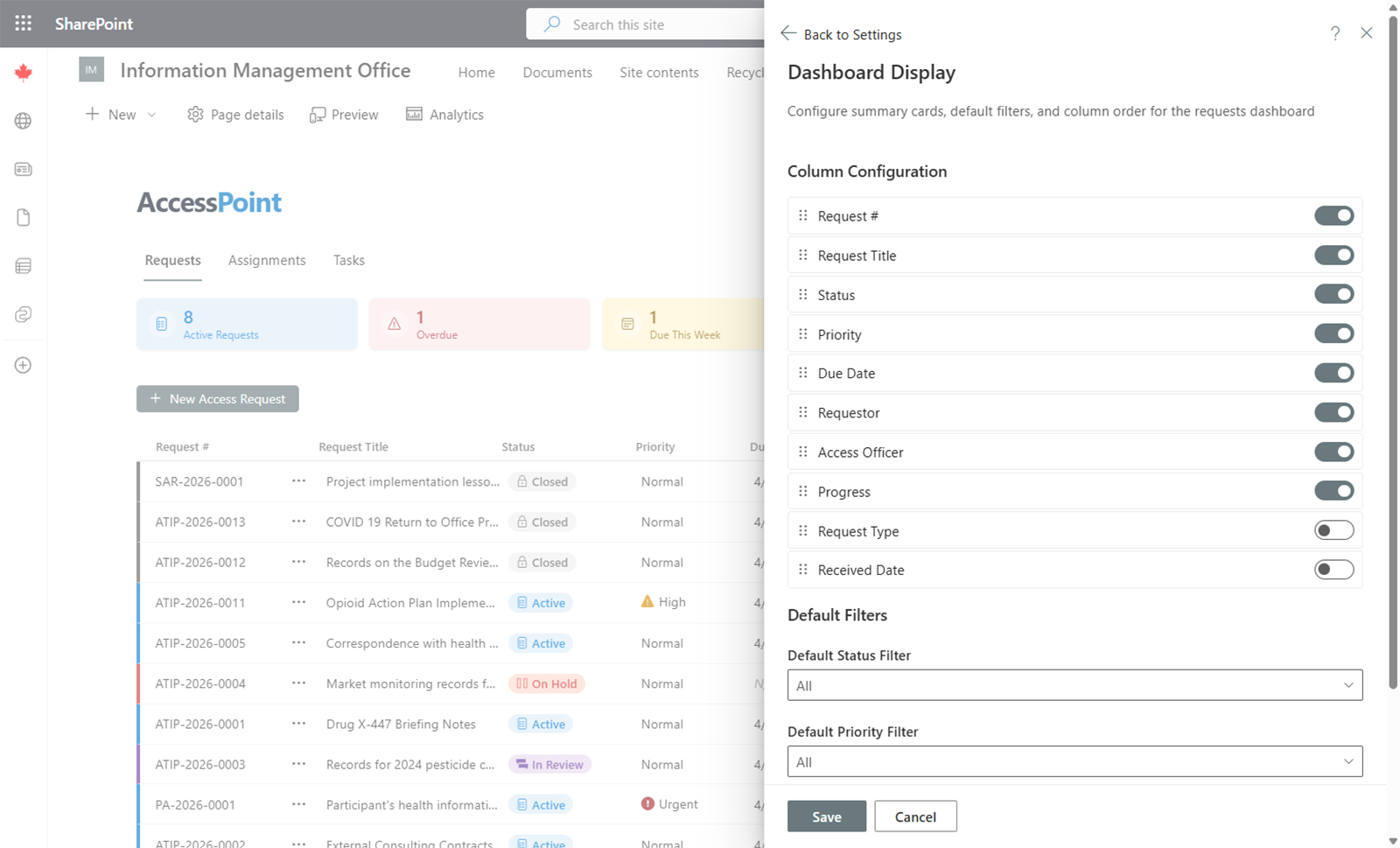
The Dashboard Display settings control what users see on the main dashboard, including summary cards and the requests grid layout.
Summary Cards
Configure which summary cards appear at the top of the dashboard. Summary cards provide at-a-glance counts and metrics, such as total open requests, requests due this week, or overdue requests.
Requests Grid Columns
Customize which columns appear in the requests grid:
- Select columns to show or hide
- Drag columns to set their default display order
- Set the default sort column and sort direction (ascending or descending)
These settings apply as the default view for all users. Individual users may be able to adjust their own column preferences within their session.
Applying Changes
Changes to dashboard display settings take effect immediately for all users the next time they load the dashboard.